Import users
Users can be created in bulk by importing a .csv or .txt file using the  More menu > Import Users selection.
Using .CSV and .TXT files
The file must be one of the following:
-
CSV file: Open Excel and when saving the file, select CSV Comma Delimited (*.csv). This option appears approximately halfway down the file type list. Other CSV formats are not supported.
-
TXT file:Open Excel and when saving the file, select the file type of Text (MS-DOS) (*.txt).
Note: There is no limit to the number of users that can be imported in bulk. However, each user can be assigned a maximum of 100 roles.
Required File Structure
The file must contain the following information, with heading cells for each column in the exact order shown below:
- login
- firstname
- lastname
- role Note
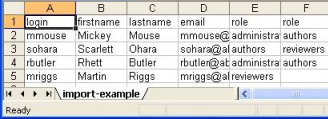
Importing users
When importing users from a .csv or .txt file:
-
Users are created automatically.
-
Users are assigned to the roles specified in the import file.
This function does not allow you to:
-
Delete existing users
-
Change roles already assigned to existing users
Duplicate usernames are not allowed. If the import file contains a username that already exists, the import rejects that user.
Note: If a duplicate user is found, a message displays. Details of the duplicate can be reviewed in the Background tasks from the More menu.
Synchronise import users
Users in the administrators role can use the Synchronise import users function to synchronize users to the users listed in a .csv file.
Manager An administrative role responsible for managing workflows, feedback, and document assignments. identifies all users and roles loaded into the synchronization role that you define. All users and roles imported through this function are managed and maintained within the synchronization file. Any user or role found in the file is treated as a synchronized user, regardless of whether it was originally created manually.
User synchronization behavior
Users managed by a synchronization file are:
-
Deleted if they exist in the system but are not present in the file.
-
Added to roles listed in their file record.
-
Removed from roles not listed in their file record
Caution: Deleting a user replaces their name with "deleted user" in analytics, reporting, and document version history.
Role synchronization behavior
Roles managed by the synchronization file are created as custom roles if they exist in the file but not in the system.