You can create a routing rule based on a ruleset by using the Server Administrator > Rules node.
To create a routing rule based on a ruleset
-
Start the Server Administrator.
On the Start menu, click Upland AccuRoute >
-
Expand Rules on the Server Administrator tree.
-
Right-click on Inbound or Outbound, depending on the type of routing rule you want to create, and select New > Rule. The Specify the Criteria for this Rule dialog box appears.
-
Click Add, select Rule Set, and click Next.
-
Select is if you want to apply this rule to messages associated with the rulesets you will specify, or select is not if you want to apply this rule to messages associated with different rulesets than the rulesets you will specify.
-
Enter the name of a ruleset in the text box and click Add. Repeat this procedure if you want to add more rulesets to this rule.
-
Click Finish.
-
Continue creating your routing rule by specifying additional criteria for the rule, actions, failover actions, and any other options you want to enable.
-
Save the rule.
While you can use this feature to create an unlimited number of solutions within your company, the following example is somewhat simplified.
Suppose some users in the Marketing department would like to receive their inbound faxes in hard copy format as well as electronic format. You decide that you will create a tag for these users who want to have their inbound faxes printed on the common printer located in the Marketing department—you choose "printer_Marketing" as the name for this tag because you know it will be easy for you to remember. You begin adding this tag (printer_Marketing) to particular registered users' accounts.
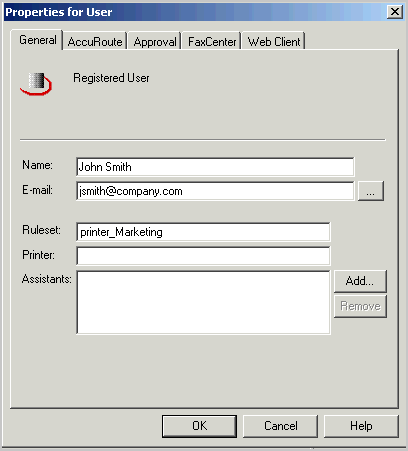
Now, you create a routing rule based on this tag (printer_Marketing). You will use the name of the tag as the criteria for the routing rule.
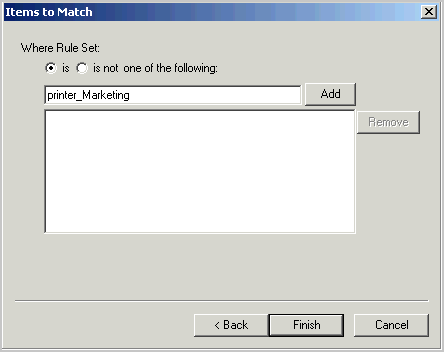
You finish creating the routing rule by specifying that you want messages matching this rule to be routed to the Printer connector and then printed on the common printer located in the Marketing department.
See also
About Rulesets and Routing Rules
Assigning RuleSet to a Registered User