About the Help Center
The Help Center is a resource-rich tool designed for Administrators, Client, and Device Client users. Everything you need to get you up and running with our products is available in this all-inclusive Help Center model. Learn about what the Help Center has to offer and how to use it with the slide show below.
Home Page
|
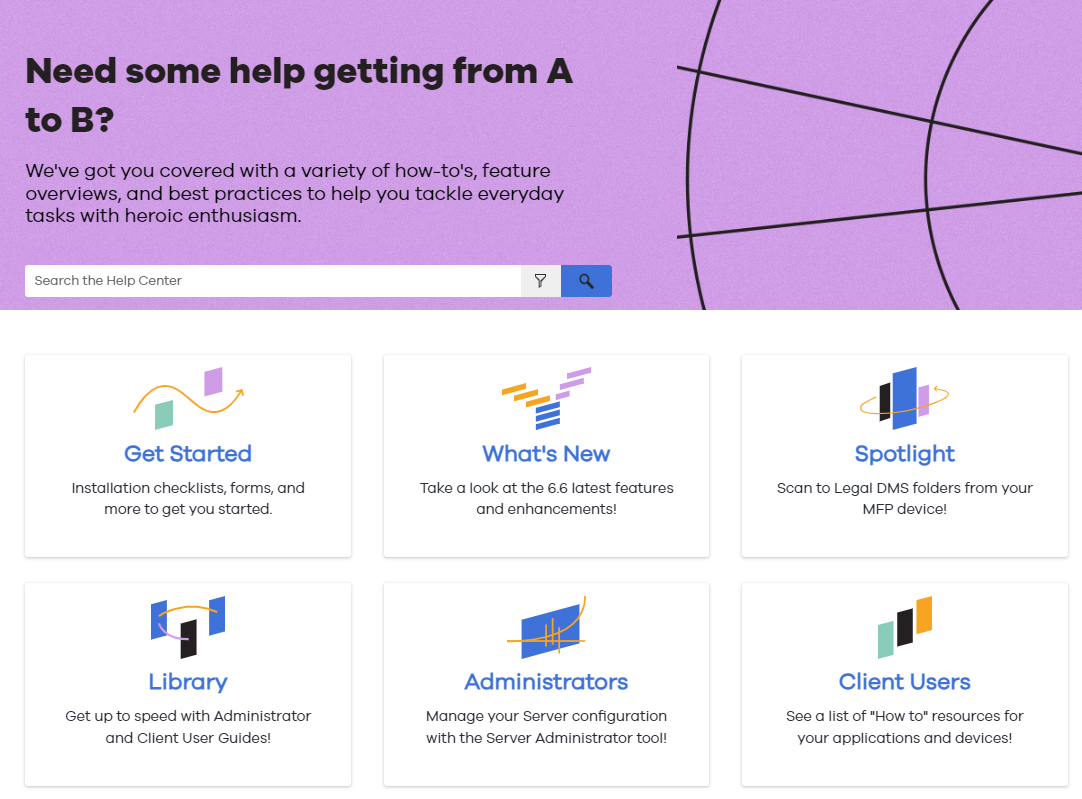
The Home page welcomes you to the resources and information you will need during your visits! There are several ways to access the information. Use the Search bar and filters or any of the tiles to get you where you need to go quickly and easily. |
|
|
Search Filters
|
Narrow your search results with filters designed for the Administrator and Client User roles. The Server-related filters are for Administrators and the Client Applications filter is for Client Users. The Release Notes and Library filters can be used by both roles. All you have to do is type your criteria in the Search bar, select the Filter icon, choose a filter and click Search! |
|
|

Navigation
|
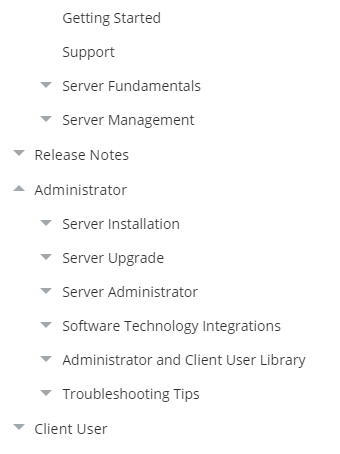
Navigation appears on the left-side of any topic. Use the Expand and Collapse arrows in the Navigation pane to browse and select topics of interest. |
|
|
Release Notes
|
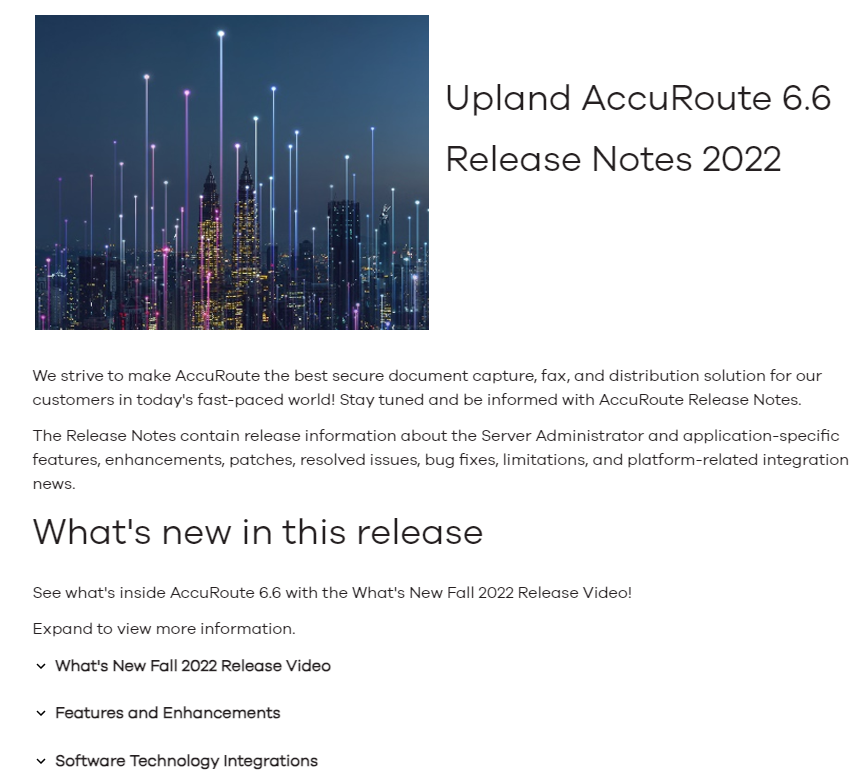
Release Notes provide you with the latest news about features, enhancements, integrations, and more. Use the arrows to expand, collapse, and view information. Select the appropriate links for more information. |
|
|
Library
|
The Library has different types of guides categorized by role. Use the arrows to expand, collapse, and view the guides. Select the appropriate link to open a guide. |
|
|
Help Topic
|
There are several types of Help topics to assist you with the knowledge transfer process. "About" topics introduce you to concepts, features, and functions. "Task" topics introduce the tasks and steps associated with a particular feature. "Example" topics illustrate a general use case scenario and how it works. |
|
|
Help Topic Toolbar
|
Each Help topic has a toolbar that you can use to navigate to a previous or next topic, print, and expand or collapse all sub-topics.
|
|
|
Search Results
|
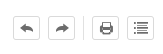
The Search Results page shows the number of results that match your criteria. It also shows the topic title that serves as a link and an introduction to the topic. The filename which contains the location and topic name are also displayed in green. Tips are provided to assist you with your search and narrow your search results. |
|
Responsive Layout
|
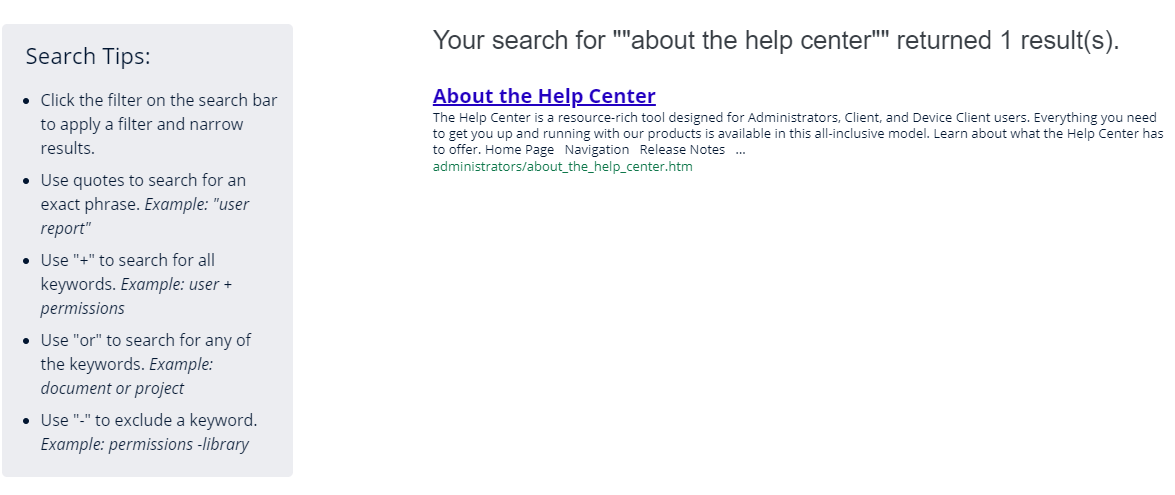
The Help Center will adapt to different mobile devices and their respective screen size. The three horizontal bars also known as the Hamburger icon will appear at the top-right whenever the screen size gets small and the Help Center cannot show all of its content. Use the Hamburger icon to view the Navigation pane and access what you need. It's a toggle key used to show or hide the Navigation pane. |
|
|
Search Results Micro Content
|
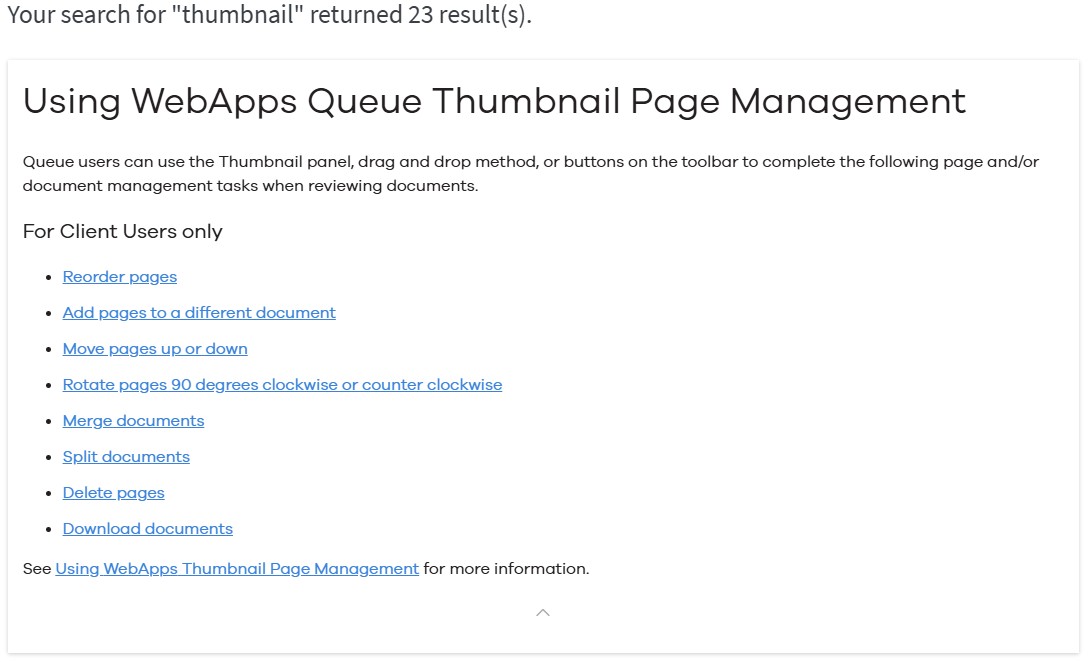
Micro content for top search terms and Spotlight features has been developed to assist you with getting to Help-related content quickly and easily. The next time you do a search on a term for example, Thumbnail, you will see this on the Search results page and other micro content bumped to the top of the Search results page. |
|
|