Connecting your Magento Abandoned Cart to Upland Adestra
Uses Conversion Capture to track web activity and send campaigns to customers who abandon a cart.
To connect Magento's abandoned cart function to Adestra's conversion capture tool:
-
Open the Upland Adestra app in Magento and select the Abandoned Cart menu.
-
Check the 'Connect with a Conversion Capture in Adestra' checkbox.
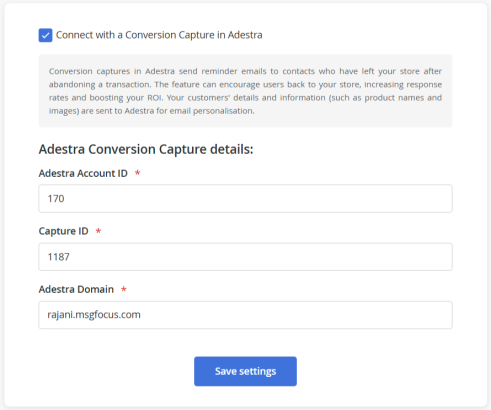
The account ID should pre-populate based on your Magento-Upland Adestra integration settings.
-
Add a Capture ID (found within the capture overview) and the associated domain (URL provided for API communication).
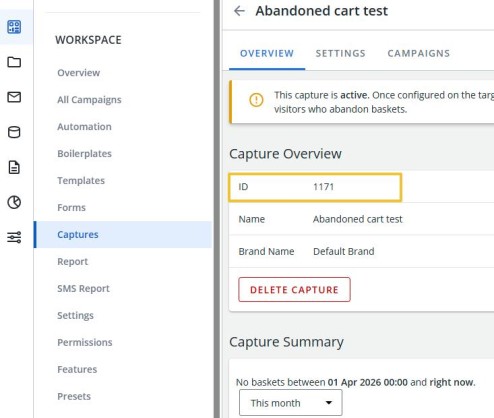
-
Press the Save settings button.
Note: once saved, all settings are locked from changes. You will need to uncheck the 'Connect with a Conversion Capture in Adestra' box to make changes.
To change settings:
-
Uncheck the 'Connect with a Conversion Capture in Adestra' box to enable editing.
-
Change the capture ID and domain.
-
Press the Save settings button to save your changes.
Ensure the checkbox is rechecked before saving to connect to the new Capture ID.
If you are turning off the abandoned cart connection, leave the checkbox unchecked when saving.
When connected, items flagged by the Magento Abandoned Cart function will appear within the selected conversion capture's open basket for processing through a capture campaign.
Using the Magento Product Sync
After setting up your Abandoned Cart integration, use Product Sync to support Abandoned Cart content and ensure products in cart activities are synced.
Note: if you do not go through the process of configuring the Product Sync, your Magento product list will sync with the 'default brand' when using Product Sync.
To configure Product Sync:
-
Open the Admin menu and select Brands.
-
Create a brand to associate with your Magento store.
-
Once your Brand ID has been created, navigate to the Magento extension UI and enter it in the Catalogue Sync tab within the Magento integration. The product synchronisation process will then:
-
Pull all published products (including variants) and their metadata from the Magento store.
Tip: to be considered published, products must include a product URL generated from the Magento store domain and a product handle, e.g. https://store.com/products/{{handle}}.
-
Perform a scheduled delta sync, i.e. fetch only changes since the last sync, and update stock availability and price or sale price changes.
-
Respect visibility settings, e.g. products with status: "draft" or published: false are excluded.
-
Note: if a product is synced with Upland Adestra and then changed to “Draft”, unpublished, or deleted from Magento, the product will still show as present in Upland Adestra. You will need to manually update or delete that product from Upland Adestra in this case.