Sending Magento Customer Profiles to Upland Adestra
After connecting Magento to Upland Adestra , you will be able to send your customer profiles from Magento to Upland Adestra (automatically and on-demand) to use with your mailing lists.
On-demand profile sends
To send profiles from Magento to Upland Adestra on-demand:
-
Open the Upland Adestra app in Magento and select the Data Sync menu.
-
Select the Customers tab.
-
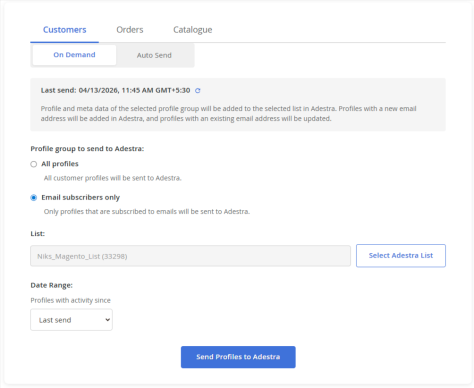
On the On Demand tab, use the radio buttons to select which profile group to send:
-
All profiles - all customer profiles in your Magento store, regardless of their email subscription status.
-
Email subscribers only - profiles flagged as subscribed to emails in your Magento store.
Tip: if unsure, select the 'Email subscribers only' option. Using 'All profiles' may result in mail being sent to customers who have not signed up for emails.
-
-
Press the Select Adestra List button.
-
Either:
-
Create a new list by providing a name, or
-
Select a list from the available lists.
Note: if the list you are looking for is not available, it may be associated with a different core table to the one connected to your Magento store.
-
-
Use the calendar dropdown to enter a date range to filter out older, inactive profiles, e.g. only include profiles with activity this year.
-
Press the Send Profiles to Adestra button.
When the send completes, your Magento profiles will appear as contacts within your selected list in the lists menu and the timestamp of last send is updated.
Note: the last send time displayed in Magento is set to match the time zone of your Magento store.
Automated Magento profile sends
To set up an automated send of profiles from Magento to Upland Adestra:
-
Open the Upland Adestra app in Magento and select the Data Sync menu.
Tip: pin the Upland Adestra app to make it easier to locate in Magento. -
Select the Customers tab.
-
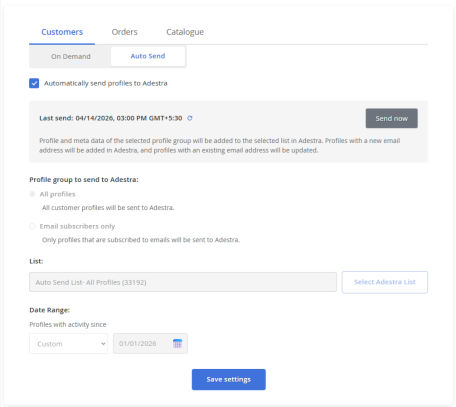
Select the Auto Send tab.
-
Use the radio buttons to select which profile group to send:
-
All profiles - all customer profiles in your Magento store, regardless of their email subscription status.
-
Email subscribers only - profiles flagged as subscribed to emails in your Magento store.
Tip: if unsure, select the 'Email subscribers only' option. Using 'All profiles' may result in mail being sent to customers who have not signed up for emails.
-
-
Press the Select Adestra List button.
-
Either:
-
Create a new list by providing a name, or
-
Select a list from the available lists.
Note: if the list you are looking for is not available, it may be associated with a different core table to the one connected to your Magento store.
-
-
Use the calendar dropdown to enter a date range to filter out older, inactive profiles, e.g. only include profiles with activity this year.
-
Ensure the Automatically send profiles checkbox is ticked.
-
Press the Save Settings button.
Automated sends are scheduled to occur daily. When the send completes, your Magento profiles will appear as contacts within your selected list in the lists menu and the timestamp of last send is updated.
Note: the last send time displayed in Magento is set to match the timezone of your Magento store.
If you need to update your profiles in Upland Adestra outside of the scheduled time, press the Send now button to manually update your profiles using the automated send settings.
Updating auto send settings
To make any changes to your auto send settings:
-
Open the Data Sync menu and select the Auto Send tab.
-
Untick the Automatically send profiles checkbox.
-
Make your changes, e.g. edit the date, change your core table, etc.
-
Tick the Automatically send profiles checkbox.
Tip: skip this step if you want to turn auto send off.
-
Press the Save Settings button.