Analytics Menu
The Analytics Menu allows you to open a folder, report, or dashboard at anytime while working in Analytics.
Expand the sidebar using the arrow key  to open the Analytics Menu.
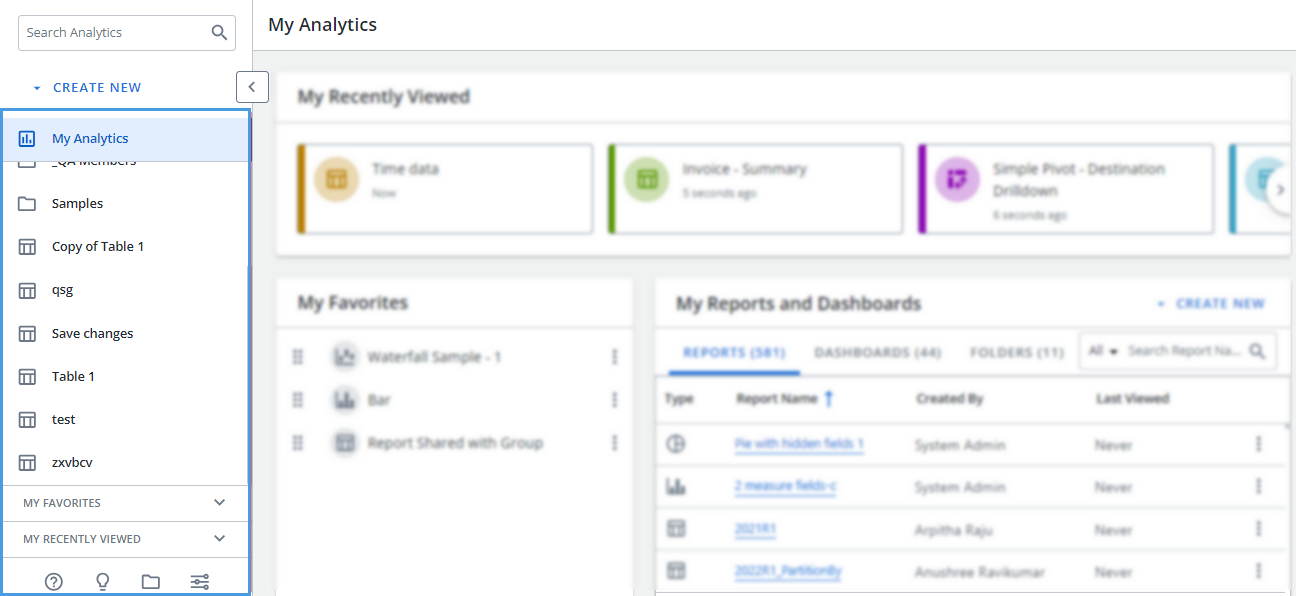
The Analytics Menu contains the following:
-
A search bar
-
The document tree
-
Your Favorites list
-
Your recently viewed
Searching Analytics
Type the name of the folder, report, or dashboard that you are searching for in the box and the search results display in the document tree.
Navigating the document tree
The document tree displays all of your available folders, reports, and dashboards. Select each folder to navigate through the folder structure. Select a folder, report, or dashboard to open it. Press the arrow to return to the previous folder.
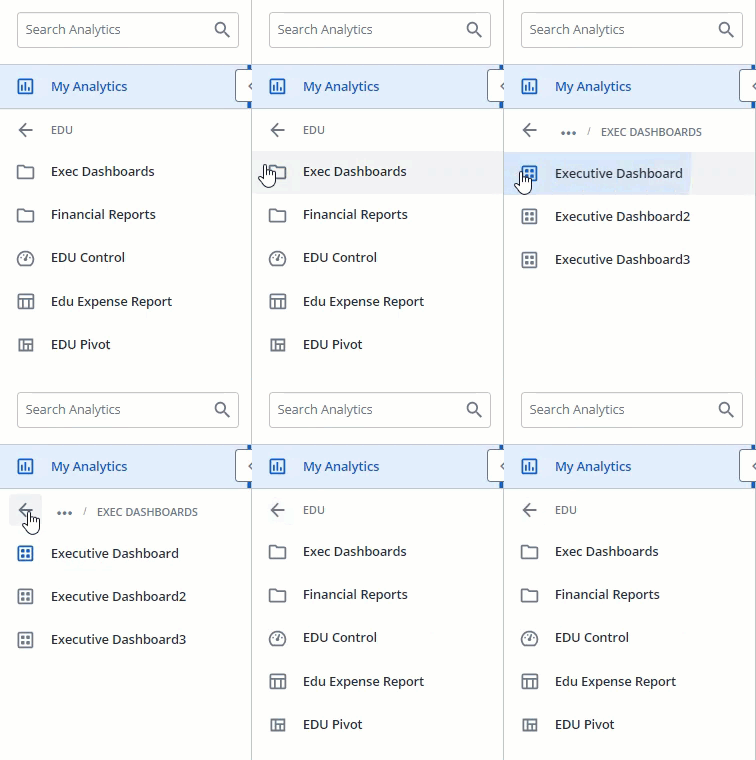 To see how to navigate back to a parent folder, click to play.
When you select a report or dashboard that is nested in folders, a breadcrumb displays.
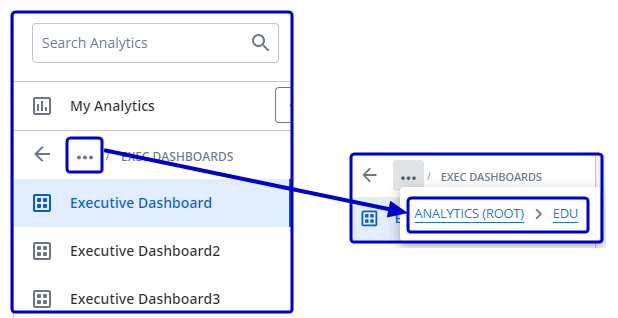
To return to previous folders, press the arrow or the three dots to display links to previous folders and then select the folder that you want to return to.
Note: We recommend that you only have three levels in your folder structure.
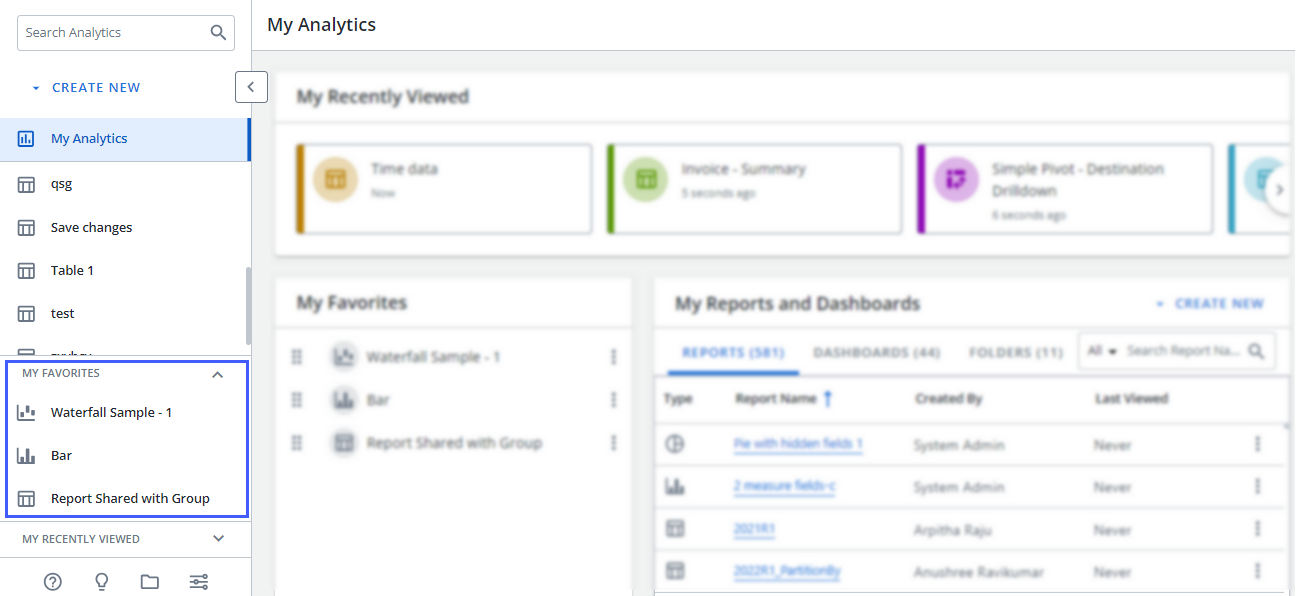
My favorites
Expand the dropdown menu in this section to view the reports and dashboards that you added as a favorite and then select the report or dashboard you want to open.
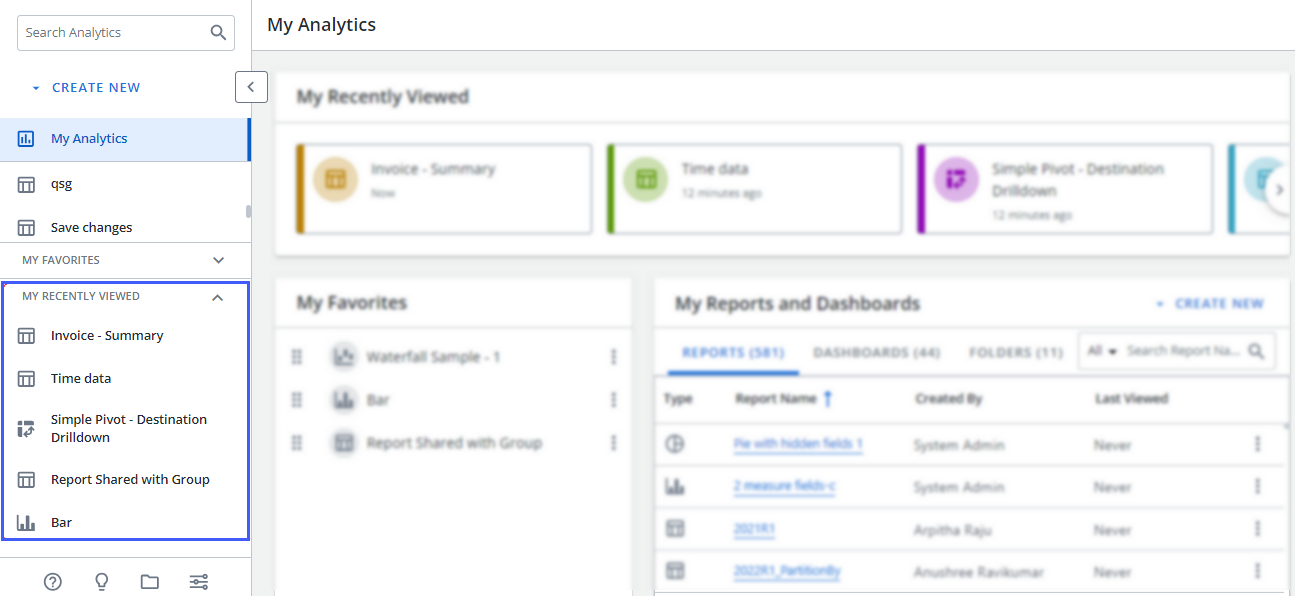
My recently viewed
Expand the dropdown menu in this section to view the reports and dashboards that you have recently viewed and select the report or dashboard you want to open.
Menu icons
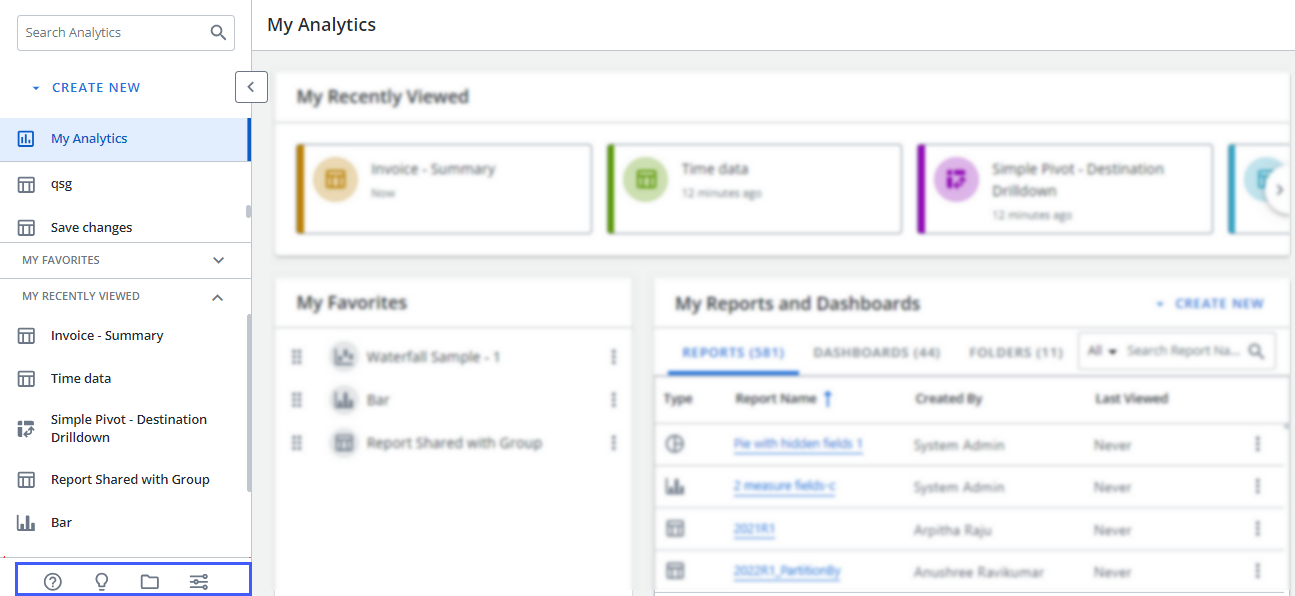
The icons at the bottom of the Analytics Menu are:
-
The question mark icon
 - opens the Analytics help center.
 -
The lightbulb icon
 - opens the Analytics tutorial.
 -
The folder icon
 - opens the My Files panel that displays all of your files.
 -
The settings slider icon
 - opens the Analytics Settings menu.


