Chart Guide
Reports in Analytics are easy to create and understand. There are several report types available for selection. This guide provides information on the available report types.
Note: when you click the Report Types dropdown, your recently used reports display first in the list.
| Table | Pivot | Stacked-Bar | Pareto |
|
|
|
|
| Treemap | Pie | Waterfall | Sunburst |
|
|
|

|
| Box Plot | Scatter | Radar | Bar |
|
|
|
|
| Line | Area | Bubble | Control |
|
|
|
|
| KPI | Gantt | Gauge | |
|
|
|
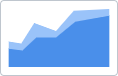
Area
Area charts are basically a line chart, but the space between the x-axis and the line is filled with a color or pattern. They can be used to show how quantities have changed over time across multiple related data series.
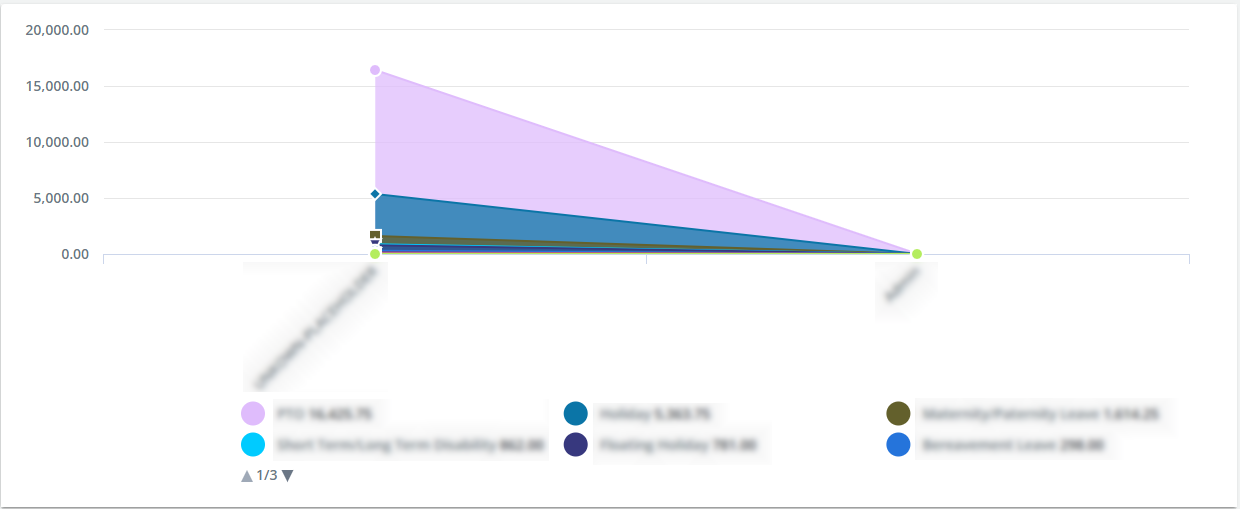
The following data must be selected:
- X-Axis: One non-numeric field to define the main category on the x-axis (horizontally).
- Series: One non-numeric field to define the measure.
- Y-Axis: An unlimited number of numeric fields to define the values on the y-axis (vertically), in relation to the data points. Typically, the y-axis has numbers for the amount of values being measured.
Bar
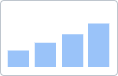
A bar chart is a common chart type for graphing categorical data or data sorted into groups. It consists of multiple rectangles aligned to a common baseline. The length of each is proportional to the value it represents.
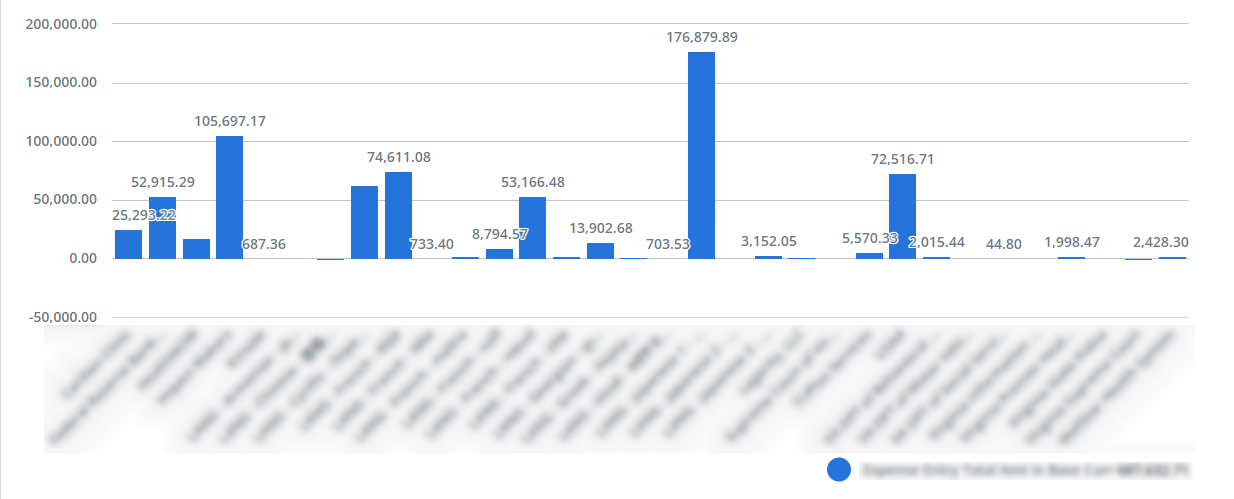
The following data must be selected:
- X-Axis: Two non-numeric fields.
- The first field (Series 1) to define the main category on the x-axis (horizontally).
- The second field (Series 2) is optional to define an additional category on the x-axis.
Note: Use the second field when you are trying to show that one data series moves in or out of sync with another data series. The reason that a second axis is required is that the measurement units for the two data series are different. If the measurement unit was the same, a simple line graph should be used.
- Y-Axis: An unlimited number of numeric fields to define the value range on the y-axis (vertically).
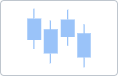
Box Plot
Box plot charts present information from a five-number summary. They are very useful when large numbers of observations are involved and when two or more data sets are being compared. Box plot charts are especially useful for indicating whether a distribution is skewed and whether there are potential unusual observations (outliers) in the data set.
Use box plot charts for comparing distributions since the center, spread, and overall range are immediately apparent.
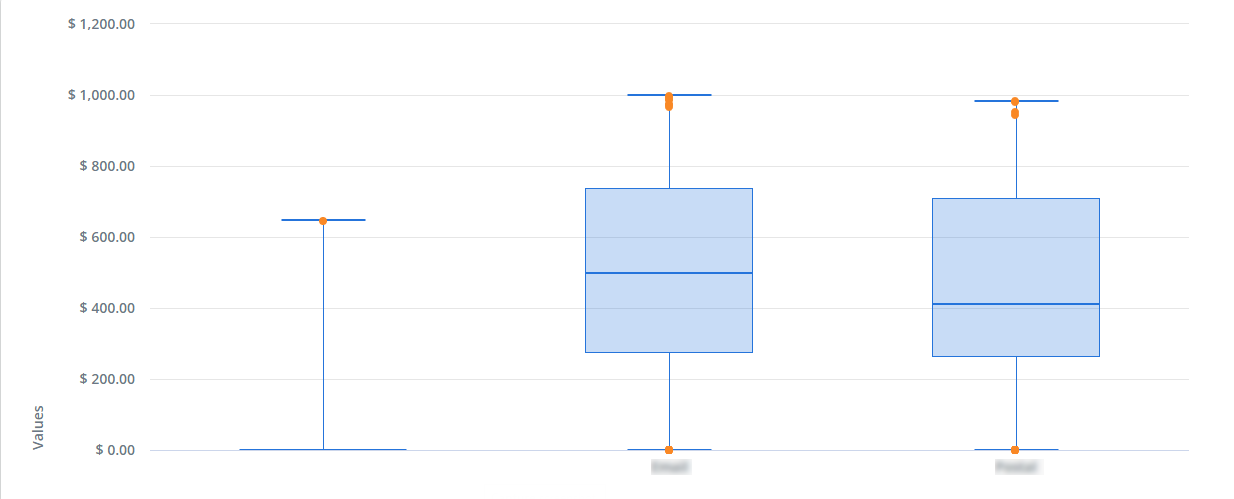
The following data must be selected:
- X-Axis: One non-numeric field to define the categories on the x-axis.
- Maximum Value: One numeric field to define the largest value.
- Upper Quartile: One numeric field to define the median of the upper half (anything more than the median of the entire dataset)—also known as the 75th percentile.
- Median: One numeric field to define the middle value when the numbers are ordered (or the average of the two middle values if there are an even number of data points)—also known as the 50th percentile because half of the values are above (and below) the median.
- Lower Quartile: One numeric field to define the median of the lower half (anything less than the median of the entire dataset)—also known as the 25th percentile.
- Minimum Value: One numeric field to define the lowest value.
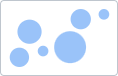
Bubble
Bubble charts display the relationship between three data fields. Each dot corresponds with a single data point, and the variables’ values for each point are indicated by horizontal position, vertical position, and dot size.
Use bubble charts to present financial data. You can use a bubble chart instead of a scatter chart if your data has three data series that each contain a set of values. The sizes of the bubbles are determined by the values in the third data series.
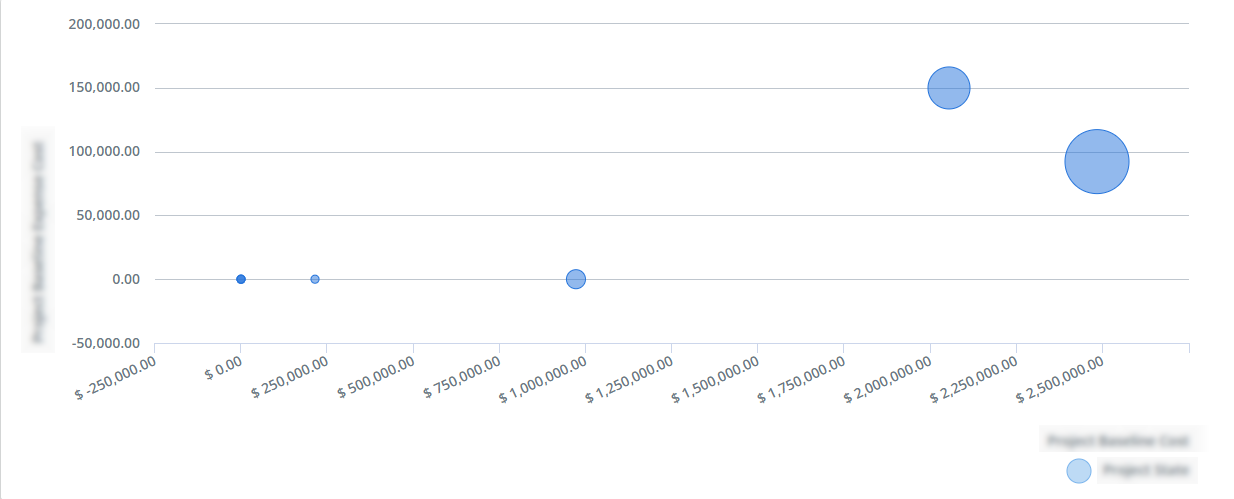
The following data must be selected:
- Categories: One non-numeric field to define the correlation.
- X-Axis: One numeric field to define the value on the x-axis (horizontally).
- Y-Axis: One numeric field to define the value on the y-axis (vertically).
- Bubble Size: One numeric field to define the size value for each bubble.
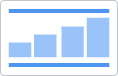
Control
Control charts are used to filter out the probable noise (inherent variation or common cause) from the potential signals (nonrandom variation or special cause). From this, you know when and where to take action on a process.
Use control charts to monitor any sort of process you have in place so you can learn how to improve your poor performance and continue with your successes.
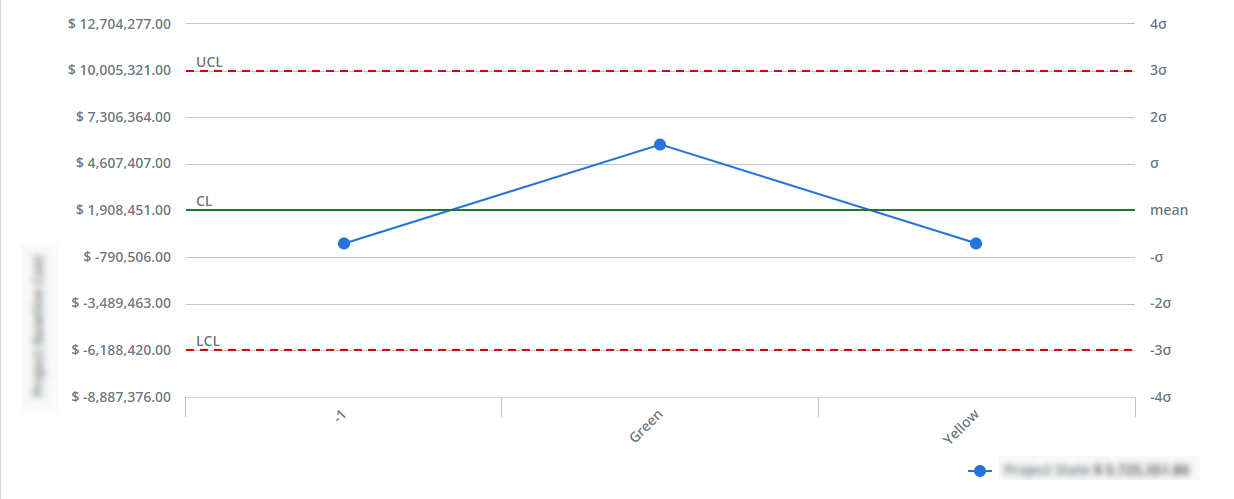
The following data must be selected:
- X-Axis: One non-numeric field to define the main category on the x-axis (horizontally).
- Series: One non-numeric field to define the different points that will create the line, in relation to the data set on the y-axis.
- Y-Axis: One numeric field to define the values on the y-axis (vertically), in relation to the data points.
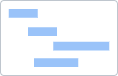
Gantt
Gantt charts are a type of bar chart that illustrates a project schedule. This chart lists the tasks to be performed on the vertical axis, and time intervals on the horizontal axis.
Use Gantt charts to plan projects of all sizes. They are a useful way of showing what work is scheduled to be done on a specific day. They also help you view the start and end dates of a project in one simple view.
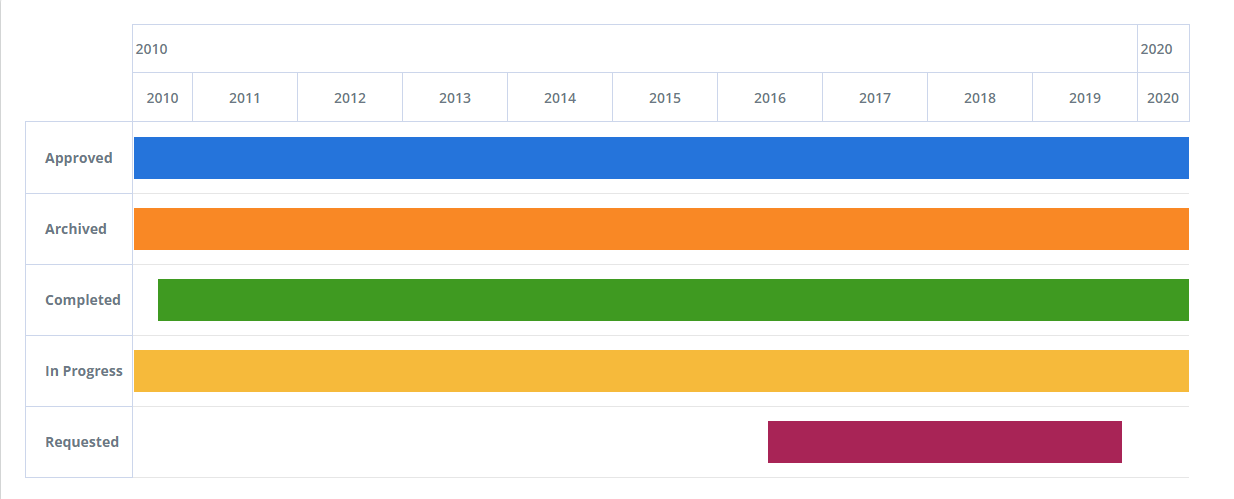
The following data must be selected:
- Categories: A maximum of three non-numeric fields to define the task to be performed. Use multiple fields to add sub-levels of the main task.
- Start Date: One date field for the start date.
- End Date: One date field for the end date.
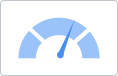
Gauge
Use a gauge chart to indicate progress/activity. Values are indicated on a circular numeric scale in terms of percentage. The value of these charts must be in percentage (between 0 and 100). This chart type is often used in executive dashboard reports to show key business indicators.
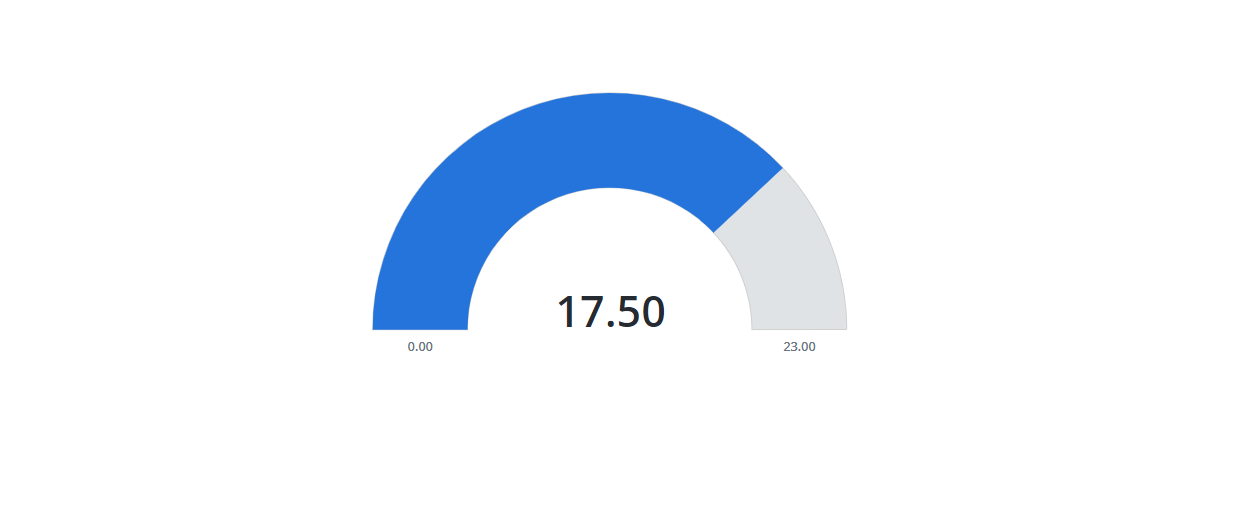
The following data must be selected:
- Pointer: One numeric field to define the pointer value of the gauge.
- Min Value: One numeric field to define the minimum value for the gauge.
- Max Value: One numeric field to define the maximum value for the gauge.
KPI
Key Performance Indicators (KPI) are measurable values that demonstrate how effectively a company is achieving key business objectives.
Use KPIs to evaluate your success at reaching targets. Each department will use different KPI types to measure success based on specific business goals and targets.
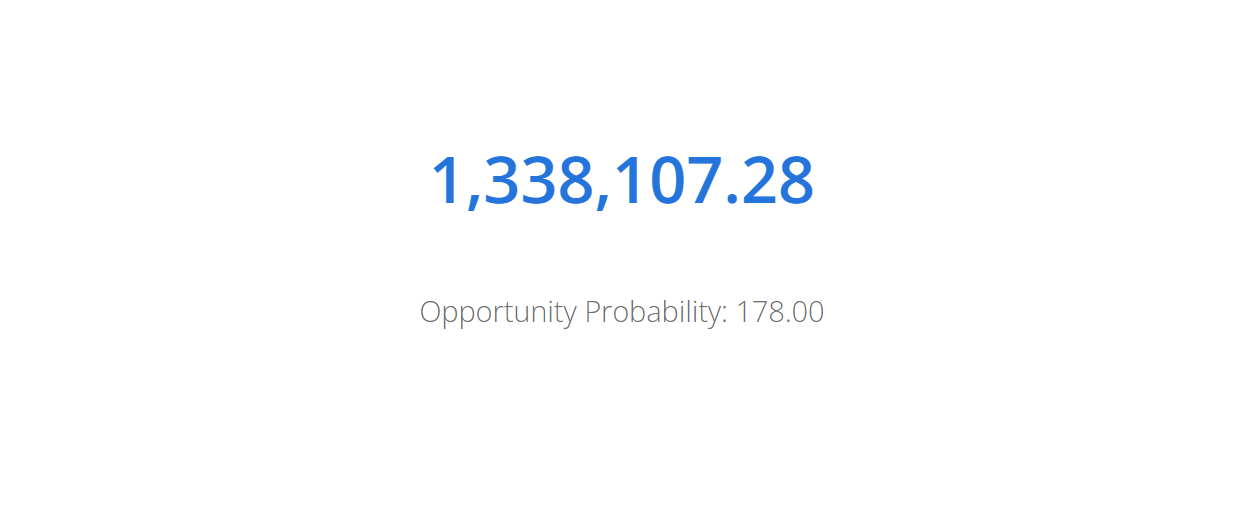
The following data must be selected:
- Primary Value: One field to display the main number of the KPI. Use custom fields to display values with thresholds.
- Secondary Value: One field to include additional information. This field is optional.
Line
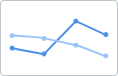
Line graphs display your data within a series as points connected by straight line segments on two axes and helps determine the relationship between two sets of values.
Use line graphs to show how the value of something changes over time, or compare how several things change over time relative to each other.
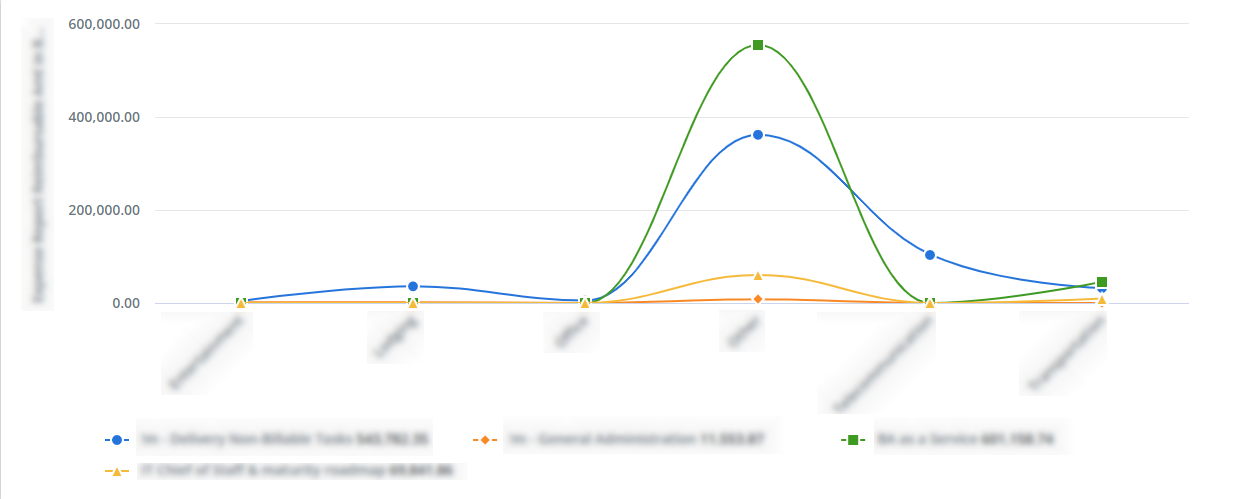
The following data must be selected:
- X-Axis: One non-numeric field to define the main category on the x-axis (horizontally).
- Series: One non-numeric field to define the different points in the line(s), in relation to the data set on the y-axis.
- Y-Axis: An unlimited number of numeric fields to define the values on the y-axis (vertically), in relation to the data points.
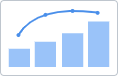
Pareto
Pareto charts contain both columns sorted in descending order and a line representing the cumulative total percentage. The Y axis on the left displays the value and the Y axis on the right displays the cumulative percent. Pareto charts only include positive values.
Use Pareto charts when:
- Analyzing data about the frequency of problems or causes in a process.
- There are many problems or causes and you want to focus on the most significant.
- Analyzing broad causes by looking at their specific components.
- Communicating with others about your data.
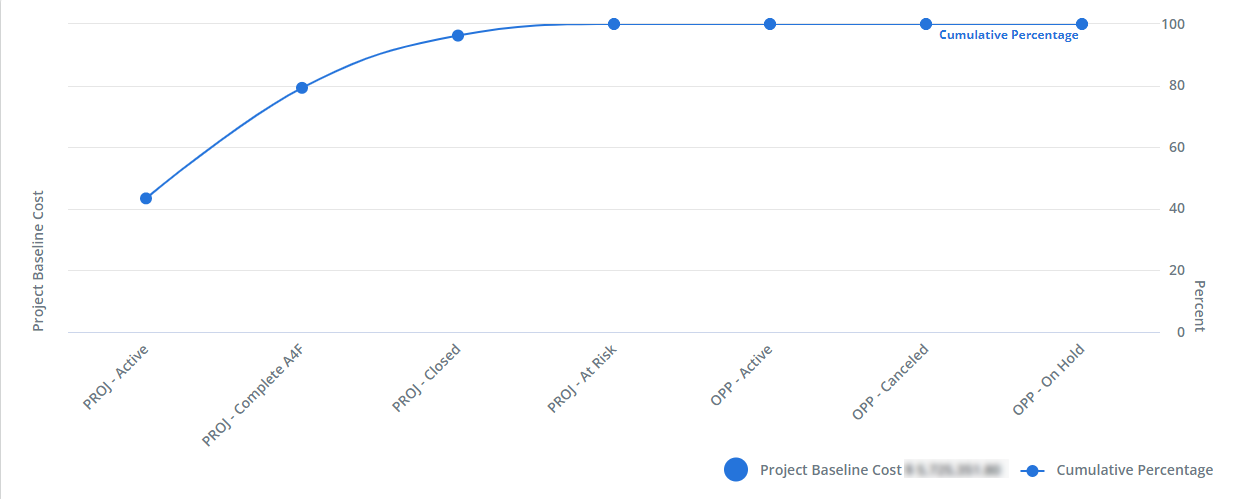
The following data must be selected:
- X-Axis: One non-numeric field to define the main category on the x-axis (horizontally).
- Y-Axis: One numeric field to define the value range on the y-axis (vertically).
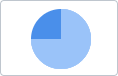
Pie
Pie charts display a part-to-whole relationship in your data. Each slice represents one component and all slices added together equal the whole.
Use pie charts when you are trying to compare parts of a whole. Note that they do not show changes over time.
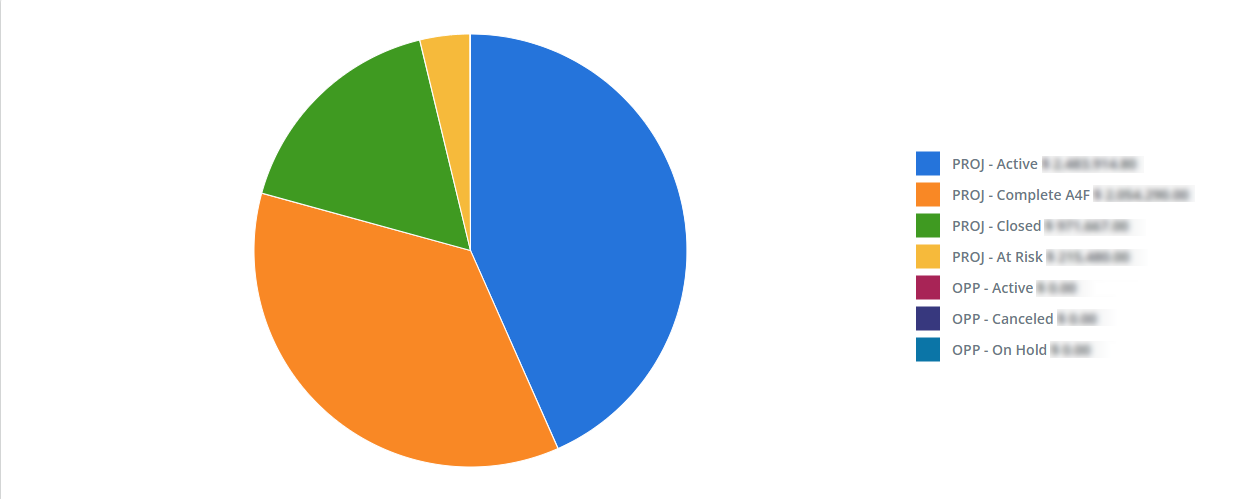
The following data must be selected:
- Categories: One non-numeric field to define the category that is being measured. The number of elements of each category will specify the number of slices on the pie.
- Values: One numeric field to define the values of the dimension fields. These values define the size of each pie slice.
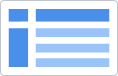
Pivot
A pivot table is an interactive way to quickly summarize large amounts of data. They are helpful when you have a large data set, but only need a small section of it to summarize or analyze for trends and comparisons.
Use pivot tables to summarize, sort, reorganize, group, count, total, or average data stored in Analytics. You can transform columns into rows and rows into columns and group by any field.
Note: you can also use a pivot on individual fields in your report.
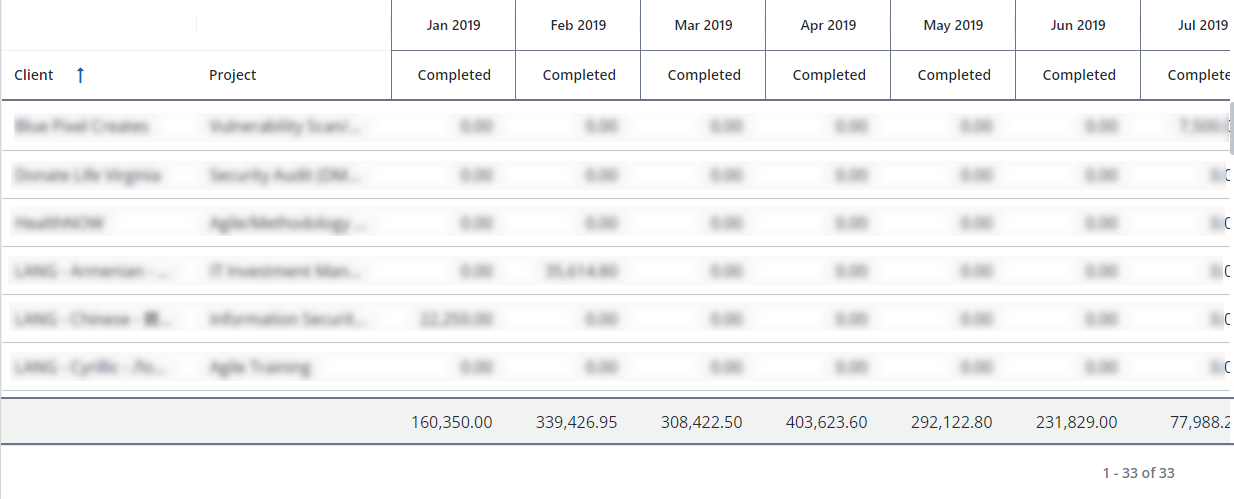
The following data must be selected:
- Rows: An unlimited number of non-numeric fields to define the row(s).
- Measures: An unlimited number of numeric fields to define the measure(s).
Tip: open the See More menu (three dots
 ) to select a single column to pivot by if you don't want to pivot by all columns.
 - Columns: An unlimited number of non-numeric fields to define the column(s).
Radar
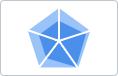
Radar charts display data across several unique dimensions.
Use radar charts to compare two or more items or groups on various features or characteristics.
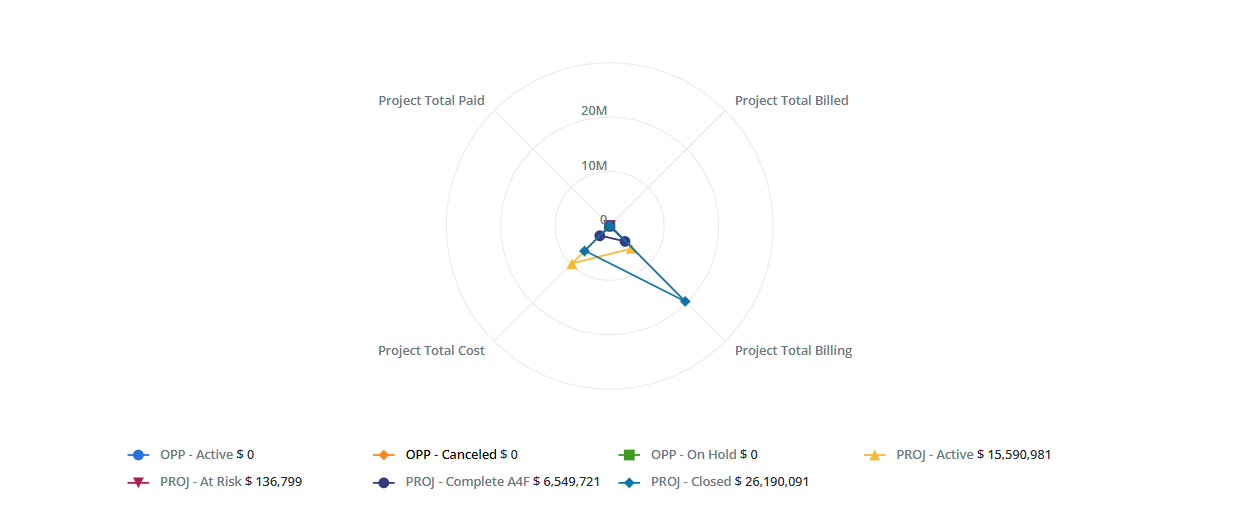
The following data must be selected:
- Radial Axis: One non-numeric field to define the measure.
- Values: A minimum of three numeric fields to define each node of the chart.
Scatter
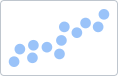
Scatter graphs display two data fields as a collection of points each having one coordinate on the horizontal axis and one on the vertical axis.
Use scatter graphs to observe relationships between variables.
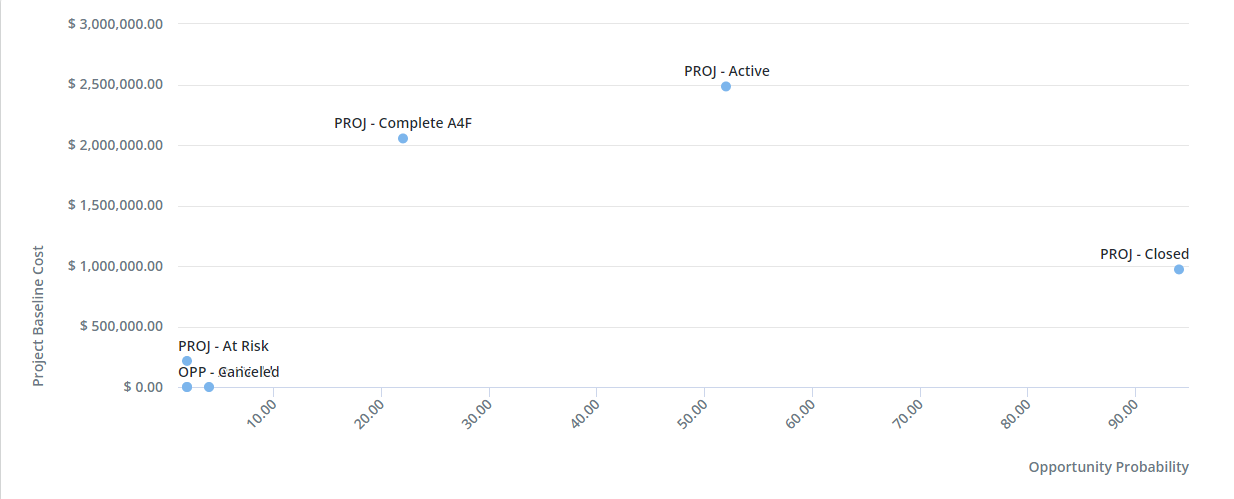
The following data must be selected:
- Categories: One non-numeric field to define the correlation.
- X-Axis: One numeric field to define the value on the x-axis (horizontally).
- Y-Axis: One numeric field to define the value on the y-axis (vertically).
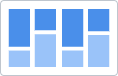
Stacked-Bar
Stacked-bar charts are best used when showing comparisons between categories. Use stacked-bar charts to show how a larger category is divided into smaller categories and what the relationship of each part has on the total amount.
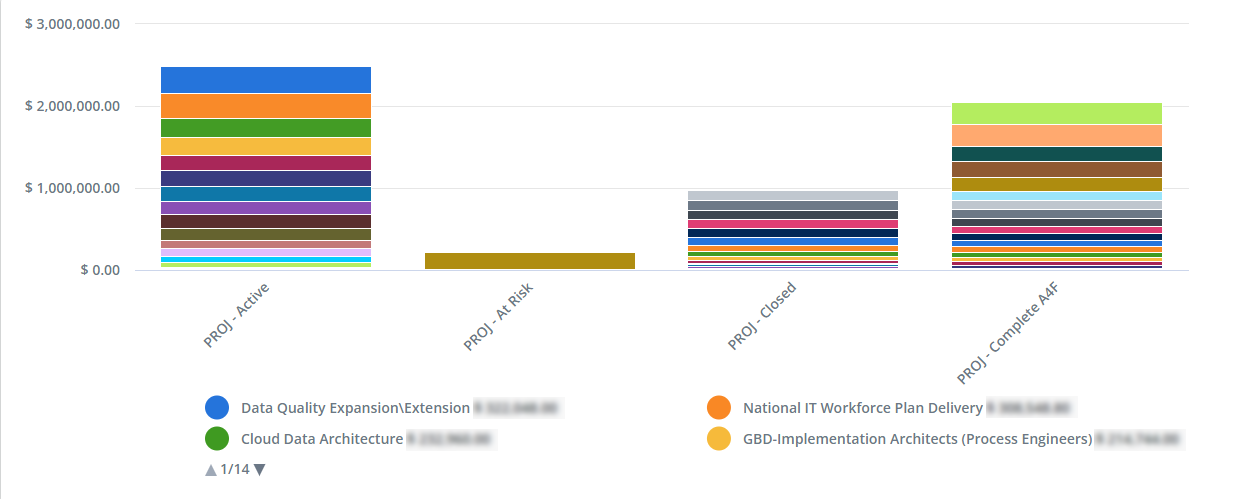
The following data must be selected:
- X-Axis: One numeric field to define the main category on the x-axis (horizontally).
- Series: One non-numeric field to define the subdivision on each column (x-axis).
- Y-Axis: One numeric field to define the value range on the y-axis (vertically).
Sunburst
Sunburst charts are used to visualize hierarchical data in a circular format. Each level of the hierarchy is represented by one ring with the innermost ring as the top of the hierarchy.
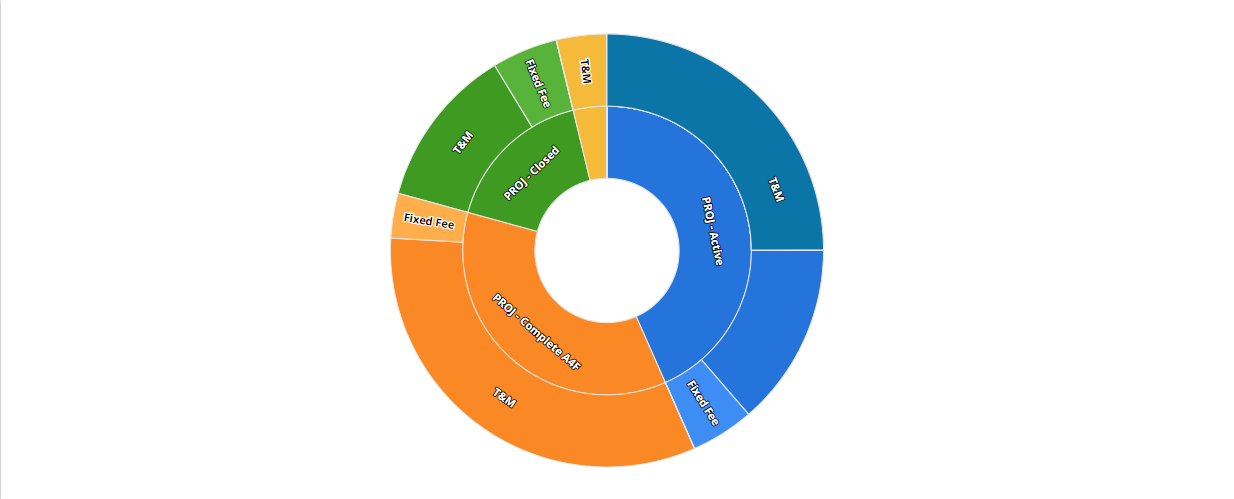
The following data must be selected:
- Categories: An unlimited number of non-numeric fields to define the measure. The order of the fields will define the hierarchy on the graph.
- Values: One numeric field to define the value of the dimension fields. This value defines the size of the slices.
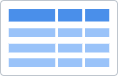
Table
A table organizes data into a tabular structure, consisting of rows and columns. They are easy to read, reasonably easy to build, and they are incredibly flexible. Unlike other types of charts, tables are not constrained to a specific type of data or underlying relationship. They might contain numerical values, text, symbols, or even a combination of data types.
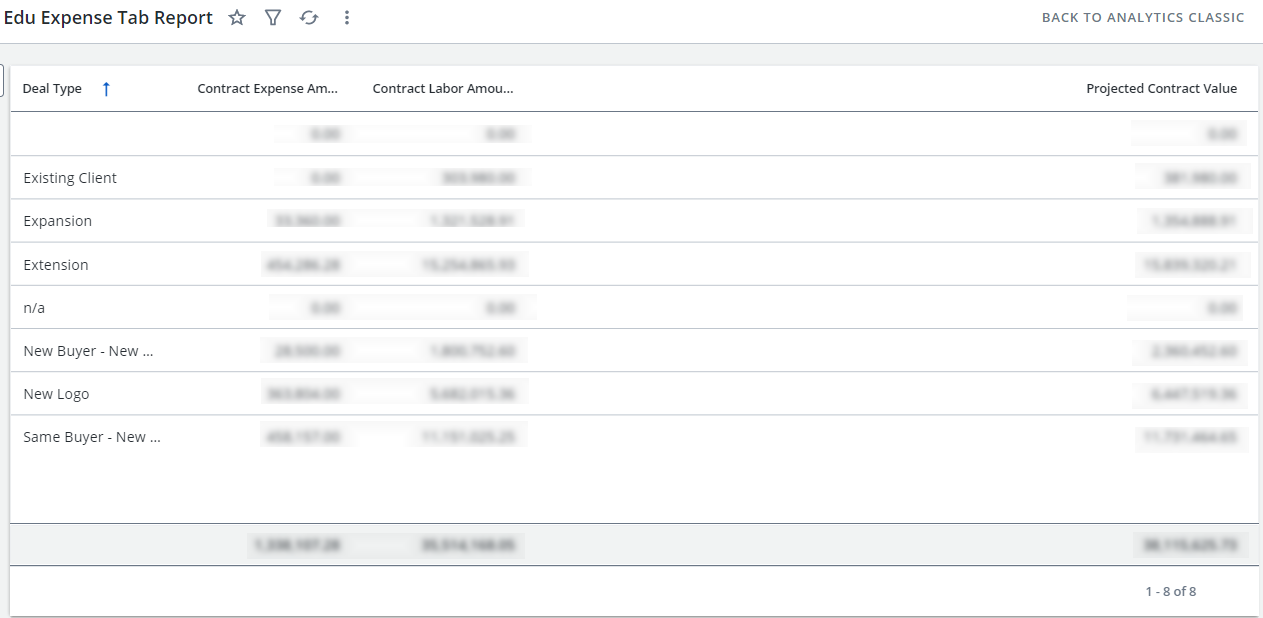
The following data must be selected:
- Columns: An unlimited number of all types of fields to define the column(s)
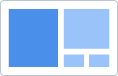
Treemap
Treemaps are primarily used to display data that is grouped and nested in a hierarchical (or tree-based) structure. Use a treemap to simultaneously display the magnitude of the major categories - as well as the magnitude of the larger subcategories in one visualization.
Treemaps typically have the appearance of horizontally-oriented rectangles subdivided by size into the major categories and subcategories, so as to convey the part-to-whole relationships.
For treemaps, rectangle size and color are the crucial elements.
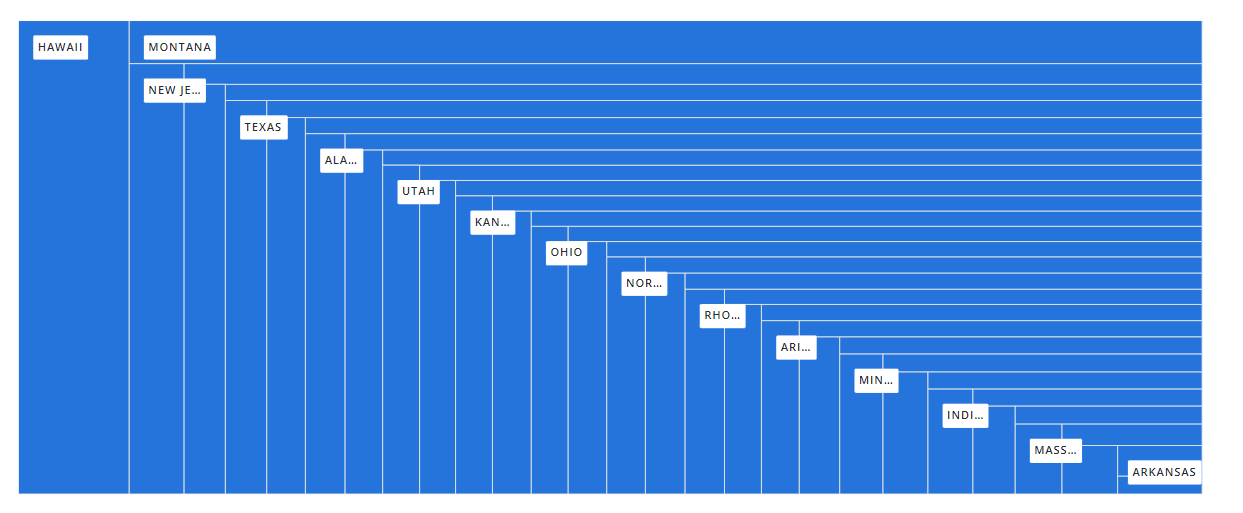
The following data must be selected:
-
Categories: A maximum of three non-numeric fields to define the categories and subcategories that are typically color-coded to match the highest-level parent categories.
-
Rectangle Size: One numeric field to define the size of the value. The greater the sum of the selected value for each category, the larger its box.
-
Rectangle Color: One numeric field to define the color of the value. The greater the sum of the selected value for each category, the darker its box.
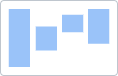
Waterfall
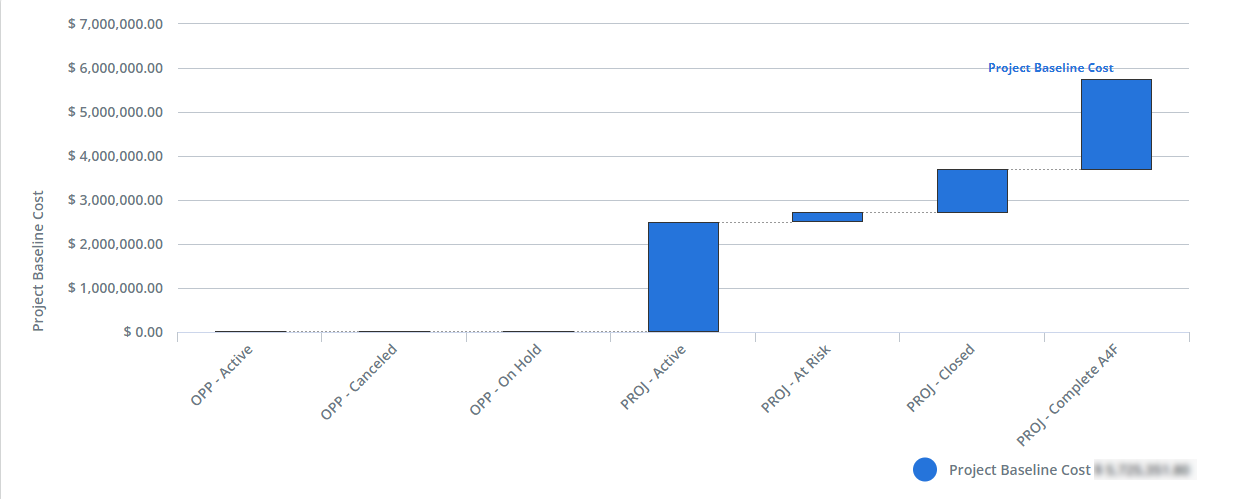
A waterfall chart is a type of bar chart that reveals the story behind the net change in a value between two points.
Use waterfall charts to show changes in revenue or profit between two time periods.
The following data must be selected:
- X-Axis: One non-numeric field to define the values on the x-axis (horizontally).
- Y-Axis: One numeric field to define the values on the y-axis (vertically).