AI Data Assistant
Conversational AI transforms analytics by enabling users to query complex data through natural language—like "proposal win rates by region" or "over-budget projects"—delivering instant insights and bypassing the steep learning curve of powerful report builders that overwhelm non-experts with field selection, nested filters, formulas, and blank canvases.
Upland Analytics’ AI Data Assistant is a simple chat-style panel where you can type a question in natural language and see the answer, so I can explore data without building a report.
Note: you must have an available data source and AI permissions enabled to access the AI Data Assistant. If you do not see the AI Data Assistant button, check with your admin that you have the feature enabled.
You can access the AI Data Assistant by pressing the button on:
-
The My Analytics page.
-
Reports.
-
Dashboards.
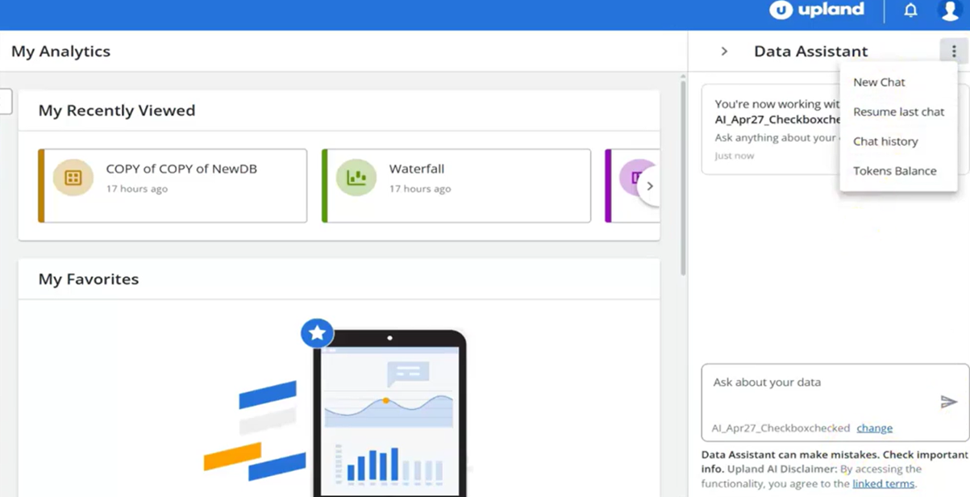
Pressing the button opens the Data Assistant chat in the right-hand panel.
To use the AI Data Assistant:
-
Select a data source in the chat panel.
-
Ask a question in natural language to prompt the AI to interrogate your data source.
Tip: you can start a new chat or resume a previous conversation from the overflow menu.
-
When you are finished, you may press the Create a Report button to make the AI Data Assistant recreate the output as a draft report in the report builder.
-
The draft is pre-populated with the following details from the conversation:
-
Same data source.
-
Same selected fields as dimensions/metrics.
-
Same aggregations and group-by fields.
-
Same filters.
-
Same sort order.
Tip: you can add, remove, or change any of these in the Report Builder in the same way as if you had created a new report without the AI Data Assistant.
-
Note: use of the AI Data Assistant requires tokens. You can check your token balance from the AT Data Assistant overflow menu.