Xerox device integration
Follow the steps below to configure your Xerox device to integrate with AccuRoute CloudFAX.
2. Download Upland Device Management Service
1. Add/Edit Locations
When a device is created, it is assigned to a location so the Upland Device Management Service knows that a certain set of Xerox devices is managed by that location. A small organization will download the service once to manage a fleet of Xerox devices. For a larger organization with multiple offices or geographical locations, you may need to control your devices from multiple locations and download the service for each location.
-
On the Navigation Menu, click Settings, then click Devices.
-
Click Device..., then select Add/Edit Locations from the drop-down menu.

-
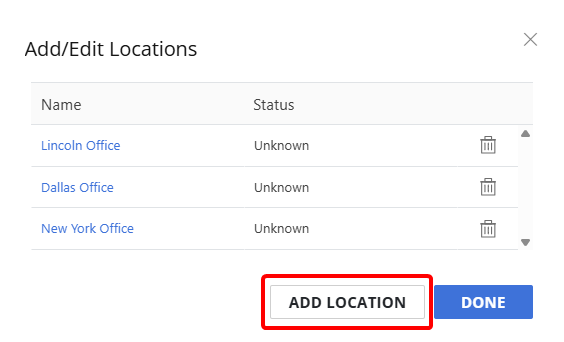
Click Add Location.
-
In the Location Name field, enter a name to describe the location, then click Add.
2. Download Upland Device Management Service
Upland Device Management Service is a Windows service you install on a utility server or workstation. Once installed, it keeps your Xerox devices up to date with AccuRoute CloudFAX automatically.
The service checks in with AccuRoute CloudFAX every minute to see if there are any updates or actions to perform, such as installing, uninstalling, or checking the status of devices, and then carries them out for you.
-
On the Navigation Menu, click Settings, then click Devices.
-
Click Device..., then select Download App from the drop-down menu.

-
From the Location drop-down list, select the location where you are installing the service, then click Download.
-
In the Save As dialog box, navigate to the location where you want the application to be saved, then click Save.
Note: Please note that the download may take a few seconds while the application gathers and stores the tenant information. Please do not navigate away from this page until the download has started.
-
Double-click the application icon to start the application.
-
Enter your AccuRoute CloudFAX username and password, then click Next.
-
Click Next to install the service.
-
Click Install.
-
Click Finish.
-
Verify that the service is running in Windows Services.

3. Add a new Xerox device
Follow the steps to Add a new device.
Tip: Make sure that you set up the additional configuration for Xerox devices on the Deployment tab.
4. Install on device
After a device has been added in AccuRoute CloudFAX, it must be installed on the device itself. The Deployment State column will say Not Installed.
-
Right-click anywhere in the device row or click the three dots next to the device you want to install, then select Install On Device from the drop-down menu.
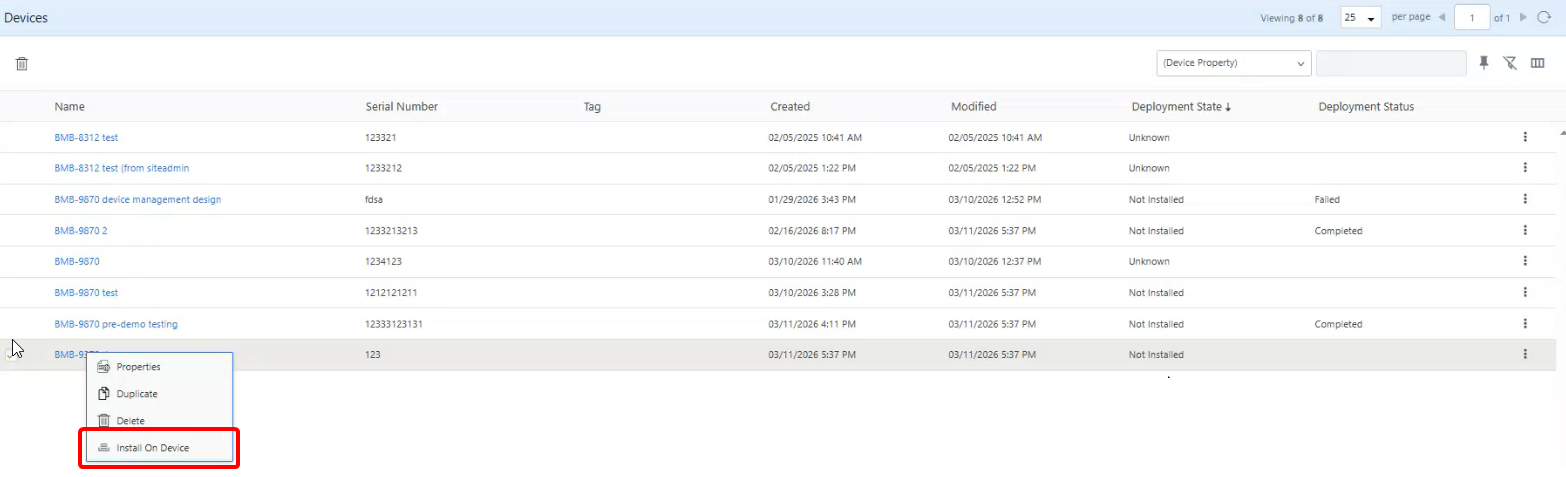
The Deployment State column will change to Installing and the Deployment Status column will say Queued.
While the Upland Device Management Service runs in the background, it fetches any pending install/uninstall actions and executes it on the device.
Once a device has been installed successfully, the Deployment State Column will update to Installed, the Deployment Status column will update to Completed, and the button will show up on the device itself.
View journal
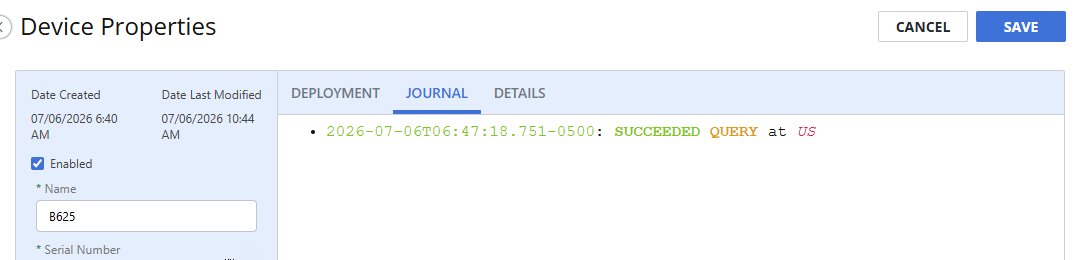
The journal provides a history of activities for the device.
-
Perform one of the following:
-
Right-click anywhere in the device row or click the three dots next to the device you want to view the journal for, then select Properties from the drop-down menu.
-
Or, click the name of the device you want to view the journal for.
-
-
Click the Journal tab.
Query device
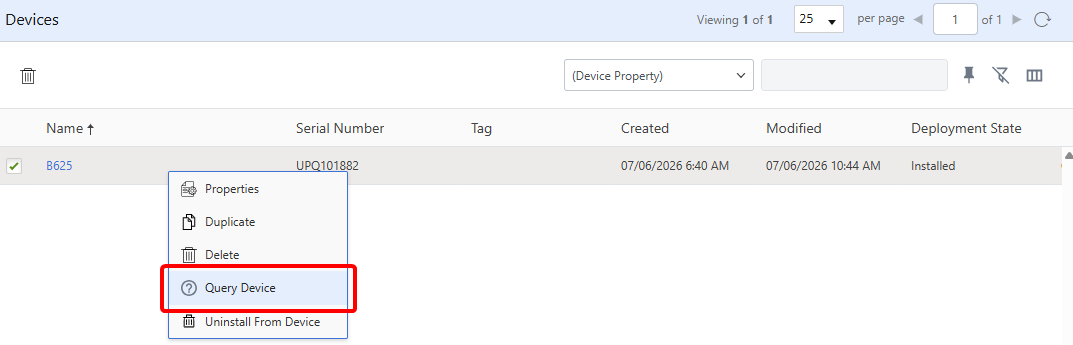
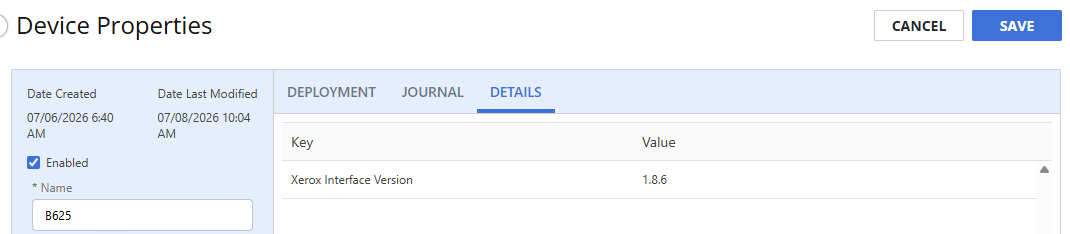
Running a query against the Xerox device returns the Xerox interface version. The Details tab in Device Properties is updated with this information.
-
Right-click anywhere in the device row or click the three dots next to the device you want to query, then select Query Device from the drop-down menu.
-
Perform one of the following:
-
Right-click anywhere in the device row or click the three dots next to the device you want to view query results for, then select Properties from the drop-down menu.
-
Or, click the name of the device you want to view query results for.
-
-
Click the Details tab.
Uninstall from device
-
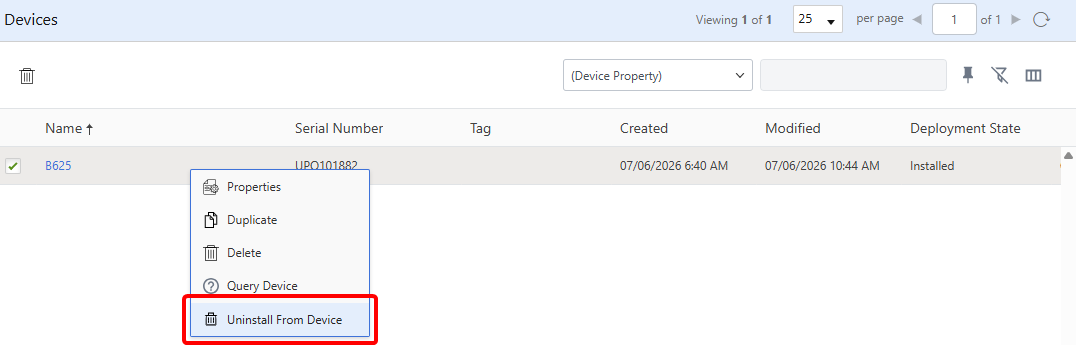
Right-click anywhere in the device row or click the three dots next to the device you want to uninstall from, then select Uninstall From Device from the drop-down menu.