Configure Online Settings
- Expand the SharePoint Online option.
- Choose a Security Model
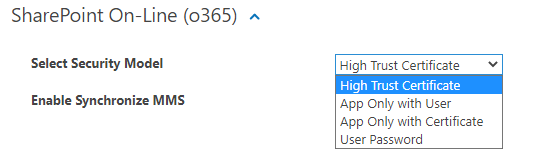
- If selecting High Trust Certificate Model
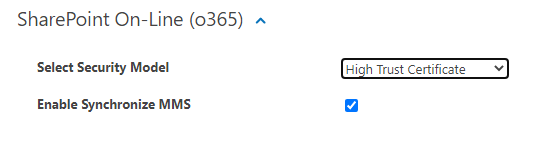
- If you are not using the Rules Engine Tagging feature than MMS Synchronization is optional.
- If you are not using the Rules Engine Tagging feature than MMS Synchronization is optional.
- App Only with User Model
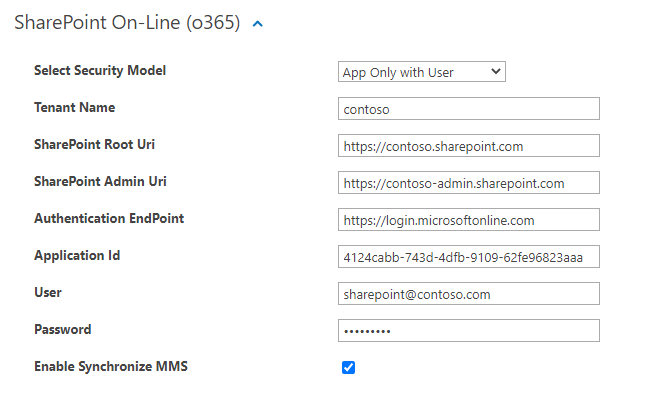
- Tenant Name: Enter the tenant Name
- SharePoint Root Uri: Enter the tenant Root Uri
- SharePoint Admin Uri: Enter the tenant Root Uri
- Authentication EndPoint: Enter the Authentication EndPoint
- Application Id: Enter the application id from the App Registration in Azure
- User: Enter a valid user name
- Password: Enter the user's password
- If you are not using the Rules Engine Tagging feature than MMS Synchronization is optional.
- Tenant Name: Enter the tenant Name
- App Only with Certificate Model
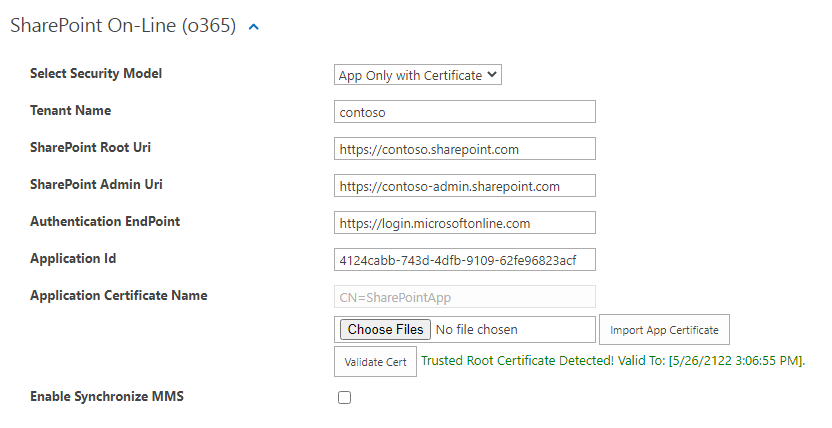
- Tenant Name: Enter the tenant Name
- SharePoint Root Uri: Enter the tenant Root Uri
- SharePoint Admin Uri: Enter the tenant Root Uri
- Authentication EndPoint: Enter the Authentication EndPoint
- Application Id: Enter the application ID from the Azure App Registration
- Application Certificate Name: Select and import the Certificate loaded in the Azure App registration. This will add the Certificate to the appropriate certificate store.
- If you are not using the Rules Engine Tagging feature than MMS Synchronization is optional.
- Tenant Name: Enter the tenant Name
- User Model:
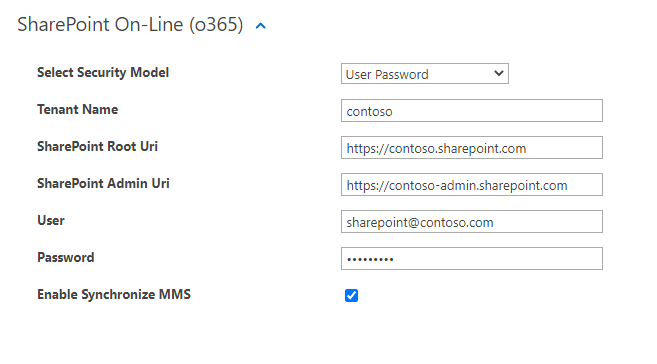
- Tenant Name: Enter the tenant Name
- SharePoint Root Uri: Enter the tenant Root URI
- SharePoint Admin Uri: Enter the tenant Root URI
- If you are not using the Rules Engine Tagging feature than MMS Synchronization is optional.
- Tenant Name: Enter the tenant Name
- Continue to the next topic.