Secure Your Content
The information here guides you through setting your user and group security mapping.
- After mapping your source system users and groups, below, you next run the required jobs to read data from the source system you setup.
- The jobs you are required to run depend on the connector you configured.
Secure the Content You Plan to Index
- Navigate to the Connections page. Click<your Web Services Conenctor> >
 >Edit.
 - Click the Security tab.

- Master security connection: If you want to reuse the security information from another Connector, specify the security information of another connection so that you do not have to run a security sync operation for this connection.
Important!
If you create a Master security connection, skip the other security-related tabs on the Connections page.
Secure the Connection to the Security Principals Directory
- Navigate to Connections. Click <your Web Services Connector> > > Edit.
- Click the Security: Directory tab.
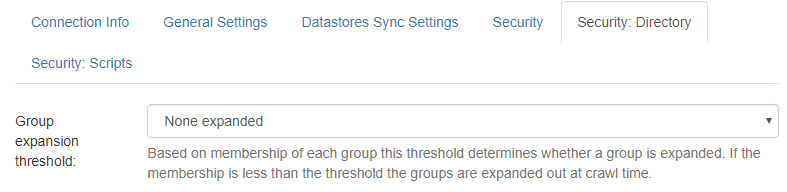
-
Group expansion threshold: By default, this setting is None expanded, which means at crawl time, you can see the list of users and groups that have access to an item, but you conserve system resources that would otherwise be used to expand a large groups of users.
-
Alternatively, use the drop-down list box to choose a number.
-
If that number of groups is reached or exceeded, the group is expanded and you can see which users are in which groups.
Tip: Groups can contain both subgroups and users.
-
How to Map Source System Users and Groups: Security Scripts
About Security Scripts
If your source system manages its own users and groups instead of reusing what is set in the Active Directory, use Security Scripts to map your source system users and groups to the AD
Security Scripts:
- Override both user and group loading during the security synchronization job.
- Include the following types (both are populated, by default):
- User load script
- Group load script
- Can be modified to better fit your requirements
- Can also be used to modify the AD identifiers of users' and/or groups' security mapping
Updated Scripts
If BA Insight updates a script, you will be advised by BA Insight Support to use the Restore default scriptbutton to get the updated version of the script.
Security script changes are announced via BA Insight Release e-mails.
Reverting to Default Connector Script
If you modify a default script and need to revert back to it, click theRestore default scriptbutton.
How to Use Security Scripts
Use the following procedure to navigate to and use, security scripts:
- Navigate to Connections. Click
<your Connector>> > Edit. - Click the Security: Scripts tab.
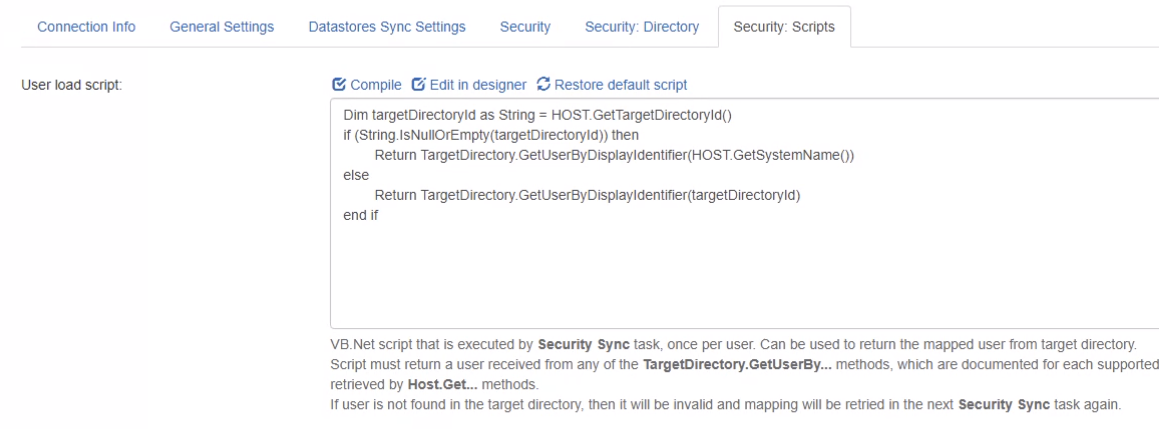
- User load script: Use the provided script or write a VB.Net script that is executed by the Security Sync task, once per user security mapping. This script can also be used to modify the AD identifiers of users' security mappings.
- Group load script: Use the provided script or write a VB.Net script that is executed by the Security Sync task, once per group security mapping. This script can also be used to modify the AD identifiers of groups' security mappings.
- Click the Compile button to validate your scripts.
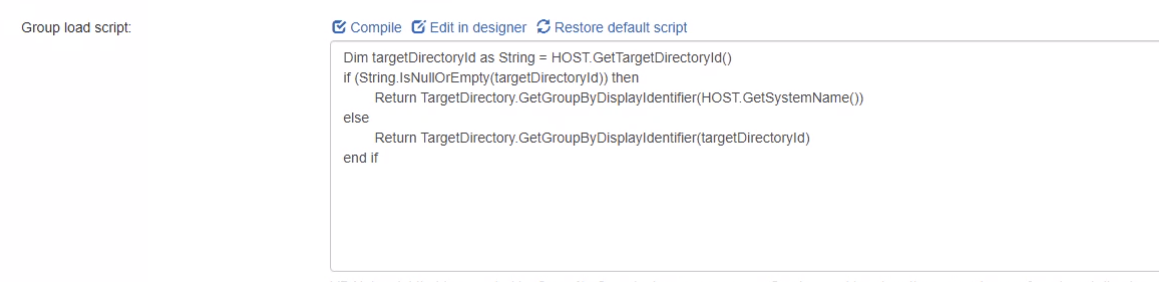
Example: Set the ADID
See the following example of a user script that sets the ADID:
dim sysn as string = HOST.GetSystemName()
HOST.SetADID(HOST.GetDefaultDomain() & "\" & sysn.split(",")(1))
Note: You cannot reject/skip users or groups by writing a script.
User and Group Loading Functions
To learn more about the user and group loading functions, see the table below.
| Function | Description |
|---|---|
HOST.ResolveEmail(ByVal adserver As String,byval email as string) As string
|
Resolves an email account to the full AD log in.
|
HOST.GetDefaultDomain() As String
|
Returns the default domain setting from the connection form. |
HOST.GetSystemId() As String
|
Gets the group’s unique ID. |
HOST.GetSystemName() As String
|
Gets the group's name from the source system. |
HOST.GetADId() As String
|
If provided, gets the groups ADID. (The ADID is only available for static groups.) |
HOST.GetValue(ByVal key As String) As String
|
If additional values are provided, this can be accessed. |
HOST.TestADExists(ByVal account As BooleanString) As Boolean
|
Lets a test validate an account against AD. |
HOST.GetSystemActive() As Boolean
|
If this information is provided, gets the group's current active setting. |
HOST.SetSystemActive(ByVal as Boolean)
|
Set the User Account, or Group Account, to This function sets the User or Group account to |
HOST.SetADId(ByVal name As String) As String
|
Lets ADID be overridden for static accounts. |
HOST.SetSystemName(ByVal name As String) As String
|
Lets the system be renamed before an AD sync. |
HOST.RemapBySystemName(ByVal name As String) As String
|
(Group load-only feature) Re-maps the current group to an existing group |
HOST.CheckIfDisabled(byVal adserver as String, ByVal account as String) as Boolean
|
Checks to see if a user is disabled. AD.
|
HOST.GetCount() As Integer
|
Specifies the current processing position. |
Next Steps
Next, you run the required jobs to read data from the source system you setup.
The jobs you are required to run depend on the connector you configured.