Add the Microsoft SQL Server Connection
How the Database, Active Directory, and Security Settings Work
The settings that you specify in the following topics work together to create the connection to the SQL Connector:
- Add the SQL Server Connection:
- See how to add the standard connection to the MS SQL server databases.
- Specify the Connection Info:
- See the connection details that you require to access the source system database.
Note: You must specify the settings on this page before you specify the settings on either the AD Settings page or the Security SQL page.
- Configure the Active Directory Settings:
- Specify the connection information for your AD and the configuration information that determines how user groups are mapped into your AD system.
- This configuration ensures that the native security in the source system can be maintained for the content when this content is stored in SharePoint.
- BA Insight recommends that you work with your BA Insight consultant to perform these tasks.
- For more information, contact BA Insight Support.
- Configure the Active Directory Settings:
- Specify the queries that are used to identify users and user groups from the source system, along with how those groups are populated.
Add the SQL Server Connection
To add the SQL connection, follow these steps:
- Launch the Connectivity Hub administration site.
- Select Connections.
- Click New > SQL connection.
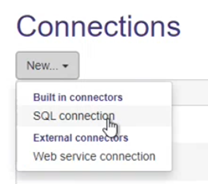
- Use the down arrow in Connector Framework SPWeb to select SQL Server Connection.
- This is the standard connection to the MS SQL server databases.
Specify the Connection Information
To specify the connection information, follow these steps:
- On the SharePoint Central Administration page, click Connector Framework.
- The Connector Framework page appears.
- Click Connections and the Connection Management page appears.
- In Connector Framework SPWeb, click the down arrow and select
SQL Server Connection. - See the Database Connection page with the Connection Info tab selected.
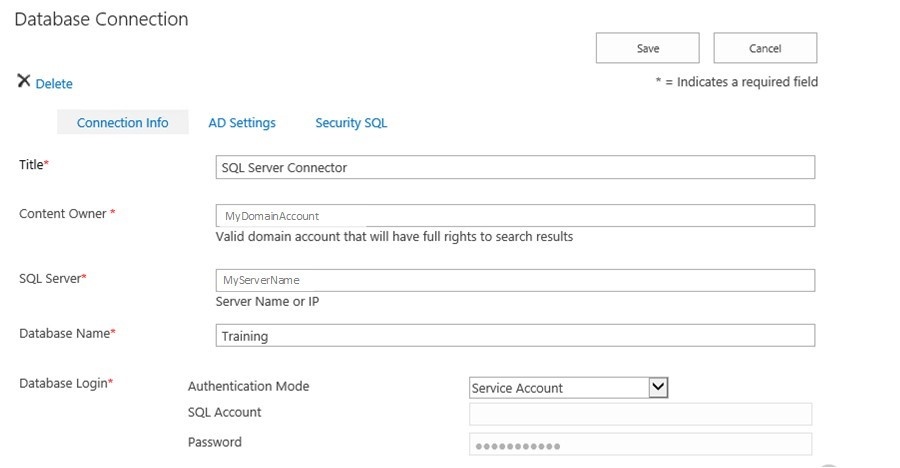
- Title:
- Enter the title for your SQL Connector such as SQL Server Connector.
- Enter the title for your SQL Connector such as SQL Server Connector.
- Content Owner:
- This is the domain user such as
MyDomainAccount. - This user must be a domain user will have full read access to the information in SharePoint that is crawled by this content source.
- Typically, this is the SP Search Service account, or similar administrative account.
- This is the domain user such as
- SQL Server:
- This is the connection string to your MS SQL SQL server instance.
- If you are using named instances, this account should include the instance name such as
MyServerName.
- DatabaseName:
- This is the name of the database to connect to.
- This is the name of the database to connect to.
- Database Login:
- AuthenticationMode: If you choose to leave the default selection,
ServiceAccount, it is not necessary to enter anSQL Account or a Password.- This specification identifies whether the service account is used or if you must specify a username and password.
TheService Accountmode uses the:- SharePoint Search Service Account to access the database when crawling
- SharePoint Timer Service Account when Connector Framework tasks are running
- SharePoint Central Admin application pool account when performing tasks (such as setup and configuration) in the Connector Framework user interface
- The
SQL Loginmode uses the SQL server credentials that you specify in SQL Account and Password.
- Click Save. Optional.
How to Configure Active Directory
The Active Directory (AD) configuration is required.
This configuration ensures that the native security in the source system can be maintained for the content when this content is stored in SharePoint.
To specify the Active Directory (AD) settings, follow these steps:
- On the SharePoint Central Administration page click Connector Framework.
The Connector Framework page appears. - Click Connections and the Connection Management page appears.
- In Connector Framework SPWeb, click the down arrow and select
SQL Server Connection. - Click the Connectionstab and click AD Settings.
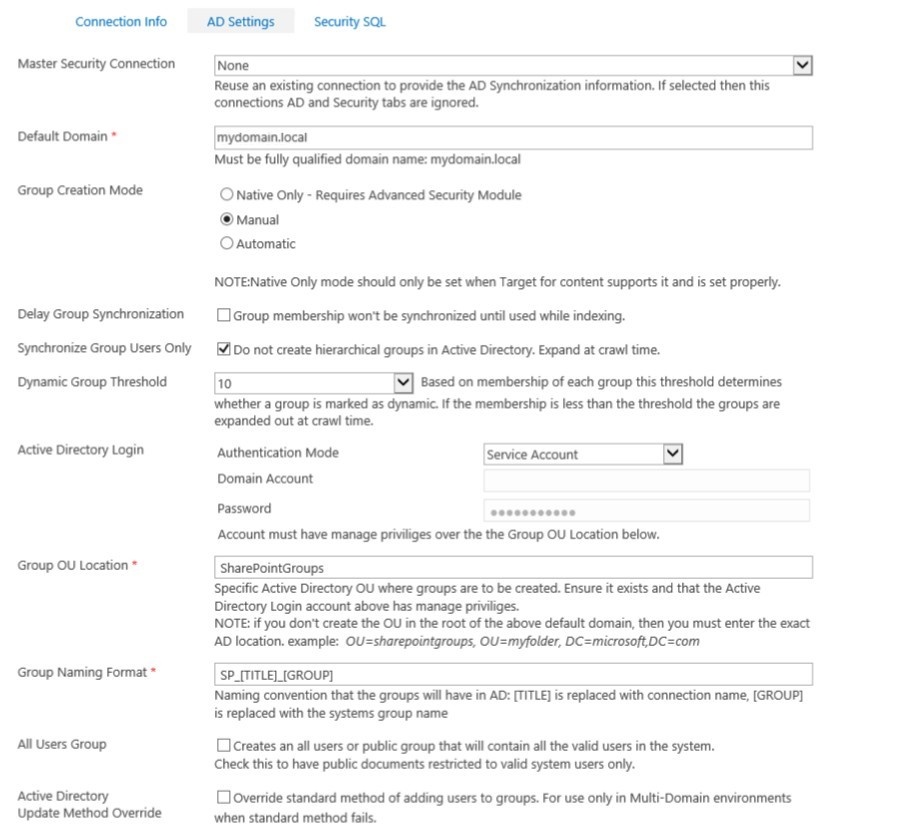
- Master Security Connection:
- Use this setting if you have configured another SQL Connector and want to use these settings for the current SQL Connector.
- Enter this connection from the previous Connector in order to share this mapping.
- Typically, this setting is only used when there are multiple connections to the same source system.
SelectNonefor these reasons:- If no other Connectors are installed or configured
If you do not want to reuse another mapping
If you make an entry in Master Security Connection, these mapped users and groups are used.
The other settings on this page (including the required fields) are replicated from the existing connection.
- Default Domain (required):
- You must specify this entry using the fully qualified domain name format.
- For example, you might specify
subdomain.mydomain.local.
This is the domain where your AD user accounts exist. - The source system users are mapped to these domain accounts, and security groups are created or populated based on the settings below.
- Group Creation Mode:
- This setting determines how Connector Framework creates groups in the AD .
The following selections are available:- Native:
- Groups are not created.
- This mode does not use AD security groups.
- Manual:
- Groups are not automatically created in AD during the security synchronization job.
- However, administrators can manually trigger group creation using the Security Mapping page.
- Automatic:
- Groups are automatically created in AD when you run a Security Synchronization Task.
- Groups are automatically created in AD when you run a Security Synchronization Task.
- Native:
- This setting determines how Connector Framework creates groups in the AD .
- Delay Group Synchronization
- Default selection
- This setting only lets Connector Framework populate groups with members when the selected group is used to secure items in the SharePoint index.
- This operation reduces the number of groups that a user is assigned to in AD by excluding the groups that are not necessary for Connector security.
- When this option is enabled, the first security synchronization operation does not add the members into the groups in AD.
- You must perform a full crawl after you run a Security Synchronization Task.
- The full crawl identifies which groups are used to Connector Framework.
- Another security synchronization operation is performed to populate the groups in use.[MC3]
- Synchronize Group Users Only
- Default selection
- Leave this setting selected in order to flatten the security structure of the source system.
- This operation prevents AD groups from containing child groups.
- If you leave this option selected and if the source system has hierarchical groups, these groups are expanded (in other words, the contents of the child groups are assigned to the parent).
- Dynamic Group Threshold:
- This setting determines the minimum number of users that must be present in a source system group in order for that group to be marked as a dynamic group in the Connector Framework and created in the AD.
- Dynamic groups are added to the item ACL, and users are granted access to that item when the user is a member of the group in AD.
- Below this threshold, the group is marked as expanded.
- At crawl time, users in expanded groups are added to the item ACL as individuals.
- For more information, contact your BA Insight representative.
Tip: If a dynamic group is created in Active Directory, this group is perpetuated in the Connector Framework and the Connector Framework manages this group.
- Active Directory Login:
- This setting identifies the account that is used to create groups and to insert users into these groups in your AD.
- Enter the Authentication Mode, Domain Account, and Password to perform these operations.
- Use the drop-down menu in Authentication Mode to select:
ServiceAccount:This mode uses the:- SharePoint Search Service Account to access the database when crawling
- SharePoint Timer Service Account when Connector Framework tasks are running
- SharePoint Central Admin application pool account when performing tasks (such as setup and configuration) in the Connector Framework UI.
Impersonate:Enter the valid AD user name and password
- This setting identifies the account that is used to create groups and to insert users into these groups in your AD.
- Group OU Location
- Required
- Identifies where the groups, which the Connector Framework creates, reside in your Active Directory.
- BA Insight recommends the default SharePoint Groups, or a similar location where all groups created by the Connector will reside.
- The purpose of creating a Group OU is to maintain SharePoint groups that are separate from the other central AD groups.
- This separation reduces any potentially negative security impact, because the SharePoint groups do not interfere with other groups or the security of any other system or OU.
- Group Naming Format (required):
- This is the naming format that is used when creating groups in AD.
Specify either of the following:- [TITLE] is replaced with the connection name
- [GROUP] is replaced with the system's group name.
- This is the naming format that is used when creating groups in AD.
- Active Directory Update Method Override(If available for your BA Insight Connector):
- Select this operation if you want to override the standard method of adding users to groups.
- This option should be used only in multi-domain environments when standard methods fail.
- All Users Group:
- Select this operation to create an All Users Group that contains all of the valid users in your system.
- At index time, any group marked Public in the source system is made available to this group.
- In this case, public documents in the source system are restricted in SharePoint to the valid system users.
- Active Directory Update Method Override:
- Use this operation only in multi-domain environments when standard methods fail.
- Overrides the standard method of adding users to groups.
- To use this operation, contact your BA Insight representative.
- Click Save (required).
Specify the SQL Security Settings
The information provided on the Security SQL tab determines how the SQL Connector identifies users, groups, and group members.
-
This information includes SQL statements that query the source system to gather the information.
-
Optionally, you can write VB.NET scripts to process the information in order to provide more options for user mapping.
-
For information about VB.NET scripts, Connector Framework help.
To specify the security SQL settings, follow these steps:
- On the SharePoint Central Administration page, click Connector Framework.
- The Connector Framework page appears.
- Click Connections and the Connection Management page appears.
- In Connector Framework SPWeb, click the down arrow and select
SQL Server Connection. - Click the Connectionstab and click Security SQL.
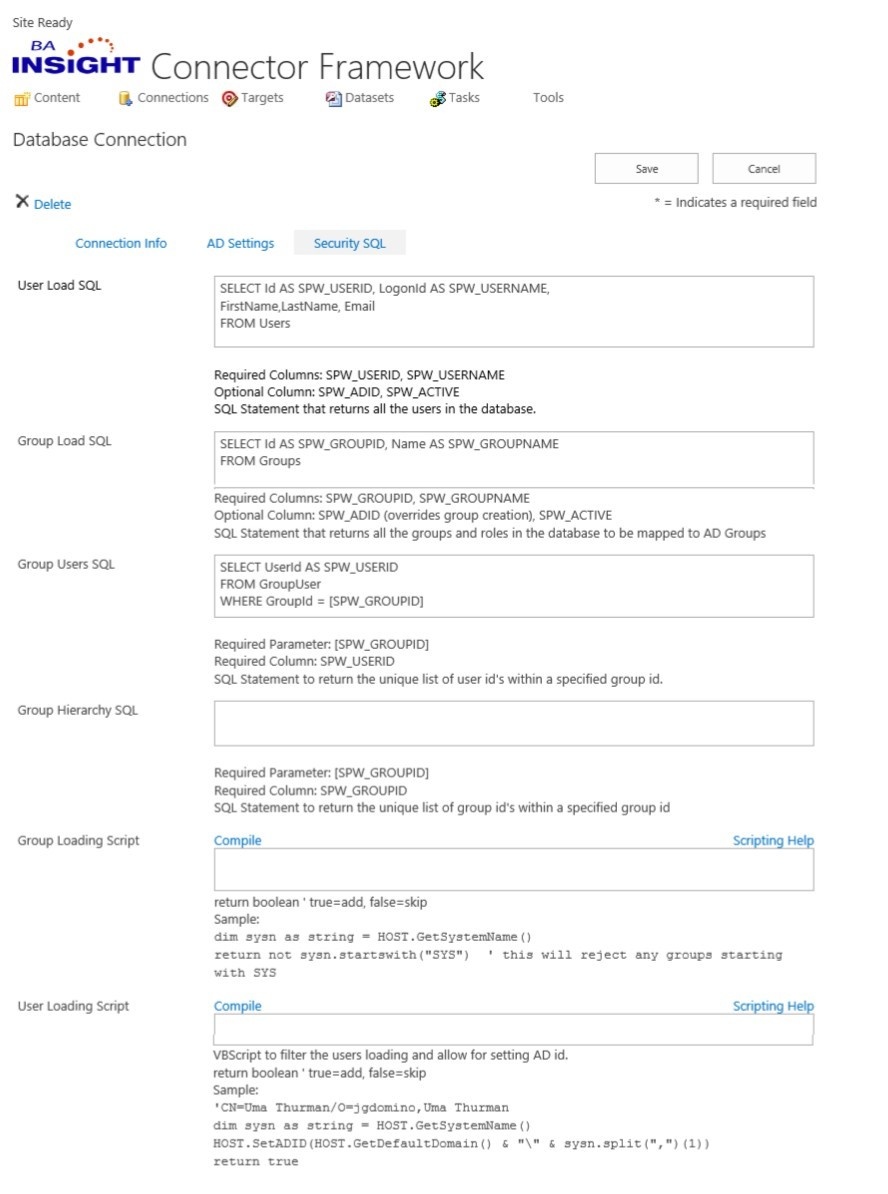
- User Load SQL:
- This is an SQL statement that identifies all of the users in the source system.
- The query must return a unique identifier for the user and the user name in the source system.
- Optionally, fields are returned for the user’s Active Directory ID along with a field that reports whether the group is active.
- All of the fields in the query should be identified by their column names as described in the table below:
Table 1: User Load SQL Fields
Field
Description
SPW_USERID
(Required) The unique identifier that is used by the source system to identify users.
SPW_USERNAME
(Required) The username for the user that is used by the source system (might be the same as the user ID.)
SWP_ADID
(Optional) The active directory ID of the user.
SPW_ACTIVE
(Optional) Identifies whether the user is active or not.
- Group Loading SQL:
- This is an SQL statement that identifies all of the security groups or roles in the source system.
- This query must return a unique identifier for each group along with the group name from the source system.
- Optionally, fields are returned for the group’s Active Directory ID.
- In addition, or alternatively, a field that identifies whether the group is active is returned.
- All of the fields should be identified by their column names in the query as described in the table below:
Table 2: Group Loading SQL Fields
Field
Description
SPW_ GROUPNAME (required)
The unique identifier that is used by the source system to identify groups.
SPW_ GROUPNAME (required)
The username for the group that is used by the source system (might be the same as the group ID.)
SWP_ADID (optional)
The active directory ID of the group.
If used, this will override the group creation settings.
SPW_ ACTIVE (optional)
Identifies whether the group is active or not.
- Group Users SQL:
- This is an SQL statement that identifies the users that belong to a specific group.
- A group ID is passed to this query and the query returns the user IDs for all of the users in this group.
- For more information, see the table below:
Table 3: Group Users SQL Fields
Field
Description
SPW_USERID (required)
This is the column that is returned by this query.
The user ID’s of the users that to this group are included in the column information.
[SPW_GROUPID] (required)
This is a parameter that is used in the where clause. (See the square brackets([]).)
This parameter is replaced by a group ID that Connector Framework uses to retrieve users.
Note: If the group ID is a string, encase this string with single quotation marks (' '). See example below:
select dbo.UserID as SPW_USERID from dbo.group_userswhere dbo.groupid = '[SPW_GROUPID]'
- Group Hierarchy SQL:
- This is an SQL statement that identifies the groups that are the children of a parent group.
- A group ID is passed to this query and the query returns the group IDs for all of the children to the specified parent group.
- For more information, see the table below:
Table 4: Group Hierarchy SQL Fields
Field
Description
SPW_GROUPID (required)
This is the column that is returned by this query. The group ID’s of the children belonging to the group are returned.
[SPW_GROUPID] (required)
This is a parameter that is used in the where clause -see the square brackets ( [ ] ).
This parameter is replaced by a group ID that Connector Framework uses to retrieve users.
Note: If the group ID is a string, encase this string with single quotation marks (' ').
See example below:select dbo.childgroupid as SPW_GROUPID from dbo.group_groups where dbo.parentgroupid = '[SPW_GROUPID]'
- GROUP LOADING SCRIPT and USER LOADING SCRIPT:
- Use these fields, which are VB.NET scripting fields, to process users and groups while the users and groups are in the process of loading from the source system.
True or False is returned:True: The record is included in the user or group mapping.
False: The record is ignored.
Additionally, Active Directory ID’s can be set or assigned using this field.
These IDs enhance your ability to map users and groups from the source system into your existing AD users and groups.
Alternatively, work with your BA Insight consultant to perform these tasks.
For more information, see BA Insight Support.
- Use these fields, which are VB.NET scripting fields, to process users and groups while the users and groups are in the process of loading from the source system.
-
Click Save.