Configure Egnyte Web Site IIS Certificate
- Open the IIS manager and confirm your Egnyte IIS site exists:

- Bind your web server certificate to the newly-created site:
- Locate the entry BA Insight Egnyte Connector site in the left-side pane.
- Right-click this site and select Edit Bindings from the sub-menu that appears.
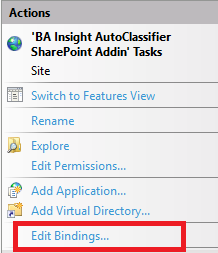
- A new configuration windows opens.
Port: Ensure that the Port (443) has been populated by the installer. See the graphic below.
- SSL certificate: Click the drop-down menu to select your previously installed certificate.
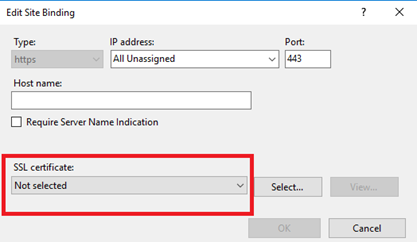
- Locate the entry BA Insight Egnyte Connector site in the left-side pane.
- If running on a specific hostname or running multiple Certificates on Port 443 specify or select the:
- Host name
- Require Server Name Indication
- SSL certificate
- Access to this example site would be "https://autoclassifier.baitest.local"
Example: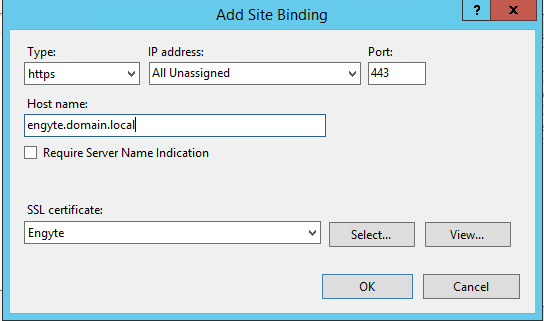
- ClickOKto complete the configuration process.
- Optional:If the HTTP binding is no longer used, it can be removed. Select the configuration binding and click "Remove."