How to Configure the SharePoint Online O365 Connector
Update the SharePoint Online Connector Connection with the Certificate and Azure App Information
- Open your Connector Framework.
- Click the Connections link from the top navigation.
- Select your SharePoint Online connection from the drop-down menu.
- Navigate to the section of the page with the credentials (Login and Password) of your SharePoint Online Connector connection:
- Login (required): Enter the Certificate Distinguished Name.
Note: You can find cert distinguished name by double-clicking on the certificate file, and using the value (minus any spaces) under the "Subject"
- Password (required): Enter the Azure Application ID.
- Note: You can find the Azure Application ID when you access your Azure app in the registered applications from the Azure Portal:
Important: If you change the Azure Application permissions, you must recycle the SharePoint Online connector application pool in order for the permission change to take effect.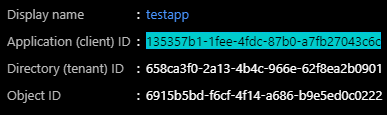
- Login (required): Enter the Certificate Distinguished Name.
- Click Save.
Connectivity Hub v2.2 users only: Extracting HTML Text and Metadata from Documents
You can extract HTML text and metadata from your source system. This is optional.
See How to Extract HTML Text and Metadata from Documents.
Extracted information includes:
- Available text and metadata which can be mapped to metadata properties.
- HTML metadata tags from HTML pages.
- Available HTML tags and links for use as metadata from HTML documents