ServiceNow Connector Prerequisites
Connector Requirements
| Features | Supported | Additional Information |
|---|---|---|
| ServiceNow version | Yes |
|
| Searchable content types | Yes | All content types. |
| Content Update | Full and Incremental |
|
| Attachment support | Knowledge articles, Announcements |
|
| Permission Types |
|
|
| Required Software |
|
|
User Accounts and Application Permissions
| Required Permission | Description |
|---|---|
| ServiceNow User Accounts |
The ServiceNow connector requires:
|
| Security |
The user account specified above must have access to the following resources:
|
ServiceNow Setup for the Connector
Account Permissions
To complete the setup process, you:
- Create an account for the BA Insight ServiceNow Connector
- Apply user permissions to it in ServiceNow
Use the following instructions to complete the account and permission setup process.
- In ServiceNow, tables the account can read can be selected, and permissions given to the Connector to read the entries in the roles table (without being Admins): this is a requirement for reading the security.
- However, in ServiceNow the rules go to the record level.
- "AFAIK," by default, has an ADMIN role with a special rule declaring it must not appear – this must be overridden and declared, so the Connector account can read it.
See the following code: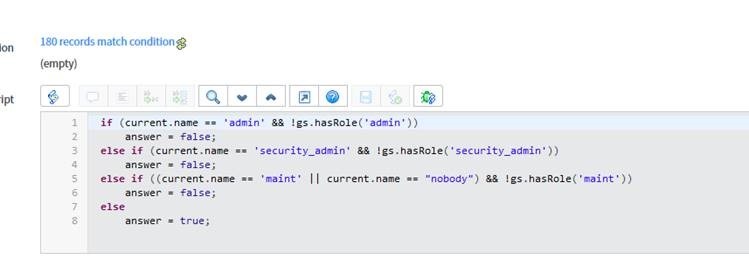
- "AFAIK," by default, has an ADMIN role with a special rule declaring it must not appear – this must be overridden and declared, so the Connector account can read it.
By default, the condition declares:
- ADMIN role: Seen only by users who are members of the ADMIN role.
- SECURITY_ADMIN role: Seen only by users who are members of the SECURITY_ADMIN role.
- MAINT role and NOBODY role: Seen only by users who are members of the MAINT role.
- All other roles are seen by users as they are configured in the rules.
The condition must be changed. To change it, use the following instructions:
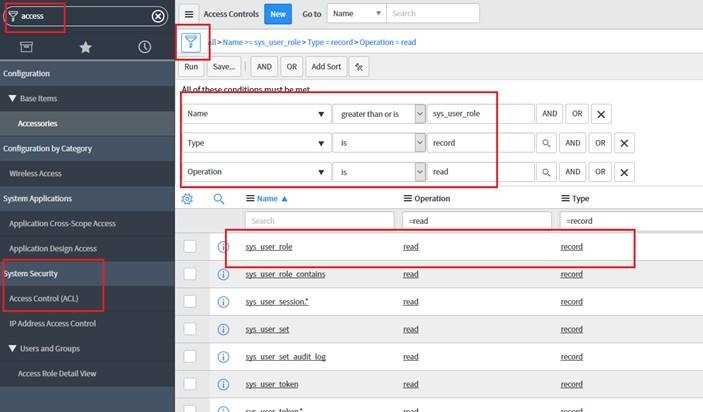
- Rule is defined by default in the tenancy – in the System Security > Access Control List page:
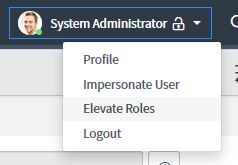
- Next, Elevate roles to SecurityAdmin privileges so that you can edit the record.
- Edit the script of the record and ensure the user name is same one the connector uses and is returned as "
true".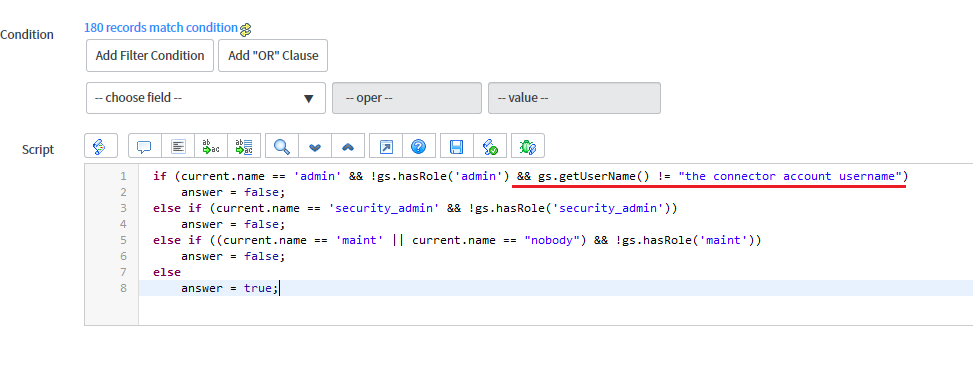
- Alternatively:
- Remove the script all together
or
Add another line at the top of the script:
if(gs.getUserID() == “The connector user sys_id”)
    answer = true
else ….<the original snippet> ….
More available functions here: https://www.servicenowguru.com/scripting/user-object-cheat-sheet/
- Remove the script all together
Setting the User Account's Time Zone
For the connector to properly enumerate content, the user account must be assigned the UTC time zone.
To assign the UTC time zone to the user:
- Go to the sys_user table.
- Edit the service account user profile.
- If the Time Zone field does not appear in the view, edit the view and add the field.
- Set the Time Zone field to "UTC" and save the changes.