How to Set Up and Configure the Dynamics 365 Connector
All BA Insight connectors can be downloaded from Right Answers under Knowledge > BA Insight > Product Downloads > Connectors.
This connector is installed with the same generic steps as any BA Insight connector.
Satisfy the Prerequisites for your connector before installing.
Configuration specifics are detailed below.
Connection Configuration
- Enter Admin account with full rights - Enter in this information from the Connection Info tab. You must use the credentials of a valid Dynamics CRM account.
- Server Address and Port - Enter in this information from the Connection Info tab. Enter your server address and port.
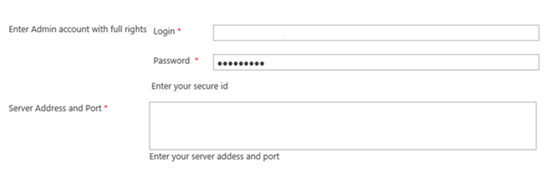
- After these settings are entered, click Load from the Connection Info tab to load your CRM Organization unit name and select organization name from which we need to crawl the data.
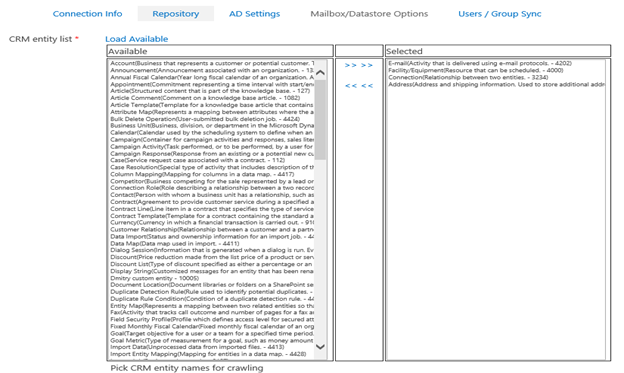
- Click the Load Available link under the "Repository" tab.
- Select the CRM entity names for crawling and add them to the “Selected” group using the >> >> links.
Content Configuration
Before creating web service content for the MS Dynamics Connector, click the Task menu and run the "Type Loads" job for this connection.