How to Set Up and Configure Your Dynamics CRM Connector
All BA Insight connectors can be downloaded from Right Answers under Knowledge > BA Insight > Product Downloads > Connectors.
This connector is installed with the same generic steps as any BA Insight connector.
Satisfy the Prerequisites for your connector before installing.
Configuration specifics are detailed below.
Connection Configuration Specifics
- From the Connection Info tab, in the Enter Admin account with full rights section enter the credentials of a valid Dynamics CRM account in the Login and Password fields.
- In the Server Address and Port field enter your server address, complete with port number.
- Next, click the Load from link to load your CRM Organization unit name and select the organization name that contains the data to crawl.
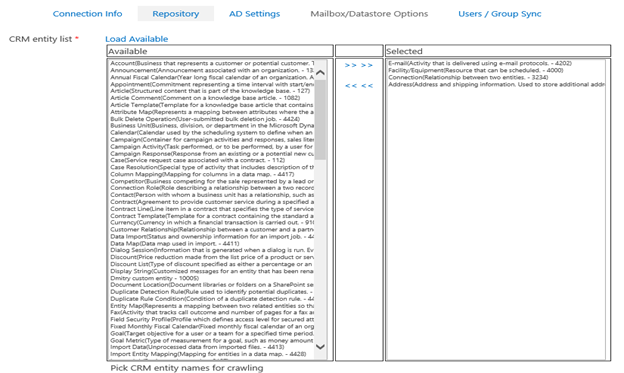
- Next click the Repository tab and click the Load Available link. See the graphic below.
- Under the "Available" column, select the CRM entity names for crawling and click the ">> >>" link to add them to the “Selected” group. See the following graphic:
Content Configuration Specifics
Before creating content for the Microsoft Dynamics Connector, you first need to run a Data Store Types Load job for the previously created web service connection.
The Data Store Types Load job can be run from the Tasks page.