How to Set Up and Configure Your File Share Connector
Note: All BA Insight connectors can be downloaded from Right Answers under Knowledge > BA Insight > Product Downloads > Connectors.
This connector is installed with the same generic steps as any BA Insight connector.
Satisfy the Prerequisites for your connector before installing.
Configuration specifics are detailed below.
Caution:
PowerTools incompatibility
File Share connector cannot be used in PowerTools.
Generic Instructions
Follow the instructions for your connector framework application (ConnectivityHub or Connector Framework) to configure your connector.
Be sure to note the connector's "Web service URL."
Connection Specifics
Follow the procedure set for your connector framework application and use the File Share-specific connection settings below to complete your setup.
The screen shots below apply to BA Insight ConnectivityHub.
- In the Connection Info tab, select the type of service and press the Connect button:
- File Share Connector: Used when indexing files from the same, or a trusted domain
- File Share Connector for non-trusted domains: Used to a file share located on a non-trusted domain.
- Enter the connection Title and enter the Web service URL into its field.
- Click the General Settings tab.
-
Enter the File Share Account in the format domain\username and the account password.
This is the account that will be used the get the files from the configured files shares.
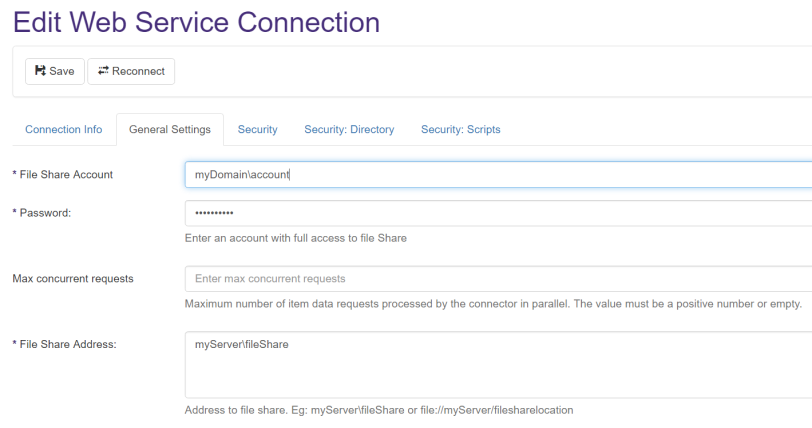
- If you leave the Max concurrent requests field blank, the default value applies.
-
Enter the File Share Address in the format shown in the field. The example in the graphic above uses \\MachineName\Directory.
Multiple connections to a server or a shared resource running on different users will not be index-able at the same time.
-
Select the Security tab and enter a valid domain account (in the format domain\username) in the Content owner field.
The Content owner domain account, such as svc_administrator, MUST have access to the network directory being shared as specified in Web Service Connection > General Settings > File Share Address.
- Enter your domain in the field Default domain.
- Complete all other fields as appropriate.
File Share Address
The File Share Address configuration option lets you specify multiple file share paths, one per line.
The address formats are supported:
- URI format: file://server/path
- UNC path: \\server\path
Extensions to Return Content Setting
The Extensions to return content configuration option lets you specify the extensions for which to crawl the binary content of the documents.
- Enter each extension in a comma separated list or leave it empty to include all extensions.
- Example: txt, pdf, docx
Custom Filters
The Custom filters option supports two types of filtering:
- Include rule: FOLDER=
- Exclude rule: -FOLDER=
You can specify multiple filters, one each on a separated new line. The FOLDER keyword is case-sensitive.
The paths specified after the equals sign (=) are case-insensitive.
- Valid example:
FOLDER=file://server/root/country/UsA
is the same as
FOLDER=file://server/root/Country/uSa - Invalid example:
folder=file://server/root/
This example is invalid because theFOLDERkeyword is specified in lowercase.
If at least one FOLDER filter is specified, only the contents of the FOLDER filters are included.
Other folders which are found in the file share, but which are not explicitly specified, are ignored.
How to Index a Sub-folder
When you index a sub-folder, you must index the parent folder and the FOLDER rule applies.
For example: If you specify FOLDER=\\server\path\folder1\folderA, the File Share Connector ignores everything in the file share except the content in folderA that is indexed.
How to Exclude a Sub-folder
To exclude a sub-folder, specify a -FOLDER filter.
For example: If you specify –FOLDER=\\server\path\folder1\folderB, the File Share Connector indexes everything in the file share except the contents of folderB, which are ignored.
In the example below, folderA is not indexed because the -FOLDER rule takes precedence over the FOLDER rule:
-FOLDER=\\server\path\folder1
FOLDER=\\server\path\folder1\folderA
Filter Ordering
The order of the filters does not matter.
The following example generates the same output as in the example above:
FOLDER=\\server\path\folder1\folderA
-FOLDER=\\server\path\folder1
Content Configuration
NOTE: File Share URLs (file:// or \\servername\) may not open properly in some browsers (Chrome, Firefox, and Edge).
For this reason, BA Insight recommends setting the item URL in the Content Definition tab > Item URL to use the DocLoader facility that is provided by ConnectivityHub and SmartHub:
Item URL: Override the default value [SPW_URL] and use doc loader.
Doc-loader
-
Doc-loader can be used to download a specific item.
Doc-loader within ConnectivityHub
Use the following steps to configure Doc-loader within ConnectivityHub:
-
Copy the following script: Doc-loader script
Doc-loader scriptdim baseurl = "http://localhost:8384/Services/DocumentLoader.svc/DownloadDocument?source="dim crawlurl as string = HOST.URLEncode( HOST.GetStringValue("SPW_CRAWLURL")) return baseurl + crawlurl - Make sure to replace the port number with the port yourSmartHub instance runs on.

- InSmartHub, in theAdditional Settings Configurationtab, configure theConnectivityHub URL as shown below:

Doc-loader within Connector Framework
Use the following steps to configureDoc-loader within Connector Framework:
-
Copy the following script:
Important: Replace<sitecollection>with your SharePoint Site collection.Doc-loader scriptdim baseurl = "http://<sitecollection>/_layouts/15/esc.Search.Services/Docloader.aspx?source="dim crawlurl as string = HOST.URLEncode( HOST.GetStringValue("SPW_CRAWLURL")) dim filenamePattern as string = "&filename=[propertyname]-static_text" return baseurl + crawlurl + filenamePattern -
NOTE: The filename pattern is optional.
-
If left unset, the downloaded documents will have the name "download."
-
The pattern enables the use of static text and properties in the format specified in the above example.
-
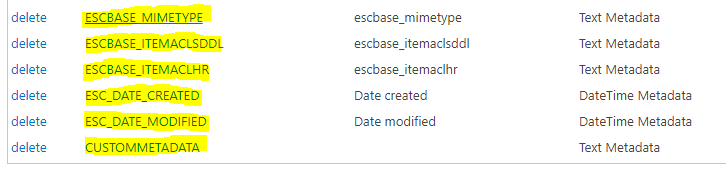
Manually created metadata are also allowed. Be sure to use the property title.
-