How to Set Up and Configure Your OneDrive Connector
All BA Insight connectors can be downloaded from Right Answers under Knowledge > BA Insight > Product Downloads > Connectors.
This connector is installed with the same generic steps as any BA Insight connector.
Satisfy the Prerequisites for your connector before installing.
Configuration specifics are detailed below.
Installation Wizard
Download the OneDrive Connector V1.
Before extracting the MSI from the downloaded .zip file, select the downloaded .zip file, and check the "Unblock" box in file properties dialogue box.
- Follow the instructions in the opening screens of the wizard.
- Note where on the local machine the application is installed. Also note the path
- ClickNextto proceed, until you reach the "Web Service Information" screen, shown below.
- DO NOTuse the provided, default Domain Service Account "NetworkService."
- Enter a valid local user account with admin rights on the local machine in the formatdomain\username
- Enter the accountPassword.
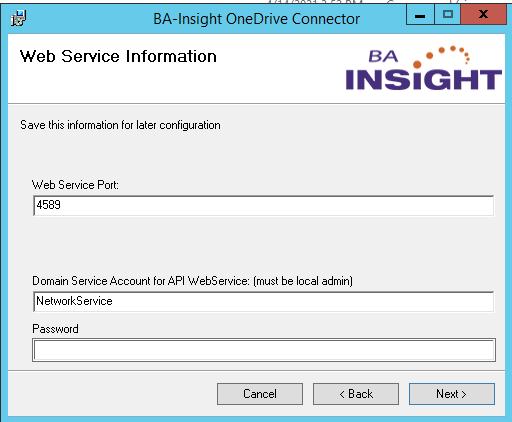
- ClickNext.
- When finished, the wizard closes and the connector is successfully installed.
- Configure the connector by adding it to your connector application:ConnectivityHuborConnector Framework, using the instructions provided in those help systems.
- Specific configuration information is provided in the following topics.
Connection Configuration Settings
Set the Connection
- After setting your generic information, click theConnect or Refresh Web Servicelink.
- Select the appropriate authentication mechanism:
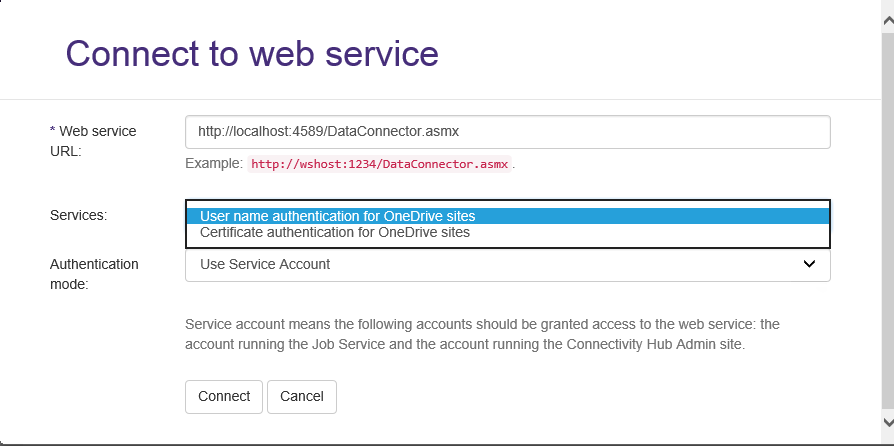
- The page refreshes and displays additional settings.
Username Authentication Settings
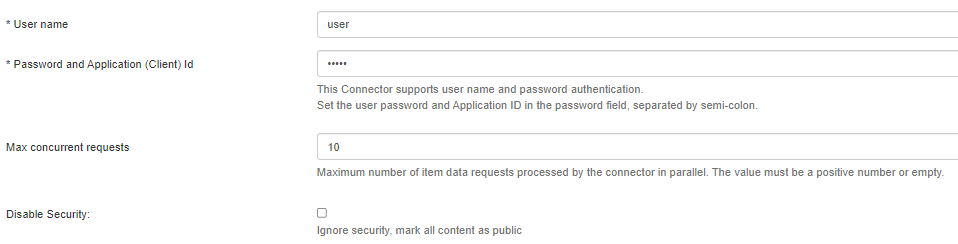
- In theUser name field, enter the user with the appropriate permissions for crawling the configured site collection
- If AUTOFETCH is used (i.e. no mailbox filters are used or if a filter containing the wild mark (*) symbol is used): Tenant admin permissions are required
- If AUTOFETCH is not used (i.e. mailbox filters are added for each individual site collection): Edit permissions are required for each site collection
- In thePasswordfield, enter the user password first and the Application ID, separated by the semi-colon ";" sign.
Certificate Authentication settings
-
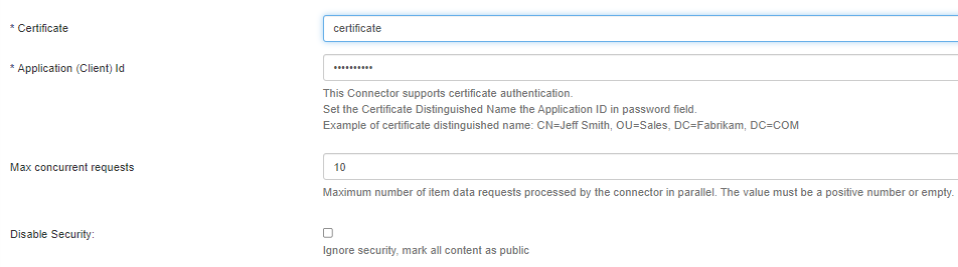
In theCertificatefield, enter yourCertificatecommon name.
If you copy your certificate details, as shown in the Certificate console graphic below, your syntax will contain unnecessary spaces.
You must ensure you enter your certificate information in syntax without spaces or your certificate will not work.
CORRECT SYNTAXexample: "CN=Jeff Smith"
INCORRECT SYNTAXexample: "CN = Jeff Smith"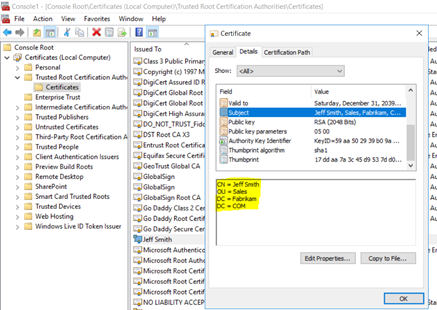
- In thePasswordfield, enter the Application ID. This is a GUID such as "c87a7836-a1da-455c-9171-836bf793c195".
Common Configuration Settings
- Disabled Security: Check to disable security. This results in no content be security-trimmed.
- OneDrive admin uri. Refer to the graphic below for sample values.
- Enter the following value in the following order, as shown in the graphic below, one per line:
- Admin URL
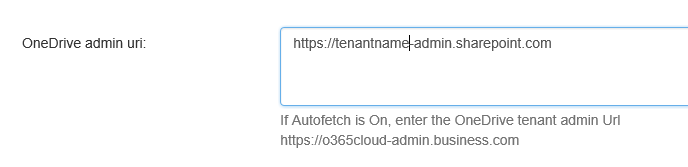
- Admin URL
- Enter the following value in the following order, as shown in the graphic below, one per line:
Configure the Mailbox/Datastore Settings
Configure your mailboxes, or datastores, for the OneDrive v1.0 Connector, using the following steps.
Use the Datastore Sync Settings tab to filter the datastores (site collections) that are returned after Datastore Load job completes.
If none of the filters have values, all site collections in your tenant are returned.
- Site Collection Title Filter:
- Use this field to filter site collections by title.
- You can specify both inclusion and exclusion rules.
- One set per line.
- Use * at beginning or end for wildcards.
- Use the pipe character to separate multiple entries (|)
- Site Collection Url Filter:
- Use this field to filter site collections by URL.
- You can specify both inclusion and exclusion rules; one set per line.
- Use *at end for wildcards.
- Use the pipe character to separate multiple entries (|)
- Case-insensitive
- Web Template Id Filter:
- Use this field to filter site collections by.
- Template IDs must not include the number:
- SPS is accepted
- SPS#1 is not accepted.
- You can specify both inclusion and exclusion rules; one set per line.
- Use *at end for wildcards.
- Use the pipe character to separate multiple entries (|)
- Case-insensitive
Content Configuration Settings
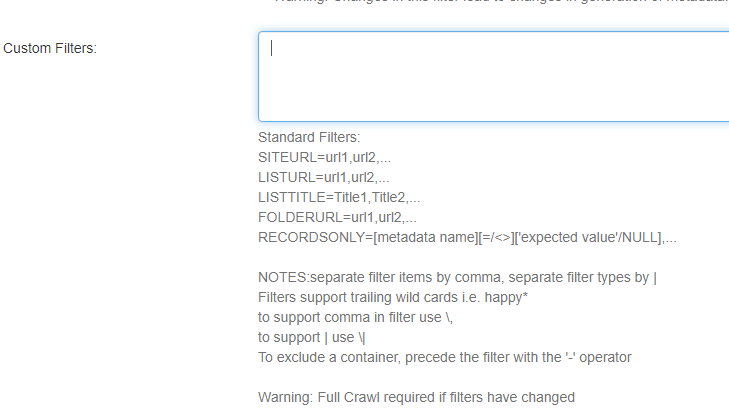
For a given content source, you can apply additional filters to decide which list or item to crawl.
Use the following syntax for the filters:
- LISTURL =url1,url2,...
- LISTTITLE=Title1,Title2,...
- FOLDERURL=url1,url2,...
- SITEURL=url1,url2,…
- RECORDSONLY=[metadata name][=/<>]['expected value'/NULL]
- Separate filter items using a comma (,) and separate filters with a character pipe (|) character.
- Filters support trailing wildcards.
- To use a literal comma (,) or a pipe character (|), precede the character with a backslash (\,), or (\|), respectively.
- If any changes are made to this field, a full crawl is required to properly refresh the index.
- The records only option can be used to only return metadata for the items matching the condition specified.
- No file or binary content is retrieved for such items.
- No file or binary content is retrieved for such items.
- By default, connector returns SharePoint sites as search result items.
- To exclude these entries from search results, disableSitecontent type using the content types filter.
-
To property map well known groups from SharePoint (likeEveryone except external users, All Authenticated Users,andAuthenticated Users), use the following Group load script:
dim sysId as string = HOST.GetSystemId()

If sysId = "true"HOST.SetAdId("NT AUTHORITY\Authenticated Users")
End If

If sysId = "windows"HOST.SetAdId("NT AUTHORITY\Authenticated Users")
End If

If sysId.startswith("spo-grid-all-users")
HOST.SetAdId("NT AUTHORITY\Everyone")
End If
Complete the information in the remaining tabs using the generic instructions here:
- Connector Framework
- ConnectivityHub
Extracting HTML Text and Metadata from Documents
You can extract HTML text and metadata from your source system (optional).
See How to Extract HTML Text and Metadata from Documents.
Extracted information includes:
- Available text and metadata which can be mapped to metadata properties.
- HTML metadata tags from HTML pages.
- Available HTML tags and links for use as metadata from HTML documents
Update the OneDrive Connection with the Certificate and Azure App Information
- Open your Connector Framework.
- Click theConnectionslink from the top navigation.
- Select your SharePoint Online v2.0 connection from the drop-down menu.
- Navigate to the Certificate portion of the page.

- Enter the credentials (Login and Password) of your OneDrive connection:
- Login(required):Enter the Certificate Distinguished Name.
- Password(required): Enter the Azure Application ID.
Note: You can find the Azure Application ID when you access your Azure App in the registered applications from the Azure Portal: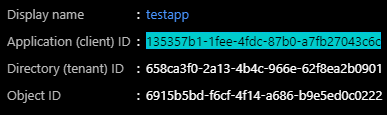
Important:If you change the Azure Application permissions, you must recycle the OneDrive connector application pool in order for the permission change to take effect. - ClickSave.