How to Set Up and Configure the S3 Connector
All BA Insight connectors can be downloaded from Right Answers under Knowledge > BA Insight > Product Downloads > Connectors.
This connector is installed with the same generic steps as any BA Insight connector.
Satisfy the Prerequisites for your connector before installing.
Configuration specifics are detailed below.
200 characters limit
S3 connector only supports relative paths up to 200 characters in the S3 bucket.
Connection Configuration Specifics
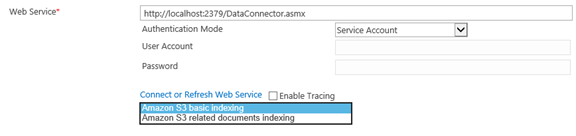
Amazon S3 Connector has to option to choose between web services depending on the content you are crawling.
After installation, when configuring the Connection you see a drop-down menu with the options:
- Basic indexing
- Related documents indexing
Basic Indexing
Amazon S3 log in details:
- Login:
- Provide the Amazon S3 Access Key ID if using the amazon S3 authentication.
- If using an external provider, check with the provider for the appropriate login/user/account data to provide.
- Password:
- Provide the Amazon S3 Secret Access Key if using the Amazon S3 authentication.
- If using an external provider, check with the provider for the appropriate password/secret data to provide.
Basic indexing allows the following parameters in the Amazon S3 Connection Parameters field:
- <Bucket>
- Required
- The Amazon AWS bucket to be crawled
- <UseExternalCredentialsProvider>
- Optional
- Default value: false.
- Please set to true if you wish to use an external service to authenticate.
- This service should return a set of temporary AWS credentials (key, secret key and session token) - optional<ExternalCredentialsProviderUrl[TM1]>: If the option above is set to true, you need to provide the URL of the external service for authentication
- <UseTemporaryCredentials>
- Optional
- Set this parameter to true if you wish to authenticate in Amazon S3 source system with temporary credentials.
- <CredentialRoleARN>:
- If <UseTemporaryCredentials> is true, you may also provide an Amazon role to be used for authentication.
- The permissions set for this role are used further on.
- <AWS Region>:
- Region of the bucket to be crawled.
- The default is
USEast1
Example With External Authentication Service
<configuration>
   <Bucket>Mytestbucket1</Bucket>
   <UseExternalCredentialsProvider>true</UseExternalCredentialsProvider>
   <ExternalCredentialsProviderUrl>
      http://MyExternalAuthProviderURL
   </ExternalCredentialsProviderUrl>
</configuration>
Related Documents Indexing
This sub connector handles the scenario where multiple files stored in the same bucket should be indexed as a single item.
-
For instance, a contract and its addendums should be indexed together.
The above configuration details for Basic Indexing also apply to Related Documents Indexing.
-
You must provide additional information in the Related Documents Pattern field
-
When using this mode, you can specify any combination of the following types of files:
- Binary content:
- This file is sent as-is to the search index for instance
- Metadata file:
- This file is understood as an XML file containing metadata about the item to index.
- Its content is read by the connector and every XML element is returned as a list of properties for the current item index
- DocumentUrls:
- The file is understood as a text file with each line being a URL
- Binary content:
In order for Amazon to know that documents are related to each other, a pattern has to be provided and the documents in the AWS bucket have to respect this pattern in their naming.
Example
<relateddocumentspattern>
   <binarycontent>
      <![CDATA[(?<filename>.*).(?<extension>pdf|docx|pptx)]]>
   </binarycontent>
   <documenturls>
      <![CDATA[(?<filename>.*_URLs).(?<extension>txt)]]>
   </documenturls>
   <documentmetadata>
      <![CDATA[(?<filename>.*).(?<extension>xml)]]>
   </documentmetadata>
</relateddocumentspattern>

Content Configuration Specifics
Amazon S3 has a flat structure with no hierarchy like you would see in a typical file system.
For the sake of organizational simplicity, the Amazon S3 console supports the folder concept as a means of grouping objects.
-
Amazon S3 does this by using key name prefixes for objects.
-
Amazon S3 Connector supports this structure with the use of filters on content

[TM1]Explain how to provide the username/pwd to authenticate against the external provider.