How to Set Up and Configure the Veeva Vault Connector
All BA Insight connectors can be downloaded from Right Answers under Knowledge > BA Insight > Product Downloads > Connectors.
This connector is installed with the same generic steps as any BA Insight connector.
Satisfy the Prerequisites for your connector before installing.
Configuration specifics are detailed below.
Install the Connector Using the Wizard
To install the Veeva Vault connector, use the following steps:
- Download the connector from the Upland Right Answers Portal (requires login).
- Extract the files and double-click the .msi file to initiate the installation wizard.
- Click Next.
- Select your installation folder.
- Set your web service information, including
- Web Service Port (default 4567)
- Domain Service account for the API WebService.
- Click Next and finish the installation wizard to completely install the connector.
Modify Your Application Pool for Optimum Performance
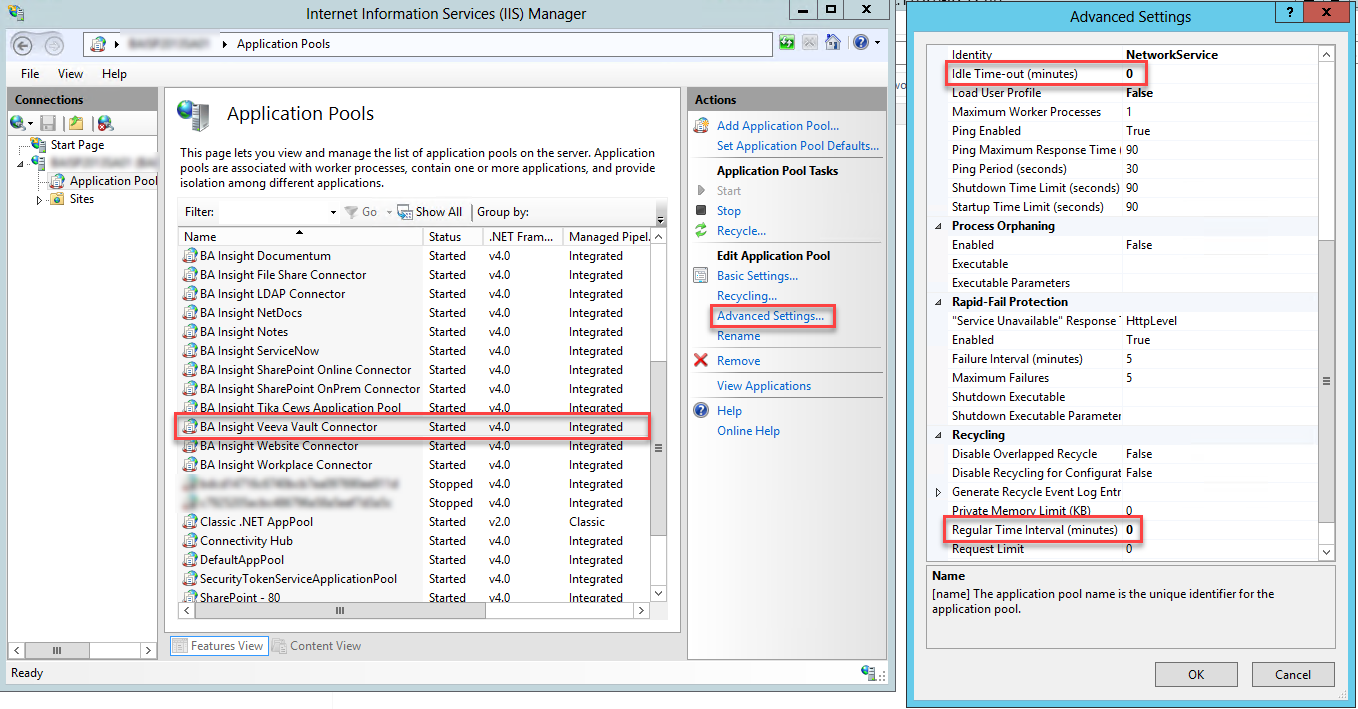
Use the following instructions to apply changes to your IIS Application Pool for optimal performance:
- Set the “Idle Time-out (minutes)” parameter to 0.
- Set the Regular Time Interval (minutes)” parameter to 0.
Connection Configuration Specifics
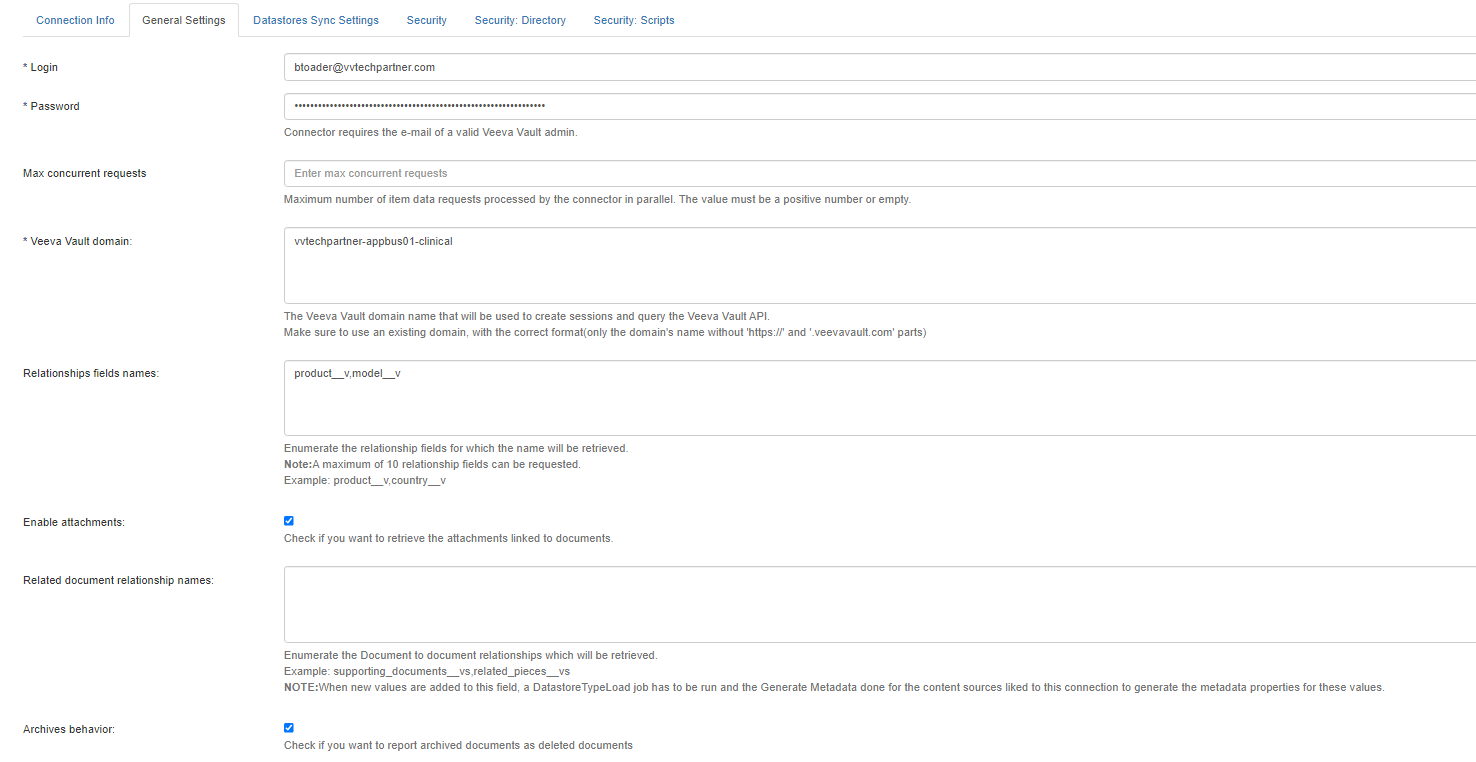
To configure your connection, navigate the Connector configuration page and fill in the following fields:
- Login:
- Enter the credentials of a Veeva Vault account with full READ access to interrogate the API and retrieve the list of documents and metadata.
- Enter the credentials of a Veeva Vault account with full READ access to interrogate the API and retrieve the list of documents and metadata.
- Veeva Vault domain:
- Enter the Veeva Vault domain name to be used to create sessions and query the Veeva Vault API.
- Enter the Veeva Vault domain name to be used to create sessions and query the Veeva Vault API.
- Relationships names:
- Enter a comma separated list of relation field.
- Values from those relations will be returned by the connector as metadata.
- Enable attachments:
- Checking this check box enables extra API calls to retrieve attachments for each Veeva document.
- Checking this check box enables extra API calls to retrieve attachments for each Veeva document.
- Related document relationship names:
- Specify data look-up relationships to provide translated values for data values.
- Archives behavior:
- Check this check box to report previously indexed Veeva documents as "deleted" that are currently marked as "archives" in the Veeva System during the next incremental crawl.
- Check this check box to report previously indexed Veeva documents as "deleted" that are currently marked as "archives" in the Veeva System during the next incremental crawl.
How to Index Vaults
Run the Datastore Load task to index all the vaults your account can access.
Content Configuration Specifics
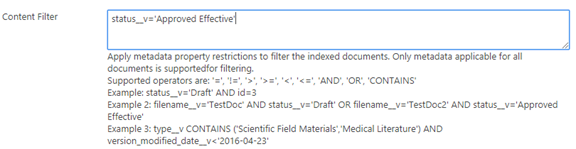
- There is an optional content setting that enables you to filter by metadata which documents to crawl.
- In your filtering query, use metadata applicable to all documents.
- See the examples under the Content Filter field in the user interface.
How to Create Filtered Requests
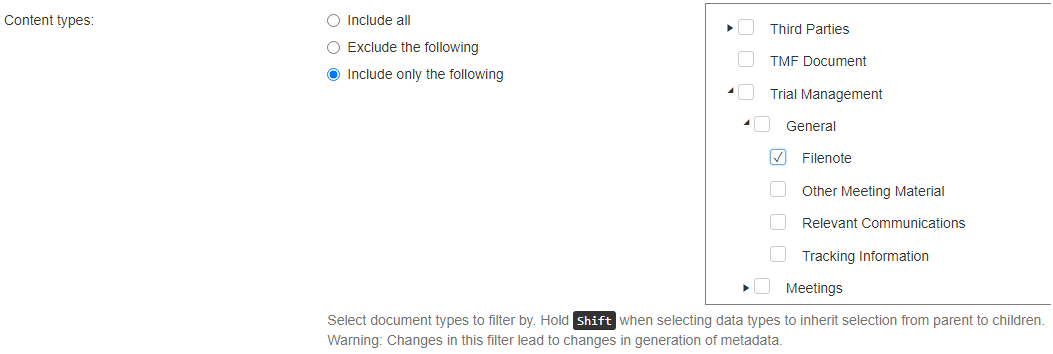
You can filter using the Content Type filter.
Documents in Veeva Vault are classified by:
- Type
- Sub-type
- Classification
- In the Content Type filter tree, find the document types hierarchy.
- By default, the "Include All" option is enabled.
- Include or exclude types, sub-types or classifications as you desire.
- Check the values you desire in the tree shown on the right side.
If you want to include or exclude a sub-type, or a classification, check only the options you want.
You do not need to select the parent of your selected option.
When a type is checked, the connector will include/exclude all documents that have that type, regardless of what sub-type or classification children are selected.
To avoid redundancies, BA Insight recommends you all requests be made as optimal as possible,