SharePoint Online Connector Troubleshooting
Force Recrawling a Site Collection
To force recrawling a site collection (datastore) use the crawl log as described here.
Perform the following steps:
- Find the crawled item associated with your site collection and click recrawl on the line next to it. See below:
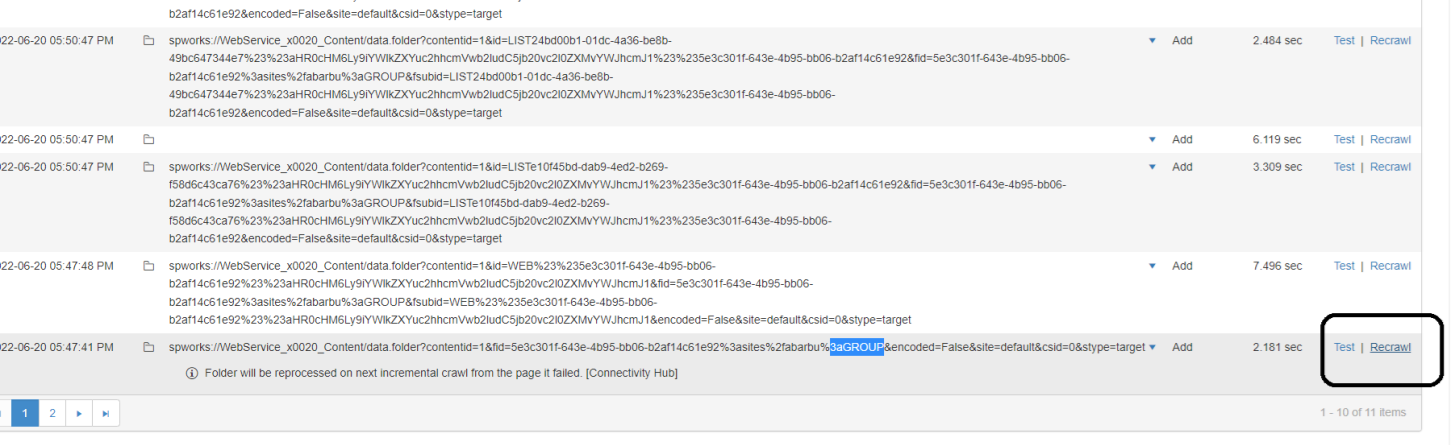
- Since matching a site collection with a given URL may be difficult:
- Visit the datastore page of your SharePoint Online connection
- Find your site collection (based on URL).
- Once you find the site collection, copy the first part of the site collection SOURCE ID.
This is the GUID, as shown in the screenshot below: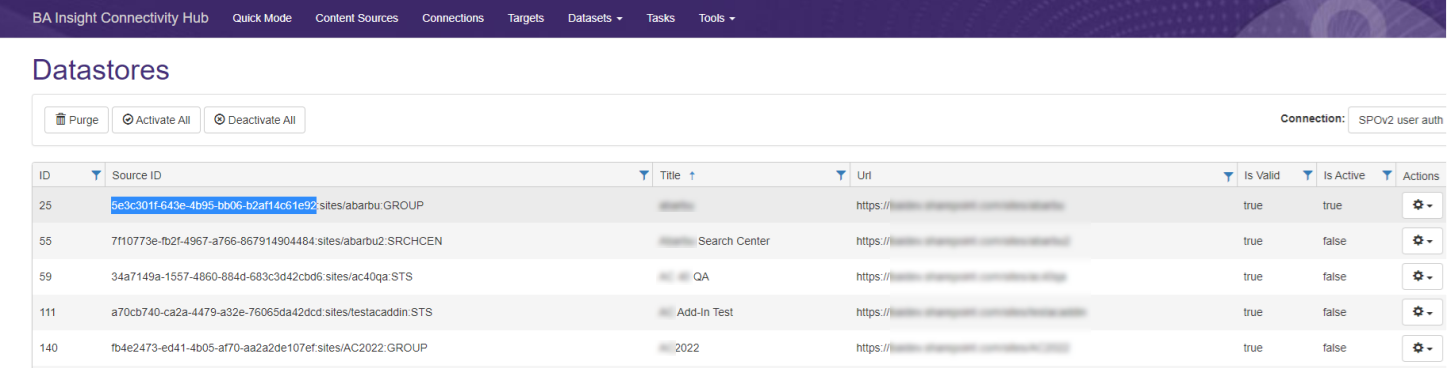
- With that GUID, compose a filter like this:
data.folder?contentid={Replace with your content source ID}&fid={replace with the GUID you just copied}- Example:
data.folder?contentid=1&fid=5e3c301f-643e-4b95-bb06-b2af14c61e92
- Filter the crawl log URL using the filter text you just created in step 3.
The URL contains that string: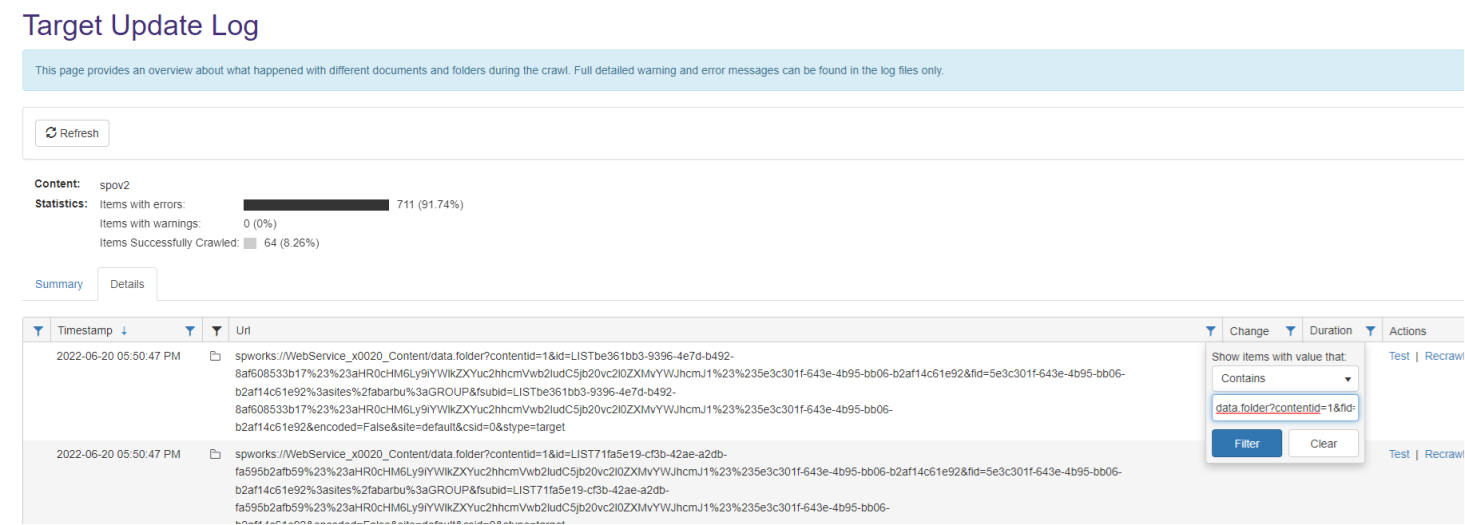
- After the filter is applied, obtain one item.
- That’s the URL matching your site collection.
- That’s the URL matching your site collection.
- Click recrawl.
- Start your incremental crawl.
(For that site collection, a full crawl, and not an incremental, is run).
The rest of the content will be incrementally crawled.
Custom-named Metadata
If you are having difficulties in finding you custom created metadata in the Sharepoint Online Metadata list after a Datastore Types Load job, use these steps:
- Navigate to location where the Custom Metadata has been created (Site Collection level, Library/List level, etc)
- Find your custom created column (metadata) in the list and open it.
- In the URL of the column edit page, observe the "Field" parameter as it contains the true name of the column (certain characters, spaces, non-latin characters are encoded):
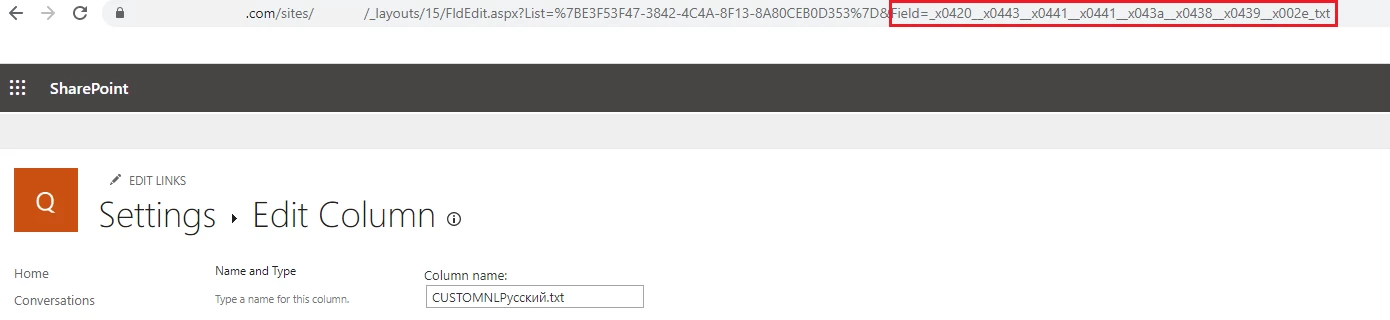
4. Search the true name of the column in the Sharepoint Online Metadata list found in Connectivity Hub.
Note: The Field value will not change if the column name is modified.
It retains the original name.