Username/Password-Based Authentication in SharePoint Online O365 Connector
The SharePoint Online O365 connector registers as an Azure AD application with user name authentication.
Application Permissions
The Azure application must be granted the following SharePoint Delegated API permission (see the topic below):
-
- AllSites.FullControl
Have full control of all site collections
Note: This permission is the minimum required as this is the only permission which lets the SharePoint API caller fetch security permissions set on sites.
- AllSites.FullControl
The Azure application must be granted the followingGraph APIDelegatedpermissions:
-
- Member.Read.Hidden
Read all hidden memberships - GroupMember.Read.All
Read all groups - Directory.Read.All
Read all group memberships - User.Read.All
Read all users' full profiles
- Member.Read.Hidden
User Permissions
- Tenant admin permissions are needed for Autofetch.
- Autofetch is used when a site collection filter is not specified or when a site collection filter containing the wildcard (*) symbol is specified.
- Edit permissions are needed on the site collections that will be crawled.
Register the Azure Application
- Go to https://portal.azure.com/ and login with Azure Global Admin user credentials.
- Click Azure Active Directory and click on the desired directory.
- From the menu selectApp Registrations.
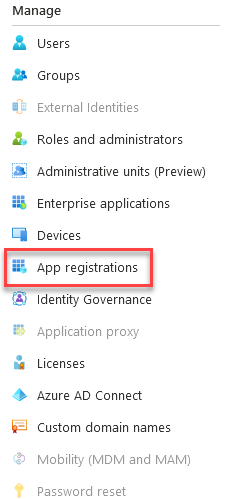
- Click New registration to register a new app.

- Name: Enter a name for your app.
- Application type: Select Web app/APIapp.
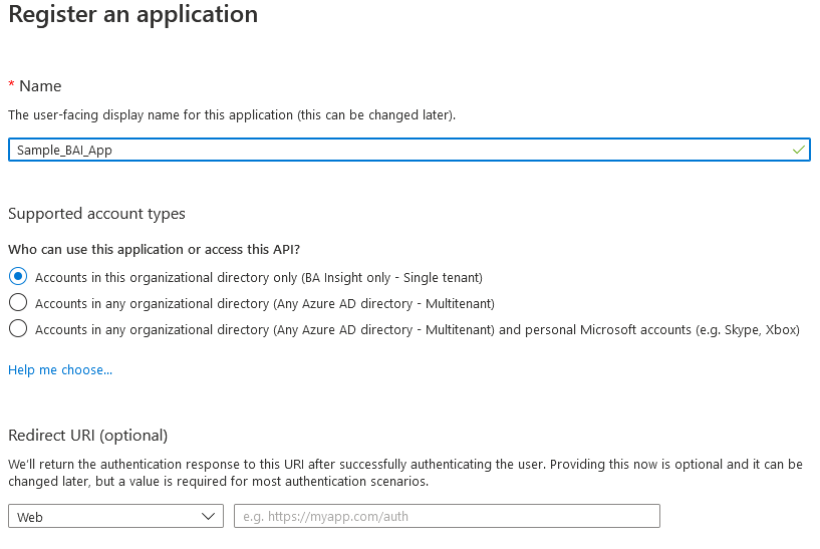
- Redirect URI: Enter a URI of your choosing. (The URI is not used in the SharePoint Online Authorization mechanism)
- Click Register at the bottom of the page.
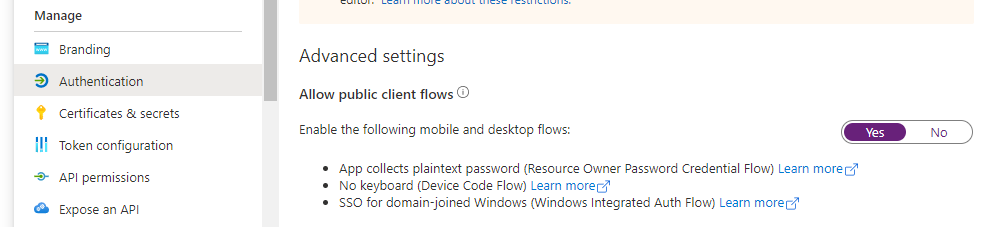
- Go to Authentication.
- Set "Allow Public Client Flows" to "Yes"
- Within the app, go to API Permissions.
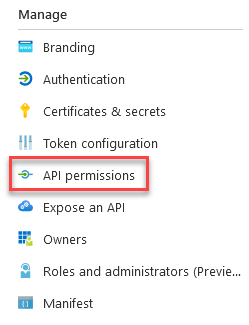
- Under API Permissions > Add a permission > Sharepoint.
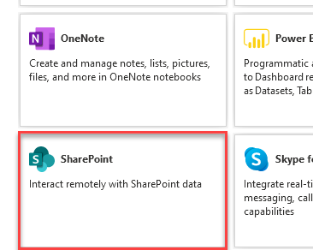
- Delegated permission> "AllSites.FullControl"
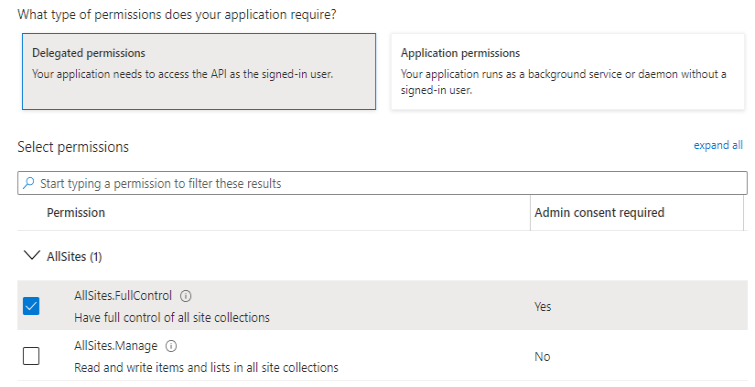
- Click the Add Permissions button at the bottom of the screen.
- Repeat this process (Steps 9 through 12) for each of the followingMicrosoft GraphAPIs -Delegated permissions:
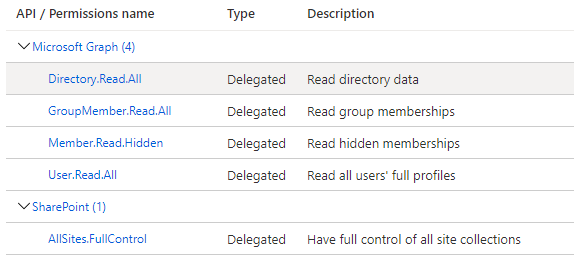
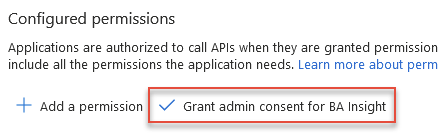
- Back in the "Configured permissions" menu, select all permission and click the Grant admin consent.. button to grant the selected permissions (requires admin rights).
Grant Access to the Connector
The connector accesses the SharePoint Online API via the public client flow mechanism.
To enable this mechanism:
- Go to the Authenticationtab for the app registration you just created.
- Under Advanced Settings, select Yes for the option "Enable the following mobile and desktop flows".
- Click Save to apply your changes.