oAuth Setup Example
This example explains steps to set up oAuth authentication on Okta
-
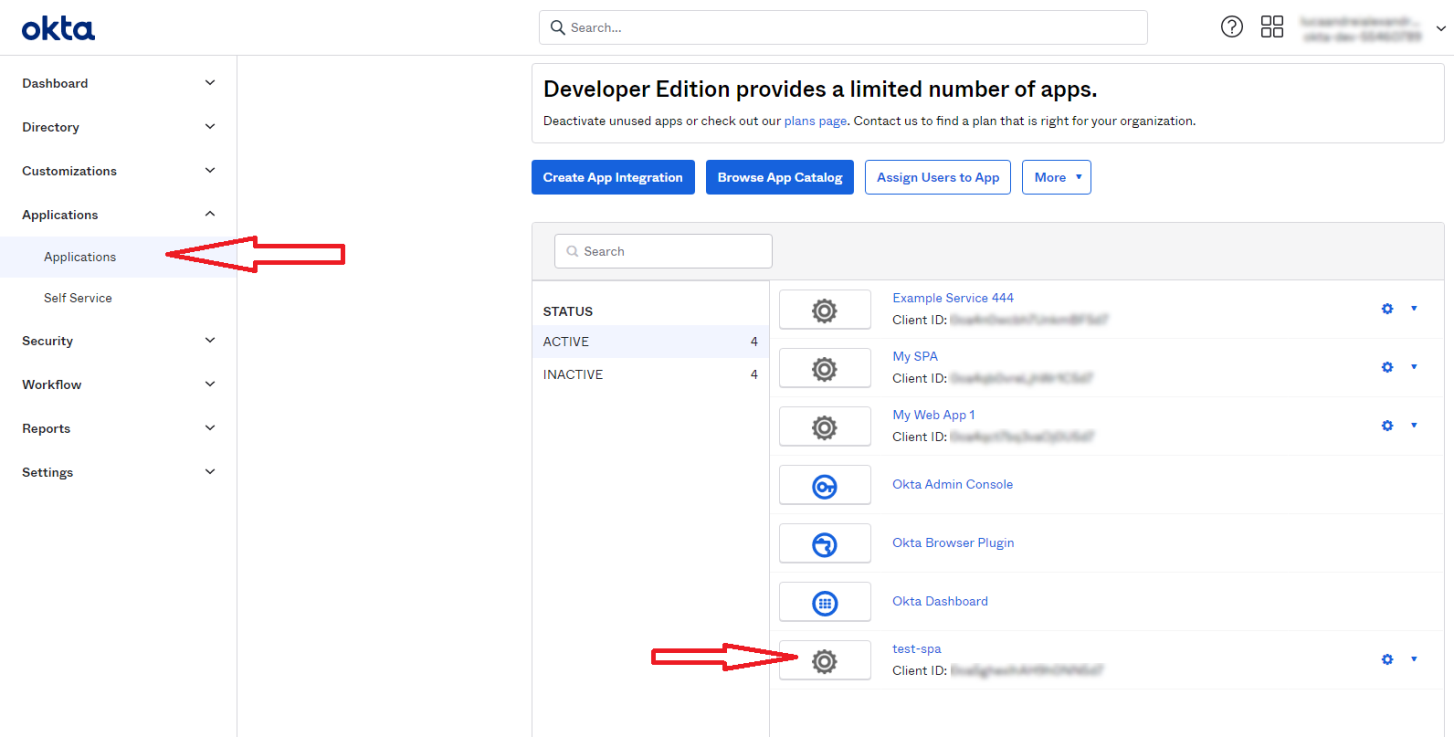
Go to the Okta site, and select your application under the Applications menu.
-
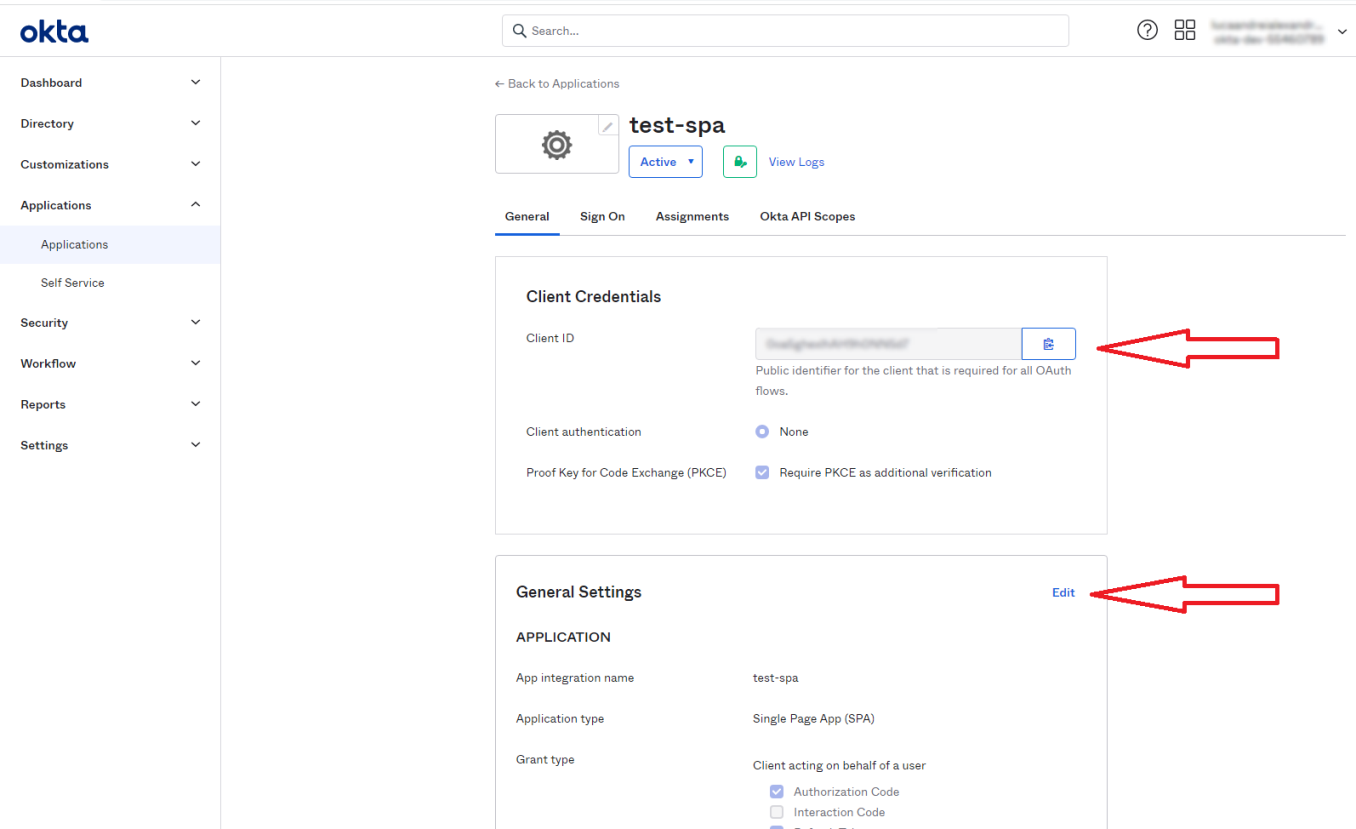
Save your client ID and continue to Edit settings.
-
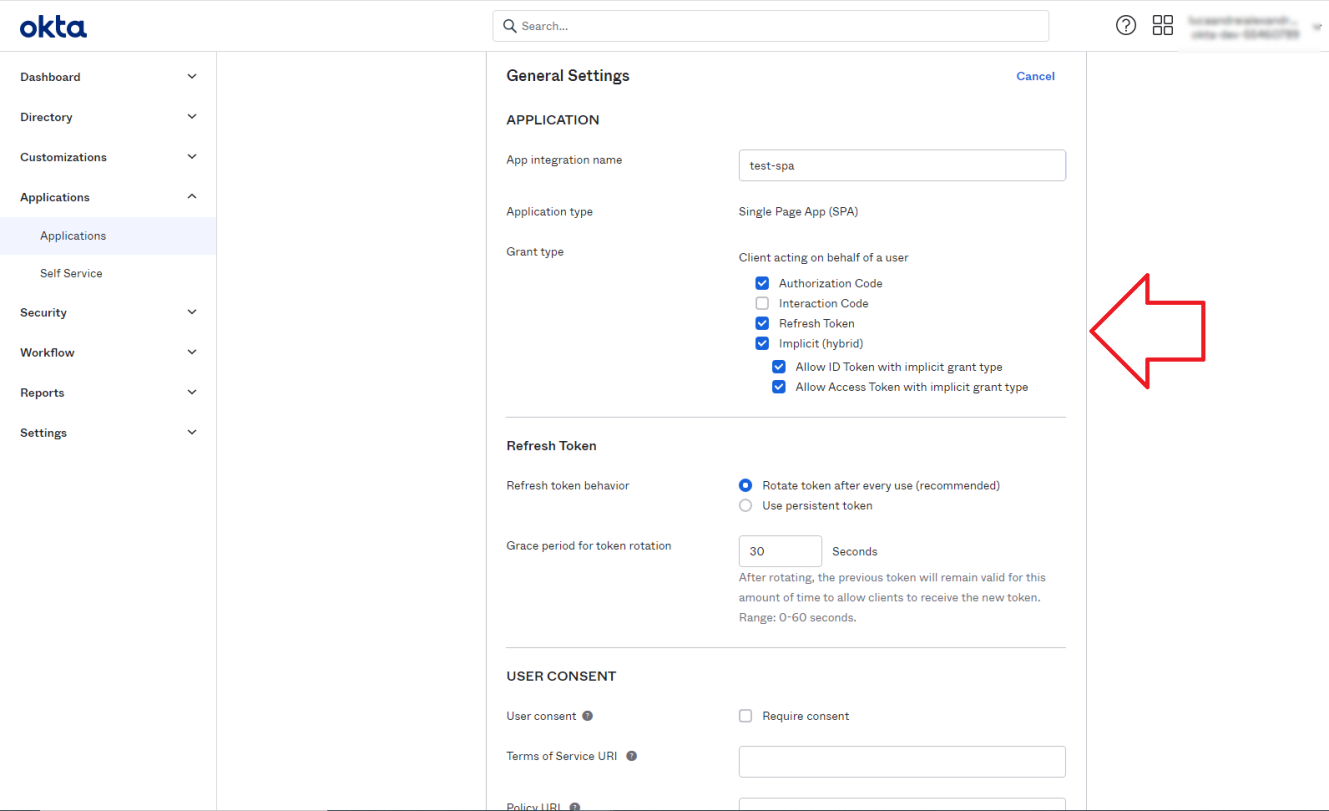
Grant type
-
Select all of the following options:
-
Refresh token
-
Allow ID Token with implicit grant type
-
Allow Access Token with implicit grant type
-
-
-
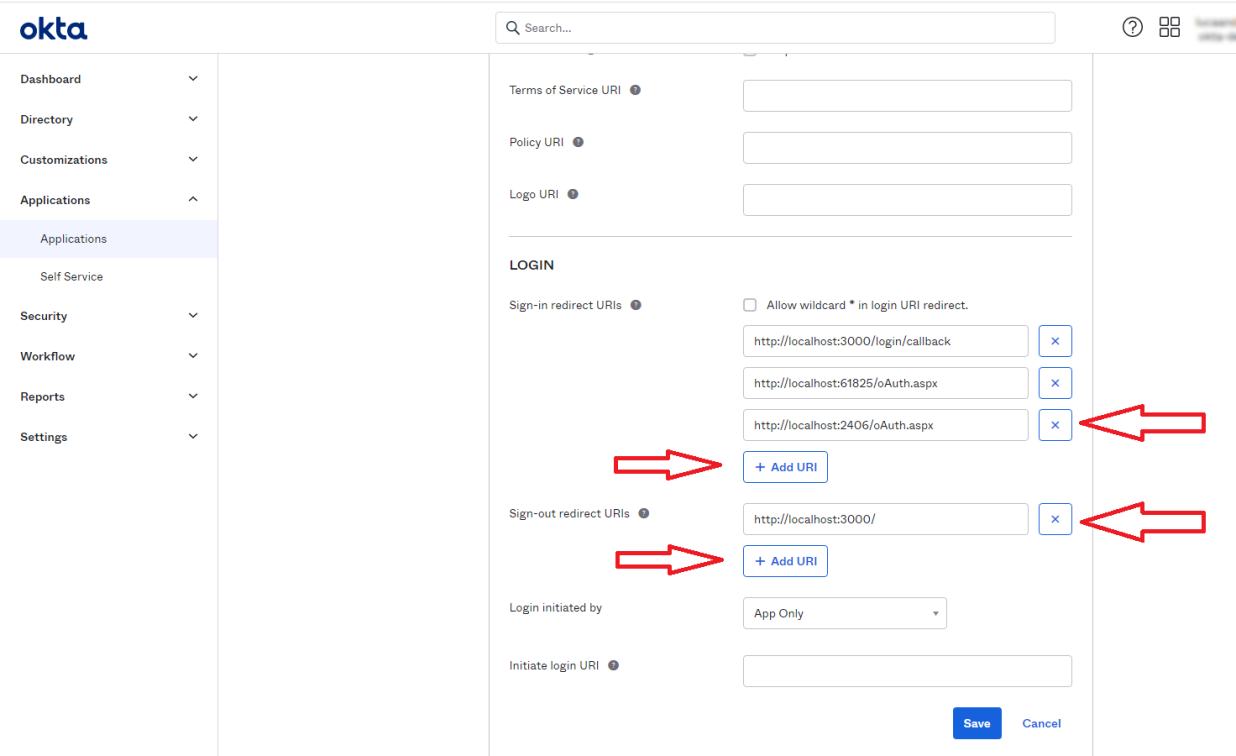
Add the sign-in redirect URL:
-
http://locahost:{connector port}/oAuth.aspx
-
-
Add sign-out redirect URL.
-
Click Save.
-
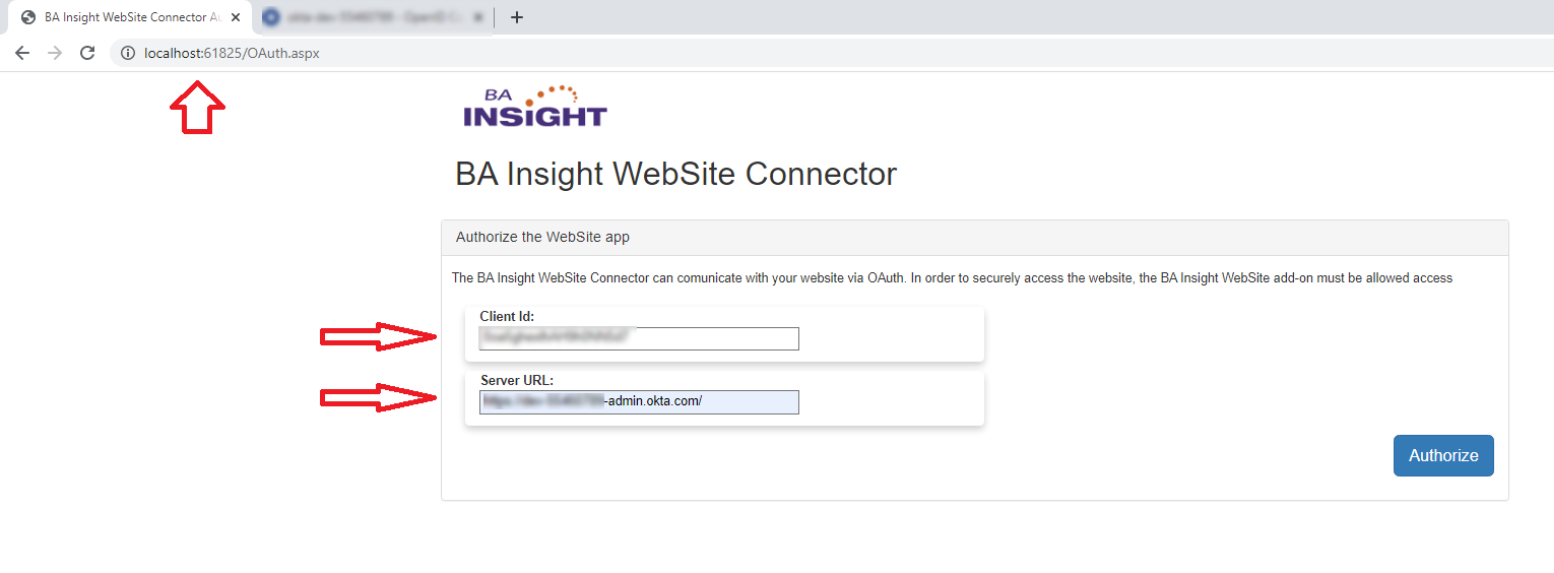
Go to http://localhost:{connector port}/OAuth.aspx
-
Client Id: Set your Client ID
-
Server URL: Set your server URL: Enter the URL of your Okta server
-
Example: https://my.local.okta.server-admin.okta.com/
-
-
Click Authorize.
-
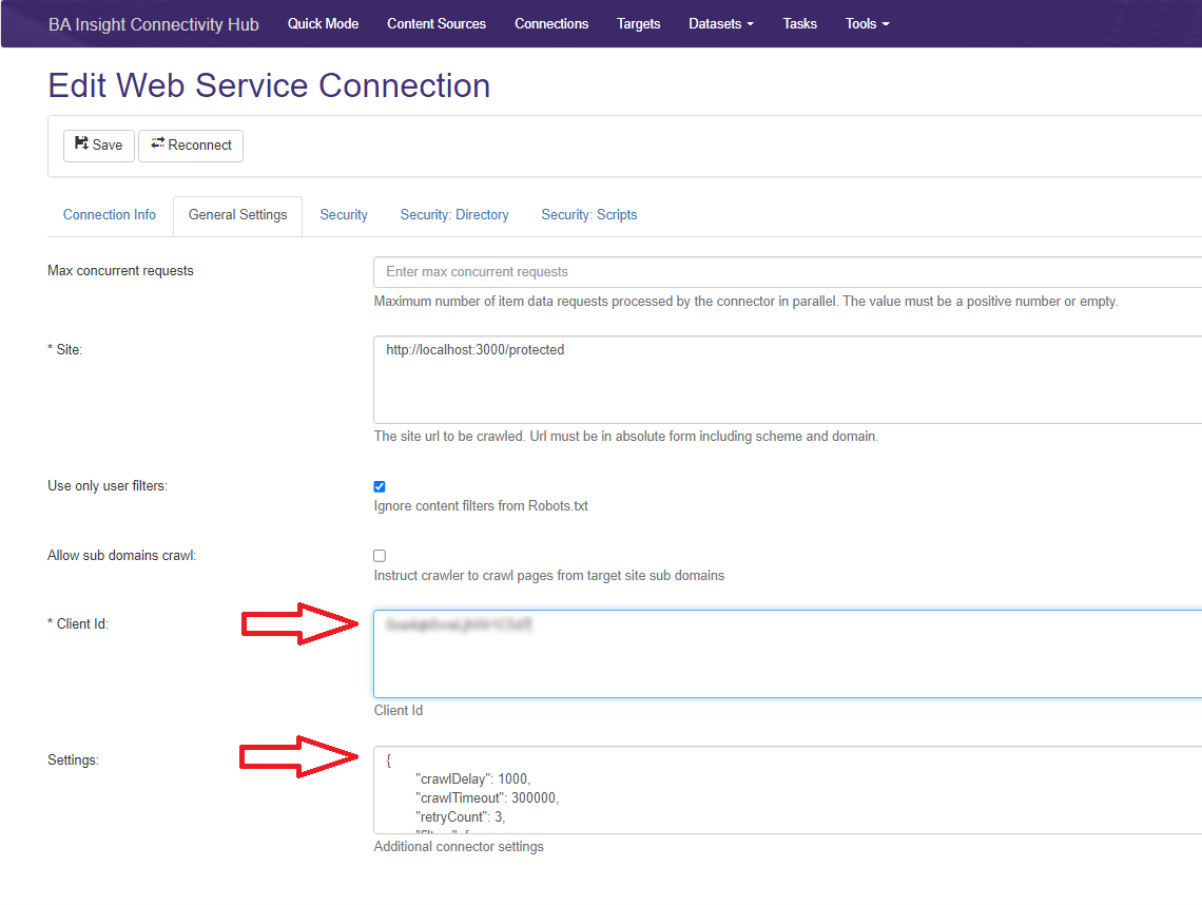
6. Go to the Web Service Connection in Connectivity Hub.
-
Site: Set the URL of the site to crawl
-
Client Id: Set your Client ID
-
Settings: Set the additional connector settings in the Settings field.
-
Example:
{
        "crawlDelay": 100,
        "crawlTimeout": 300000,
        "retryCount": 3,
        "filters": {
            "allow": [
                "/"            ],
            "disallow": [
                "*?utm_source"            ]
        },
        "supportFileExtensions": [
            "pdf"        ],

       "oAuthInitializationPage":"https://localhost:3000/oAuthInitialization?access={AccessToken}&idToken={IdToken}"
}