How to Set Up User Alerts
About User Alerts
The User Alerts features gives users the ability to get notified as a result of different triggers from SmartHub features such as:
- Logging notifications
- Backend failures
How to Configure Alerts
Alert functionality requires an SMTP server to be configured in the SmartHub Admin site to enable SmartHub to send e-mails to users and administrators.
The alert configuration prompts you for the following:
- SMTP Server Address and Port
- Provided values are the default values for the O365 Exchange email server
- Credentials to SMTP Server
- The credentials are encrypted and stored in the Federator configuration XML file
User Alerts
Users can choose to receive any of the following alerts:
Immediate Alerts
These are sent to the Administrator directly without “batching” since they are considered critical – for example, if Elastic is unreachable for more than 5 minutes.
- When a saved query results changed (requires user subscription)
- When best bets results changed (if they subscribed to it)
Instant Alerts
- Receive notifications (email and/or in-app) vs digest only
- With instant alerts you receive an email every time changes are detected
- With digest-only you receive an email every X time with the changes for all your subscriptions
- Users:
- Cannot choose the email address for security reasons (spam risk).
- Can name their subscription
- Example: “My cases” or “Documents about SmartHub”
- Can choose how often they want to get the notifications from a list of administrator-defined values:
- Example:
- Daily at 8 AM
- Daily at 5 PM
- Every Friday at 5 PM
- Every Monday at 8 AM
- Advanced: User can choose “daily at what time” and “weekly in which days”. Cron expressions not supported here.
- Example:
Sending Instant Alerts
- When changes are detected for a subscription and the subscription has instant alerts enabled, the changes are sent to the user using an HTML template.
- If the subscription also has “Digest” enabled:
- Items are not marked as processed so that they can be re-sent during the digest flow
- If only immediate alerts are enabled:
- Items are marked as processed so as to not be sent again
- Items are moved to the archive – see "Gathering user alerts data"
Sending Digest Email to Users
SmartHub has a scheduled digest task. Note the following:
- The task runs every 30 mins.
- Every time the task runs, it checks for digest emails set to be delivered at that time or within the next 30 minutes.
- If no emails are set to be delivered:
- The task stops
- If emails are found set to be delivered:
- The task grabs the data to send from disk and sends an email to the user using an HTML template (underscore.js)
- The task then marks the items as “processed”
- If no emails are set to be delivered:
How to Create an Alert
To create an alert, users perform the following steps:
- Navigate to your SmartHub site.
- Perform a query.
- On the Results page the following is shown:
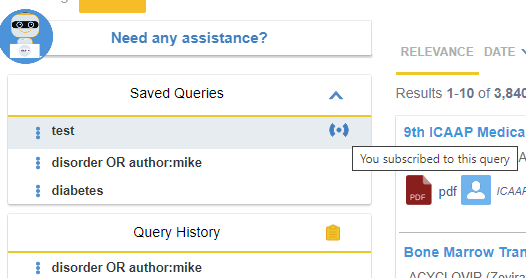
Subscription Indicator
- On the left side, expand the Saved Queries category to see a list of saved queries
- If the user has subscribed to a query, a subscription indicator is displayed next to the query. See the screenshot below.
- Subscribed queries are shown first, at the top of the list
How to Change or Unsubscribe from a Query
Unsubscribe or change the subscription options from a saved query using the vertical dot icon menu for the saved query:
Change Subscription
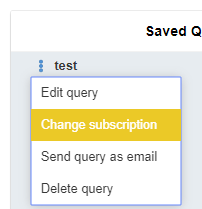
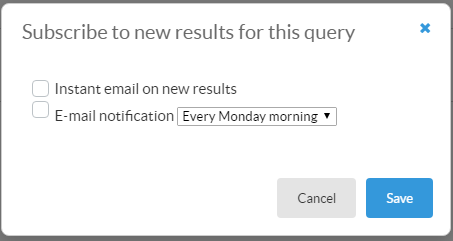
Changing the subscription enables users to:
- Unsubscribe
- Select if and how often they want to receive digests
- Choose to receive instant alerts
Subscription Options
How to Subscribe to a New Query
Subscribe to a new query one of two ways:
- Search bar:
- Directly from your search bar
- Query History widget:
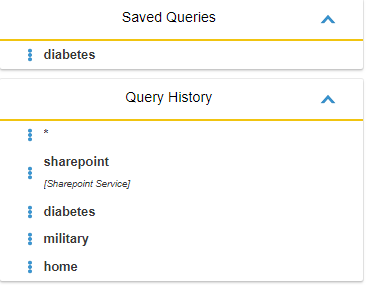
- From the options of a query under the Query History category in left-side navigation
Search Bar
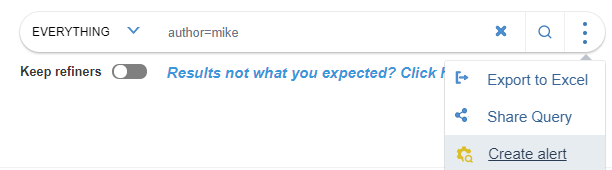
- Select "Create alert" from the dot icon menu directly attached to the search query field, and follow the instructions that appear.
See the graphic below:
Query History Widget
- Select the dot icon from a query under "Query History" in the left-side navigation panel.
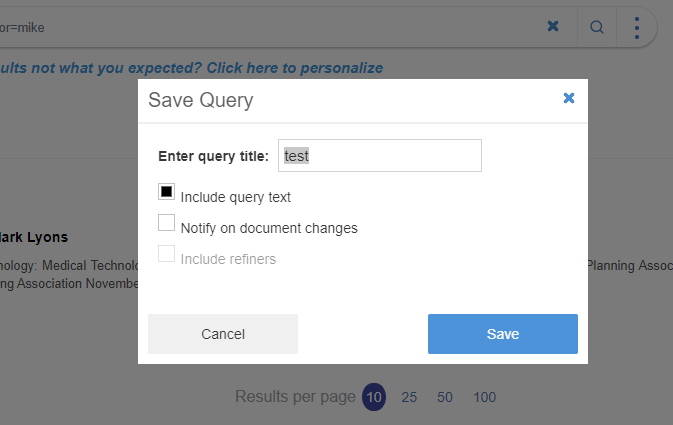
- Enter a query title and select "Notify on document changes."
How to Notify a User of New Results to a Query Suggestion
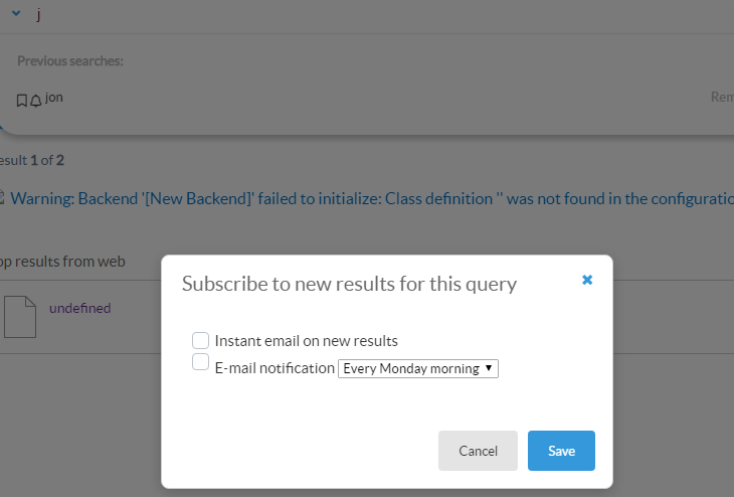
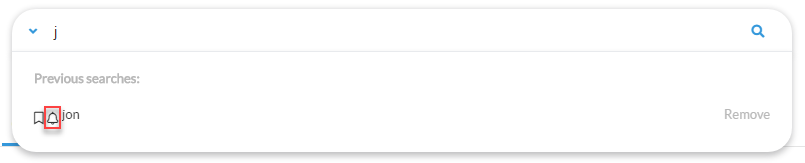
To subscribe to new results for a query suggestion in the search bar, see below:
- When the query suggestions appear, click the bell, encapsulated below:
- Choose the notification frequency details: