How to Upgrade SmartHub
Use the following instructions to upgrade BA Insight SmartHub.
WARNING! When you upgrade SmartHub, your local SmartHub files are overwritten.
You must save or backup your local files to avoid losing any critical data or customizations.
If you upgrade your Elasticsearch backend to version 7 (v7.5.1), you must use SmartHub v5.x.
If you use Elasticsearch version 6.x, use SmartHub v4.x.
The following components have their configuration overwritten when you upgrade SmartHub.
Make sure to back up their configuration and manually re-add it after SmartHub is updated.
Learn-To-Rank Scheduled Task
Any tool under the /Tools folder (Example: Analytics Exporter, TaxonomyPreloader, etc.)
Before You Start
- The upgrade process overwrites local files, including files that contain any customizations you may have created.
- Create a backup of your entire SmartHub installation directory to ensure you can restore your settings and do not loose any important customization information.
Note!!: If you have made customizations to any native, out-of-the-box files, such as web.config, those customizations are overwritten during the SmartHub upgrade process. - Create a backup of your entire Analytics installation directory for the same reason as above.
- Backup any modified native files, such as web.config BEFORE PROCEEDING.
- AFTER upgrading, you encrypt sensitive SmartHub files using the encryption tool as described here: How to Configure Encryption.
Upgrade Procedure
Upgrading SmartHub is a simple process, but you must perform each step carefully. Contact BA Insight for support.
To upgrade SmartHub, you perform the following high-level steps detailed further below:
On the IIS server that houses your SmartHub instance:
- Stop the SmartHub Application Pool
- Stop your SmartHub site
- Download and extract the new SmartHub installation files
- Copy your new SmartHub files into your existing SmartHub installation directory, overwriting your existing files (which you backed up)
- Restore your customized files from your SmartHub back up (performed in the section "Before You Start," above)
- Start your SmartHub Application Pool
- Depending on your backends, perform backend-specific steps (more info below)
- Start your SmartHub site
- Test your SmartHub instance
- Encrypt your SmartHub files
Use the following detailed procedure to upgrade your instance of SmartHub:
- Open IIS Manager and click Application Pools from the left navigation pane.
- Select your SmartHub Application Pool, which was setup and named when you first installed SmartHub, and then click Stop from the Actions menu on the right side pane.
- Download the latest release of SmartHub (a single .zip file) from the Upland Right Answers Portal if you have not already done so.
- Right-click the downloaded .zip file and check the "Unblock" check-box. Click OK.
- Extract the contents of the .zip file.
-
Copy the extracted files into your current SmartHub installation directory, such as "C:\Program Files\BA Insight\SmartHub\SmartHub-5.6". Note: This overwrites the existing files.
Note! If you change the name of your SmartHub installation directory when upgrading, SmartHub will not load.
You must instruct IIS to use the new directory path (on the right side, under "Edit Site > Basic Settings..."). See the graphic below.
For this reason, you may decide to name your SmartHub installation directory a generic name, with no version in its title.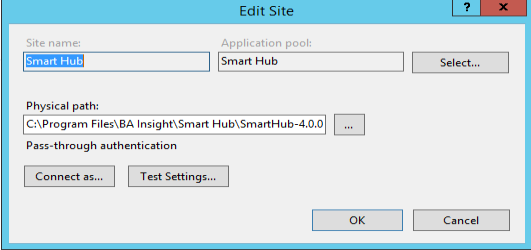
- Any customizations made to your old, SmartHub web.config file must be merged into your new SmartHub v5.x web.config file.
These changes are typically bindings settings. Recall, you backed up modified files before starting your upgrade. -
Open IIS Manager and click Application Pools.
-
Select your SmartHub Application Pool, which was setup and named when you first installed SmartHub, and then click Start from the Actions menu.
- To test if the upgrade was successful, open a new browser window, enter your SmartHub URL and run a test query.
- For help with any installation errors, contact BA Insight support.
- Proceed to the next section.
If using an Elasticsearch backend, before your upgrade from SmartHub version 4 to 5 is complete, see Additional Steps: Update Elastic Backend Settings.
Encrypt SmartHub Files
Follow the instructions here: