How to Configure the Search Tabs for Content Sources
About
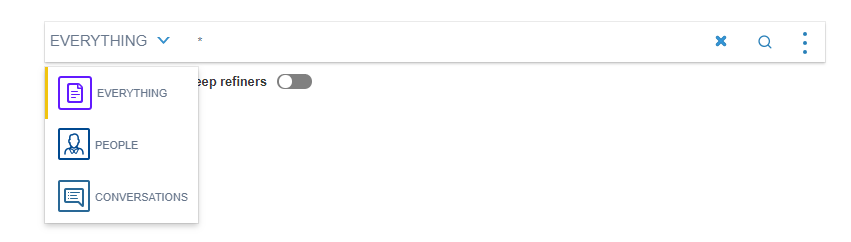
- The Search Tabs are used to specify which content sources SmartHub uses and how the query changes based on which content source is selected.
- Search Tabs were initially sourced from Coveo and they are referred to as "CoveoTab" in the BA Insight code.
- The Search Tabs and the CoveoTab component are one and the same.
- To configure a Search Tab, edit the HTML page and add the desired attributes to the CoveoTab component.
See the code and Attributes table below.
Example
Copy
<a class="CoveoTab" data-icon="coveo-sprites-file-small" data-tab-id ="1" data-show-scoped-search-selection="true" data-id="b29924a9-ec32-4c10-8892-a544b69ee121" data-expression='{searchboxquery}
 FederatorBackends:"SmartHubElastic"'
data-caption="Everything"></a>
Attributes
The following attributes are supported:
| Setting | Default Value | Description |
|---|---|---|
| data-id |
|
Used to specify the Content Source ID. This field is required. |
| data-tab-id |
If no |
Used to differentiate between CoveoTab components that use the same data-id attribute. This must be unique for each component. |
| data-expression |
|
This attribute enables you the alter the query that runs on the page. In order to target the search box you can use ' |
| data-icon |
|
Used to display an icon next to the caption used for the tab. |
| data-show-scoped-search-selection | false
|
When set to true, the selected CoveoTab is shown in the search box component. |
| data-caption |
|
The display name used for the CoveoTab. |