PowerPoint Hub
SmartHub PowerPoint Hub enabled SmartHub search integration inside PowerPoint app.
-
How to Set Up PowerPoint Hub
-
How to Install PowerPoint Hub (Organization)
-
How Users Enable SmartHub in PowerPoint
-
How to Install PowerPoint Hub (Independent)
-
Exposed Functions and Available Events
How to Set Up PowerPoint Add-In
-
Open the file web.config from the SmartHub root folder.
-
Remove the
X-Frame-OptionsandContent-Security-Policyheaders..png)
-
Navigate to the SmartHub directory: <SmartHub_Installation_Root>\integrations\powerpoint\
-
Edit the configuration file BAInsight.OfficeAddIn.PowerPointManifest.xml.
-
Replace all occurrences of the URL https://smarthub.contoso.com with the SmartHub address.
-
Go to line 125 and modify the parameter
SmartHubAddressEncodedwith your index page of your SmartHub.
Example
<bt:Url id="Upland.Taskpane.Url" DefaultValue="https://smarthub.contoso.com/integrations/powerpoint/Login.html?redirectUri=https%3A%2F%2Fsmarthub.contoso.com%2Findex.html%23pn%3Dpowerpoint" />https://smarthub.contoso.com/integrations/powerpoint/Login.html?redirectUri=https://smarthub.contoso.com/Index.html#pn=powerpoint
URLs can be encoded by opening a Browser Console (F12) and applying encodeURIComponent function to desired URL:

-
Navigate to SmartHub directory <SmartHub_Installation_Root>\integrations\powerpoint\powerpointCustomSettings.js
-
Search for
SH.AuthDialog.CustomSettingsand replace the occurrence of the URL https://smarthub.contoso.com with the SmartHub address. -
(Optional) You can change the icon of the app by changing the IconUrl setting in the manifest file.
How to Install PowerPoint Add-In (Organization)
The following steps describe how to install the PowerPoint Hub at an organizational level:
-
Access the Services & add-ins page as an Administrator: https://admin.microsoft.com/AdminPortal/Home#/Settings/AddIns
_1102x592.png)
-
Click the Deploy Add-in button.
-
Click Next.
-
Click Upload custom apps.
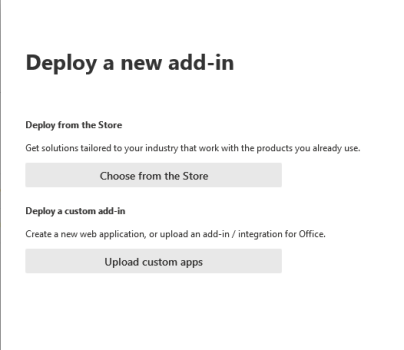
-
Select "I have the manifest file (.xml) on this device."
-
Click Choose File and browse to the .manifest file delivered with the SmartHub package.
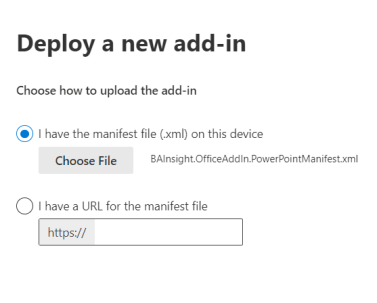
-
-
Click Next.
-
Assign Users (Everyone).
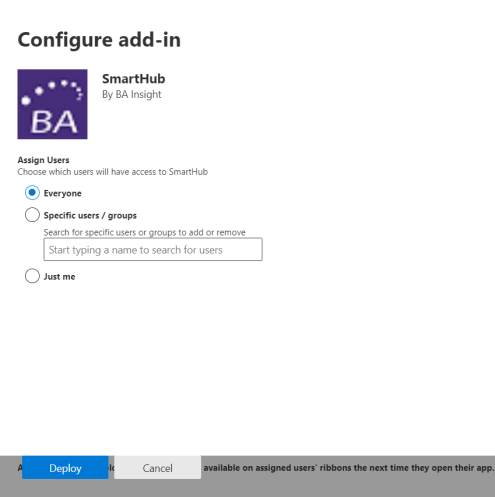
-
Click the Deploy button.
-
From this point, the Hub is available to all of your users.
How Users Enable SmartHub in PowerPoint
-
Users can enable Hub in their PowerPoint instance by going to Insert → Get Add-ins → Admin-managed and add "SmartHub ".
-
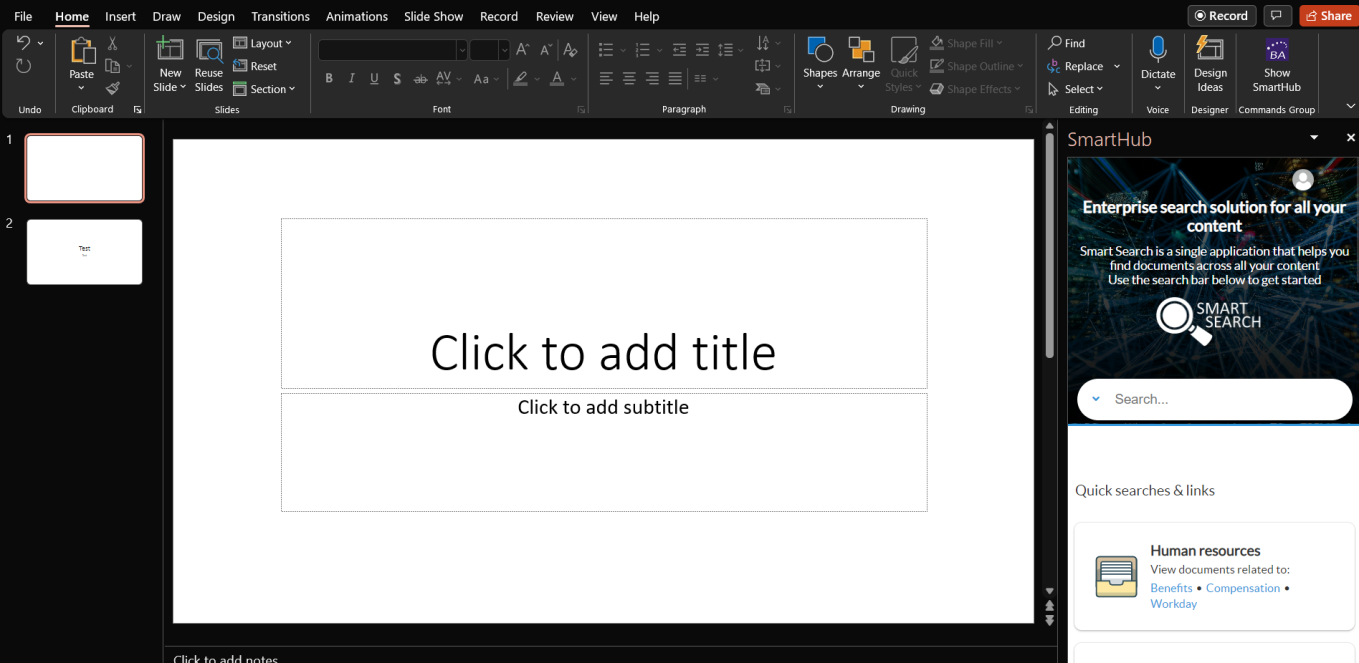
The SmartHub button can be found in PowerPoint → Home → Show SmartHub
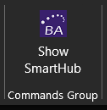
How to Install PowerPoint Add-In (Independent)
-
Go to PowerPoint 365 (it works only for PowerPoint browser version).
-
Open a presentation.
-
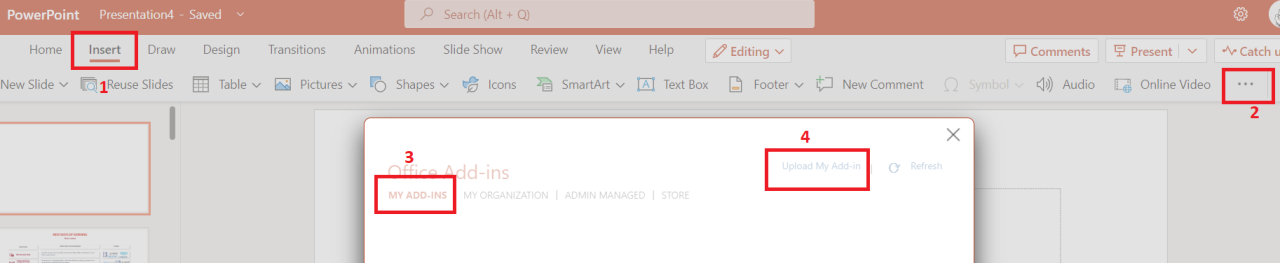
From Menu -> Select Insert -> 3 dots from right side -> Add-In -> My ADD-ins -> Upload My Add-in.
-
After these steps, you should be able to access the SmartHub from your presentation.
This is a PowerPoint Add-in issue.
Open the Developer console.
Exposed Functions and Available Events
This functions can be used to insert slides from search results into current presentation.
The events can be used for example to return different messages in UI, or to display a loading icons/message for end users.
Available Events
| Event name | Trigger |
| GetSlideBase64 | Triggered when getSlideBase64 is called. |
| ReceivedSlideBase64 | Triggered when Base64 data was received. |
| AddingSlide | Triggered when the slide is starting to be added in current presentation. |
| DoneAddingSlide | Triggered when the slide was added. |
Exposed Functions
| Function Name | Function Call | Description |
| window.SH.PowerPointGetSlideBase64 | window.SH.PowerPointGetSlideBase64(url) |
This function can be called in order to get the base 64 of slide. "Url" pameter represents the URl configured with DocLoader. |
| window.SH.PowerPointGetSlideBase64(url) | window.SH.PowerPointInsertAfterSelectedSlide(base64Blob, formatting) |
This function can be called in order to get the base 64 of slide. "base64Blob" parameter represents the base64Blob returned from above function. "formatting" parameter represents the slide format that you want to use for the inserted slide |
| window.SH.PowerPointInsertPowerPointSlide | window.SH.PowerPointInsertPowerPointSlide(url, formatting) |
This function can be called in order to insert the slide in your powerpoint presentation. It is a shortcut for above functions(PowerPointGetSlideBase64 and PowerPointInsertAfterSelectedSlide). "Url" pameter represents the URl configured with DocLoader. "formatting" parameter represents the slide format that you want to use for the inserted slide |