Expertise Backend
Prerequisites
- SmartHub: Installed and correctly configured
When using Expertise with SharePoint the maximum row limit is 500.
How to Install the Expertise Locator
Add the Expertise Locator Backend
- Click General Settings in the left side navigation menu.
- Click the Add New Backend link.
- Enter the backend details:
- Enter and record the backend name (you will use this name for the query template from the Recipe page).
- Select "Expertise Locator" from the drop-down list.
- Click OK.
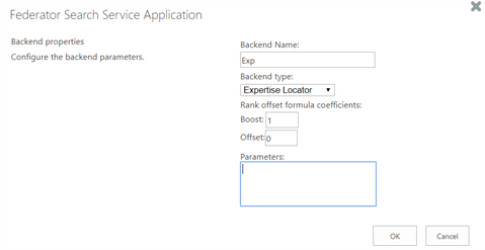
- To make the Expertise Locator backend your main backend:
- Select your current backend (linked name)
- Click Edit backend settings...
- Select "Expertise Locator" from the Backend type drop-down menu.
- Click OK.
Ensure at least One Additional Backend is Available and Configured
- Click General Settings from the left horizontal navigation menu.
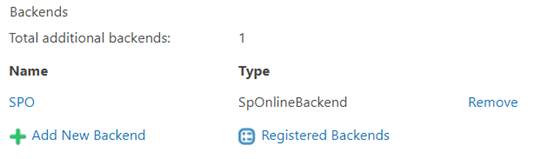
- Under Backends, there must be at least one additional, non-Expertise backend installed and configured.
- Expertise Locator uses the other backend(s) as a source.
- Without an additional backend, no results are returned.
Overwrite the Property Mapper Query and Results Pipeline Stages
- Go to General Settings.
- For every non-Expertise backend, add the following parameters, (if missing), mapped, into the Property Mapper stage.
- This must be done to the Property Mapper stage under both the Query and Results Pipeline Stages so that the following mappings exist:
datefiletypeclickUriauthorexcerptemailphonenamelocationdepartmenttitleTitle
- This must be done to the Property Mapper stage under both the Query and Results Pipeline Stages so that the following mappings exist:
Example
For example, if you have a SharePoint backend, you might use these values:
Sample Values
date,LastModifiedTime;
filetype,FileType;
FileExtension,FileType;
clickUri,OriginalPath;
author,DisplayAuthor;
excerpt,HitHighlightedSummary;
email,WorkEmail;
phone,DocId;
name,PreferredName;
location,BaseOfficeLocation;
department,Department;
title,Title;
Title,Title;
Configure Your Expertise Locator Pages
- Go to the SmartHub Administration page.
- Click the "Expertise Locator" link in the left navigation panel
- Alternatively you can directly access http(s)://<Smarthub_site_URL>:port/_admin/ExpertiseFinder/default.aspx
- Alternatively you can directly access http(s)://<Smarthub_site_URL>:port/_admin/ExpertiseFinder/default.aspx
- Configure your Expertise search page one of two ways:
- Recipe Method:
- Using an existing recipe:
- Cast a role
- Find a guru
or
- Using an existing recipe:
- Page Builder Method:
- Build the page by specifying your own settings
- Recipe Method:
Model Settings tab
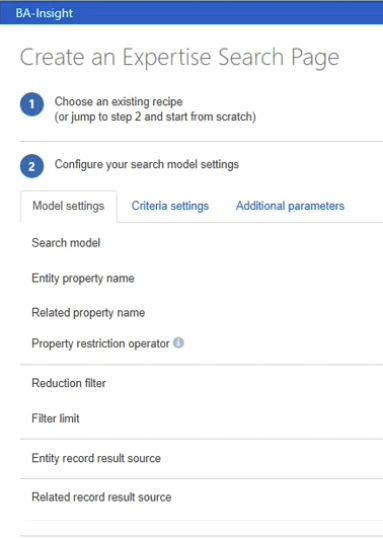
Search Model
For a general purpose Expertise setup, BA Insight recommends using: Entities based on related and Entity Search.
Note: The settings below are stored in a JavaScript file named config.js stored at the SmartHub root level.
Recipe Method
The recipe method is preset for one of two options:
- Find a guru
- Cast a role
The configuration options available, as described below, vary slightly, based on which option you select.
- Entities based on related – Two Stage
- The user query is used to search among the evidence corpus
- Experts are derived solely based on evidence
- This option does return experts that match the user query only by their user profile
- Entities based on related and Entity Search
- The user query is used for searching in both:
- Evidence corpus
- User profile
- If at least one matches then the person is recommended as an expert
- The user query is used for searching in both:
- Entities based on related – Two Stage Curated
- Similar with Entities based on related – Two Stage above, but does some additional processing on refiners to ensure the user is not shown any refiner options that might produce 0 results
- This is less performant than Entities based on related – Two Stage because it does one additional query to the search engine
- Entities based on related – Large pool
- The user query searches, in order:
- User profiles - so that the most important profiles are returned
- Content created only by the users returned in step 1
- Experts are derived from the authors of the documents returned in the second step
- The user query searches, in order:
- Simple Entity record search
- This is simple “People Search”
- Smart Select
- Selects one of Entities based on related – Two Stage or Entities based on related – Large pool based on the applied refiners
- If there are more refiners related to evidence than person then Entities based on related – Two Stage is used
- Custom Model
- Enables you to load a custom model.
- Requires written code. The code .dll file must be loaded.
- Entity property name
- Property in the entity query linked to related records
- Example: People
- Related property name
- Property that links related records to the entity query
- Examples: author, docAuthorAccount
- Property restriction operator
- The operator used when creating property restrictions
- Reduction filter: The mechanism that selects relevant related records
- Facet reduction:
- A filter reduction. Counts related records to rank search results.
- For example, a search for "California labor law," if user Joe has 300 records and user Sally has 50 records, Joe is recommended as the expert.
- Metadata reduction
- Related record relevance is used when calculating ranks
- Customer Filter
- Custom filter name:Specify a custom filter name from the registered backend filters
- Row limit: The max number of related records to be considered
- Facet reduction:
- Filter Limit
- The max number of values extracted from related facet.
Note: A large Filter limit can cause performance issues
- The max number of values extracted from related facet.
- Entity record result source
- The result source to pick entity records from
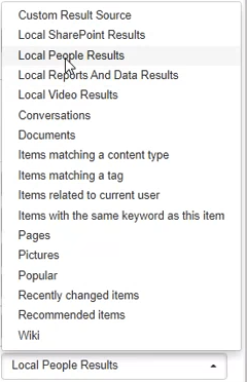
- The result source to pick entity records from
- Related record result source
- The result source to pick related records from
Criteria Settings Tab
- Property: The name of the managed property
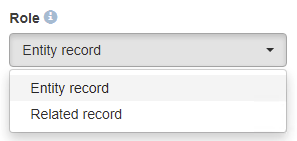
- Role: Specify whether this applies to entity or related records
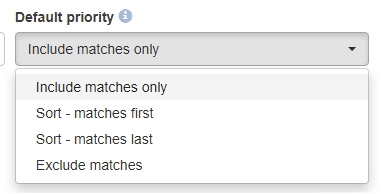
- Default property: Select the default priority for criterion
- Add criterion...: Use this option to add additional properties
Additional Parameters tab
Additional model and filter parameters.
- Parameter name
- Parameter value
Query Template
BA Insight recommends you use: Entities based on related and Entity Search for a general purpose Expertise setup.
- Make sure the Query template field contains the parameter
FederatorBackends:"<your expertise backend name>". - Make sure the Query template field contains the parameter
ExpertiseEntitiesBackends:"<entity backend name>;<other entity backend>" - Make sure the Query template field contains the parameter
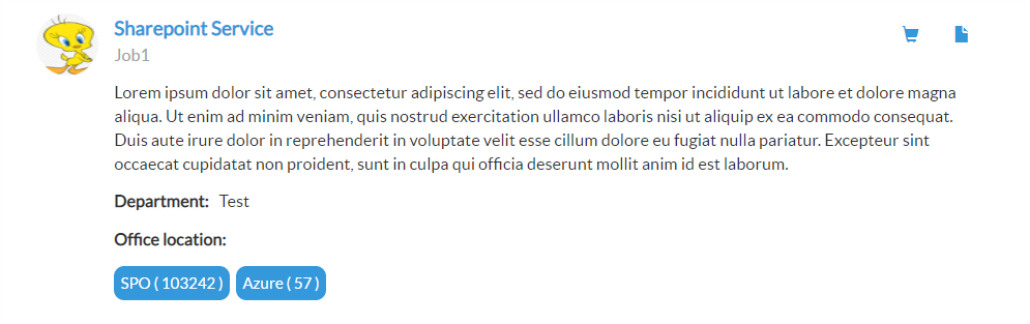
ExpertiseRelatedRecordsBackends:"<related records backend name>;<other related records backend name>" - In order to add weight to the Expertise Related Records Backends the following format should be used:
ExpertiseRelatedRecordsBackends:"<related records backend name>:<related records backend weight>;<other related records backend name>:<other related records backend weight>"
Adding weights to the Expertise Related Records Backends changes the order for the results: it will show the hits for each backend.
Email Template
Depending on your selection (Cast a role/Find a guru), the following information changes slightly.
- Email subject: the subject line of the email to be sent
- Email body: the body text to be sent in the email
Create an Expertise Search Page
- Enter a page name for your search page.
- Also create a landing page.
- Also create a landing page.
- Click Create page(s) and the file Templates.zip downloads.
- Unblock the downloaded file! Right-click the .zip file and check "Unblock."
- Click OK.
- Extract the downloaded archive and paste the extracted files into your SmartHub installation folder at the root level.