iManage Server Backend
Prerequisites
- Network service account
Note: A service account can only be used only with a single SmartHub instance at any one time.
Required User Access and Authorization
- This backend implements Federated Impersonation which means every user will have to log in for himself.
- After the backend is configured, every user is provided with a fake result in the Results page (http(s)://[web-app-url]/Results.html) inviting him to authenticate.
- The authentication message is configurable.
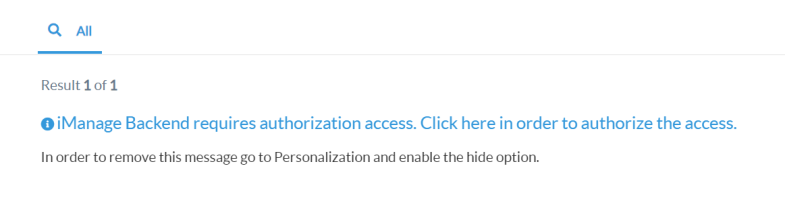
- The user is redirected to iManage where he provides credentials to log in.
- iManage redirects him back to SmartHub.
- The user is provided only with the items for which he has access to in iManage.
Endpoints
-
Endpoints:
"/documents/search";
"/api";
"/auth/oauth2/token";
How to Configure an iManage Backend
- Navigate to the SmartHub Administration page at: http(s)://[web-app-url]/_admin
- For example: http://smarthub.azurewebsites.net/_admin
- For example: http://smarthub.azurewebsites.net/_admin
- Go to the General Settings page
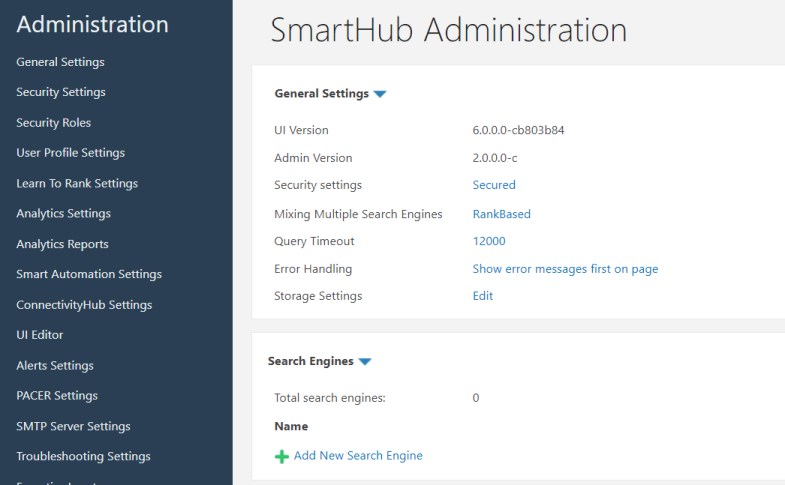
- Add New Search Engine: Click the "Add New Search Engine" link to add your new iManage backend.
- Type: Select iManage Server Backend from the drop-down list.
- Next, enter the Name and corresponding information in the appropriate fields. See the graphic and table below.
Note: When registering the app, the Redirect URL must be: http(s)://<web-app-url>/FederatedAuth.aspx
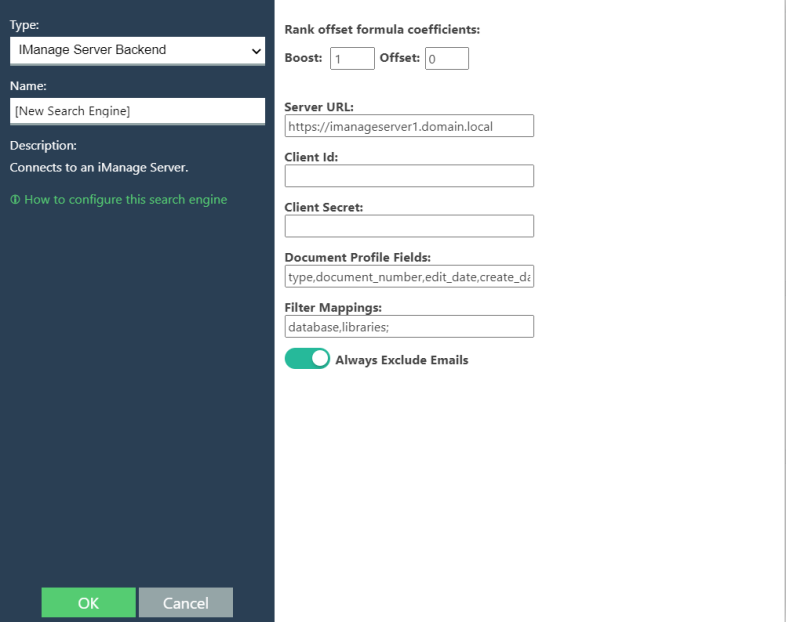
Use the following table:
| Property | Required? | Description | Default Value |
|---|---|---|---|
| Server Url | Yes |
The URL of your iManage server. Obtain this URL from your iManage Server provider. |
https://imanageserver1.domain.local |
| Client Id | Yes |
The client ID provided by your iManage administrator after the app was registered |
|
| Client Secret | Yes |
The client secret provided by your iManage admin after the app was registered |
|
| Always Exclude Emails | Yes | Disabling this checkpoint will bring emails from iManage to SmartHub according to search criteria. Checked | Checked |
Available Filters
Copy
WorkspaceId, Author, Type, EditDateFrom, EditDateTo, CreateDateFrom, CreateDateTo,
Custom1 to Custom20, Custom29, Custom30
Note: Additional filters can be added if considered relevant (detailed list here)