Register a New SharePoint Online App
The steps below register a new SharePoint Online App, which you publish the Smart Preview App to, later in this guide.
- Login to the Search Center where you wish to deploy Smart Previews using a SharePoint Online global admin account.
- Modify the URL in your browser by adding "_layouts/15/AppRegNew.aspx" after the site collection:
https://<site collection url>/_layouts/15/AppRegNew.aspx - The App Registration form appears.
- Complete the form:
- Client ID:
- Click "Generate" to generate the Client ID
- Client Secret:
- Click "Generate" to generate the Client Secret
- Title:
- Provide a title for the app.
- BA Insight recommends that you use a name so that it will be easily recognizable as the preview app.
- App Domain:
- Use the domain name from the Azure Web App.
- This should be the domain name only.
- Do NOT include "https" at the front of the path.
- Redirect URL:
- Use the Azure Web App URL, adding "/default.aspx" to the end of the URL.
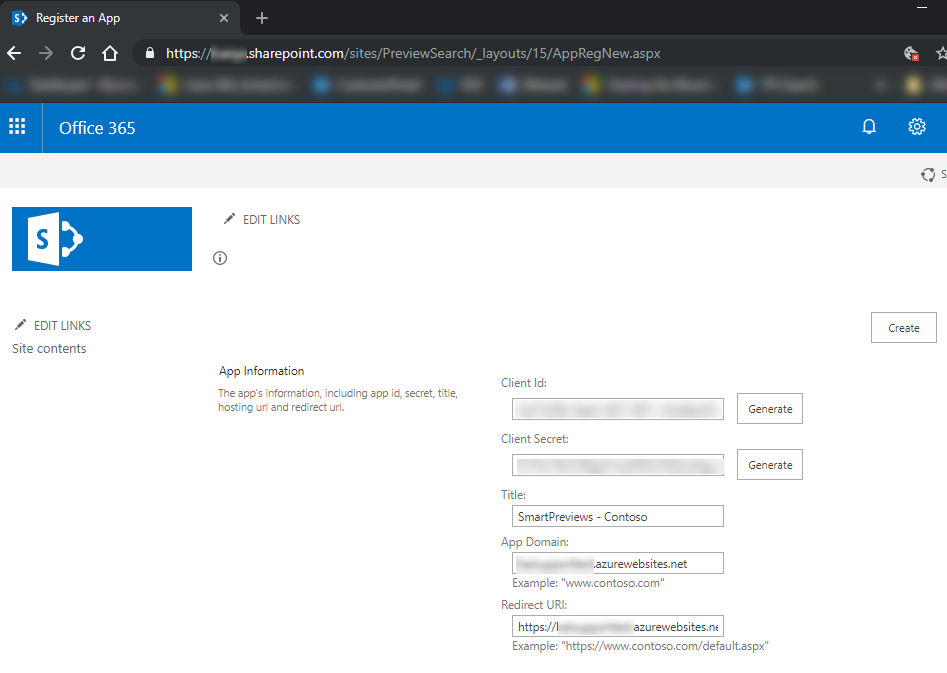
- Use the Azure Web App URL, adding "/default.aspx" to the end of the URL.
- Client ID:
- Click "Create".
- The confirmation page shows all of the information from the registration page. Record this information for later.