NetDocuments Adapter
The NetDocuments Adapter integrates AutoClassifier with NetDocuments to allow you to crawl, process, and annotate your NetDocuments data.
NetDocuments Adapter Capabilities and Limitations
- Performance: The adapter can push additional metadata to NetDocuments and perform incremental crawls
-
Throttling: BA Insight AutoClassifier handles throttling push backs from the NetDocuments API.
AutoClassifier throttles down requests accordingly. -
Profile Attributes: The NetDocuments adapter collects the attribute value of all the profile attributes that are specified in your NetDocuments environment. You must manually create the Profile Attributes in your NetDocuments repository and enable them on the cabinets you wish to index. From your NetDocuments environment, you are able to view the attribute ID to name mapping for your profile attributes. In your AutoClassifier processing pipeline, you can add a recorder component to log the metadata and view the value of the attribute ID. For more information on creating profile attributes, see Profile Attributes in the NetDocuments documentation.
- Defined Custom Attributes
- You must have the same name as the AutoClassifier output properties you wish to push to NetDocuments.
- Single-valued metadata: AutoClassifier single-valued metadata can be pushed to Text or Notes type NetDocuments attributes. The Text type is limited to 50 characters while Notes type is limited to 60,000 characters
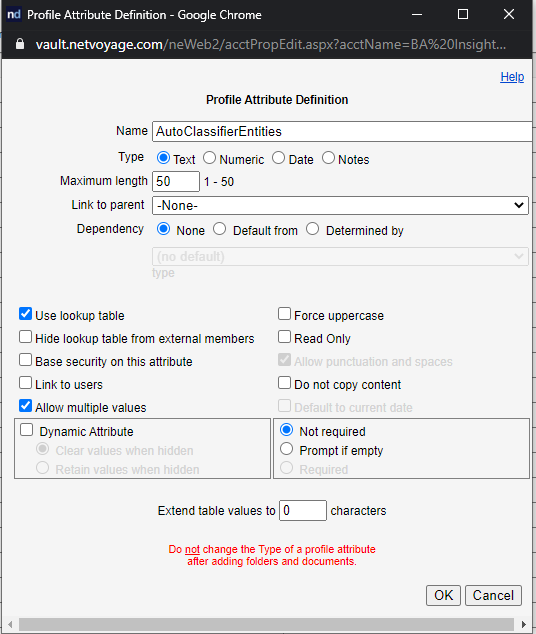
- Multi-valued metadata: AutoClassifier multi-valued metadata can only be pushed to Lookup-Table types attributes. Metadata values which are sent by the AutoClassifier Engine are automatically pushed as available Lookup-Values to the Lookup-Table attributes that match the metadata name.See the Lookup-Table configuration that AutoClassifier can push multi-valued properties to in the example below:
- Single-valued metadata: AutoClassifier single-valued metadata can be pushed to Text or Notes type NetDocuments attributes. The Text type is limited to 50 characters while Notes type is limited to 60,000 characters
IMPORTANT!
AutoClassifier does not currently support Link Metadata types. Only non-linked types are supported.
- Special Character Metadata Names: NetDocuments does not support attributes (metadata) names that contain special characters. For example: Microsoft_Location. To handle these, you need to add the Metadata Name Sanitizer component as one of the last stages in your processing pipeline. If there aren't any metadata with special characters in your output metadata, this component is not needed.
- NetDocuments newly created profile attributes / changed cabinets profile attribute settings: When you create a new profile attribute, and associate it to your NetDocuments cabinets and folders, the NetDocuments REST API used by the AutoClassifier Adapter might not immediately return information about those new attributes and metadata might not be pushed. To force reload the actual list of profile attributes by the NetDocuments REST API, you must re-authorize to NetDocuments OAuth as described below in the configuration steps. If you created a new Look-up Table attribute in NetDocuments and want to populate it with AutoClassifier metadata, you must first add at least one key (sample entry) in the lookup table so that the profile attribute is considered in-use by the NetDocuments API.
- Special characters for metadata values: Currently, the metadata values pushed to NetDocuments are cleaned up, and certain non-alphanumerical characters are removed from metadata values. All special characters in the profile attribute use a lookup table and '\' otherwise.
- Multi-valued metadata threshold recommendation: Upland BA Insight recommends that thresholds are applied for multi-valued metadata, so that only the top X most relevant are used. This is required because every metadata value of a multi-valued attribute must belong to the look-up table. Eventually the number of lookup value keys can grow very large. For example, for NLP, you configure your stages to return 10 most relevant labels. The Rules Engine is a good multi-value metadata option because the number of potential tags is limited to the number of taxonomy nodes. NLP entities, for example, can be unlimited in metadata values depending on your documents content.
-
Read-Only fields: In NetDocuments profile attributes can be configured to be read-only and they can be changed only by Admin users with such permissions
-
To have AutoClassifier NetDocuments Adapter work with such fields, the user you are using for authorization must have the proper admin permissions
-
- When AutoClassifier updates NetDocuments items, the document Modified date does not change.
- The AutoClassifier NetDocuments adapter does not update hidden attributes.
How to Configure the NetDocuments Adapter
Use the following steps to configure the NetDocuments Adapter:
- Select the NetDocuments Adapter Sourceto configure.
- Complete the following fields:
- in the Server Region field, specify the region of the NetDocuments repository (US, EU, AU, or DE).
- In the API URL field,
enter the base URL that is used for subsequent API calls. This changes automatically based on the selected server URL.
- Click Authorize to obtain the Authorization Code. You will be redirected to NetDocuments and prompted to log in and grant access to the application. Click Allow.
- in the Authorization Code field, enter the code that you obtained in step 2c.
- Click Get Refresh/Access Tokens to obtain the Access and Refresh tokens from NetDocuments.
- In the Repository ID field, enter the ID of the repository that will be indexed.
To obtain the Repository ID login with a NetDocuments admin account and go to Admin > Information and Settings > General > ID.
- Click Get Cabinets to fetch a list of all Cabinets in the repository and add them to the Cabinets to Process field, with each cabinet on a separate line.
Select the properties you require (hold down shift to select multiple properties),
and click the Apply button.
- The Cabinets to Process field contains a list of all the cabinets in the repository to be indexed. After the list is populated, you can manually remove the cabinets you do not want to include in processing. Each cabinet is added on a new line in the text area with the format "cabinet name:cabinet id
- Click Get Cabinet Attributes to fetch a list of cabinet attributes in the repository for the selected Cabinets.
- The Classifier Controlled Attributes field contains a list of Cabinet Attributes exclusively updated by AutoClassifier.
- In the Filter field, enter the NetDocuments filter that will be applied at crawling time. The maximum length is 1500 characters and may be empty.
- In the Enumeration Page Size field, Enter the maximum number of retrieved items.
- If Crawl Metadata Only is checked, Document data is excluded during the crawl and only metadata will be available for tagging.
In the Max File Size To Download (MB) field, enter the maximum file size, in MB, that will be downloaded for documents. All items exceeding this value will be processed in Metadata Only mode.
In the Number Of Parallel Blob Downloads field, enter the amount of parallel document blobs allowed. Change this depending on the file sizes you have in your NetDocuments system or network connection to your NetDocuments system
In the Number Of Parallel Document Updates field, enter the number of concurrent document metadata updates requests in NetDocuments system.
In the Max Time To Wait For Request (minutes) field, enter the total waiting time, in minutes, for each of the request to the NetDocuments API.
- In the Lookup Table Limit field, Enter the maximum amount of values that can be added to a profile attribute of type Lookup Table. the default value for this field is 1000000.
In the Request Retry Max Attempts field, enter the number of times a request to the NetDocuments API should be retried
- In the Full Crawl Start Date field, Specify a date. The adapter will retrieve only the items with a modified date that is later than the date shown in this text box. Total crawl time varies by size of repository.
- In the Actions field, you can perform crawl actions for your adapter source. For more information, see Manually Invoking Adapter Crawls.
- in the Server Region field, specify the region of the NetDocuments repository (US, EU, AU, or DE).
- Click Save.