Configuring AutoClassifier Content Enrichment Web Service in SharePoint
AutoClassifier CEWS component allows you to enrich the managed properties of the items at index time.
- In order for this processing to happen, you configure your SharePoint system to call this enrichment component at crawl time.
- This can be achieved by setting the AutoClassifier enrichment component on the current Search Service application.
Procedure:
The Content Enrichment functionality is configured and enabled with the following Windows PowerShell cmdlet:
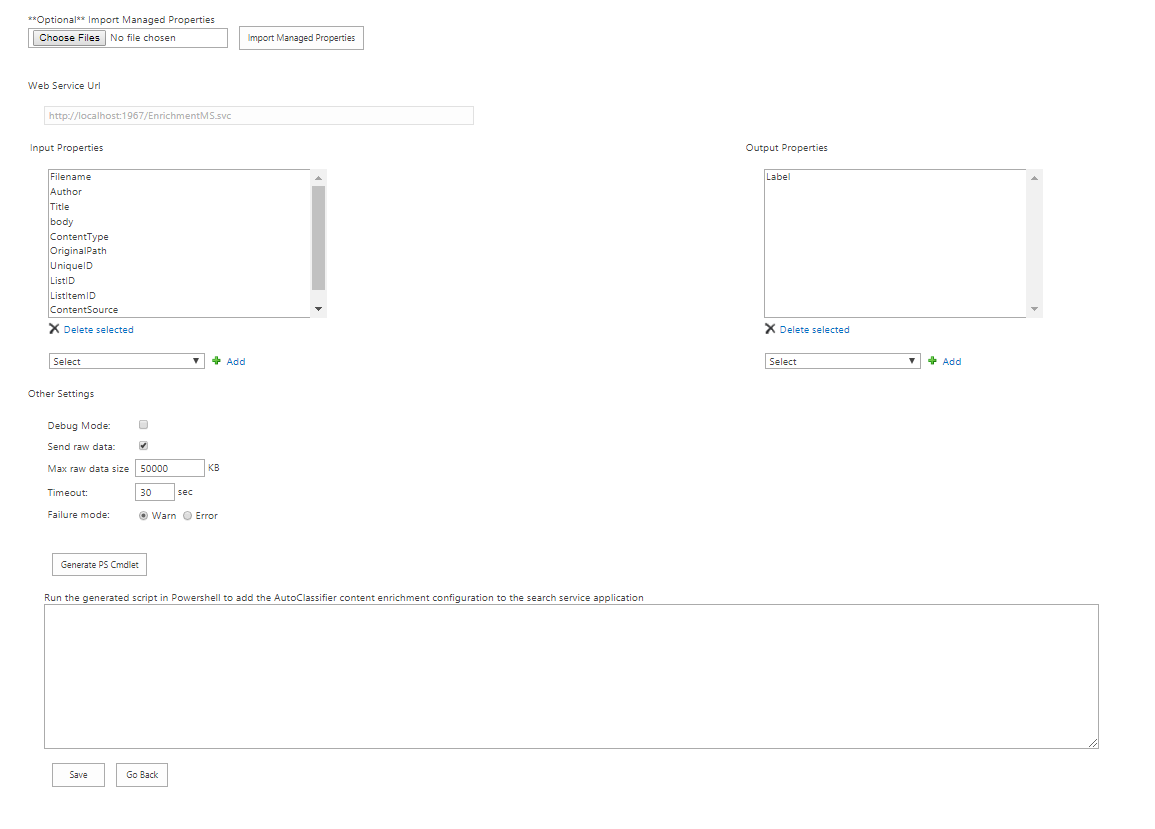
- To help you build the cmdlet with the right parameters, use the Cews Settings page.
- To locate this page, access the AutoClassifier SharePoint app and click on the "Cews Settings" button:
- On the Cews Settings page, input your information into all the fields shown.
When you are done, click "Generate PS Cmdlet" to generate a script.- SharePoint Content Enrichment is very specific regarding properties that can be posted as well as returned properties.
- As a result any property produced by AutoClassifier will be not returned when invoked by the SharePoint Crawler unless it is specified in the Output Properties Field.(Output Property can be added only if is already existent in Search Service Application)
- To increase accuracy of Input and Output Fields you can important managed properties from your SharePoint Farm for selection.
- At any point in the future you can additional re-import the properties.
- To export Managed Properties from SharePoint for Import AutoClassifier has provided a PowerShell script.
- Open the SharePoint Management Shell as a Farm Admin
- Navigate to <SharePoint AddIn root directory>\Config\export-mp.ps1
- Execute export-mp.ps1.
- Once the CSV file is generated, you can use the upload option to Import Managed Properties into AutoClassifier.
- SharePoint Content Enrichment is very specific regarding properties that can be posted as well as returned properties.
- Copy the generated script.
- Next, you use this script to set up the enrichment component.
- Open the SharePoint Management Shell as a Farm Admin.
- Enter the generated script and when requested, type the name of the default search service application.
The following graphic offers an example: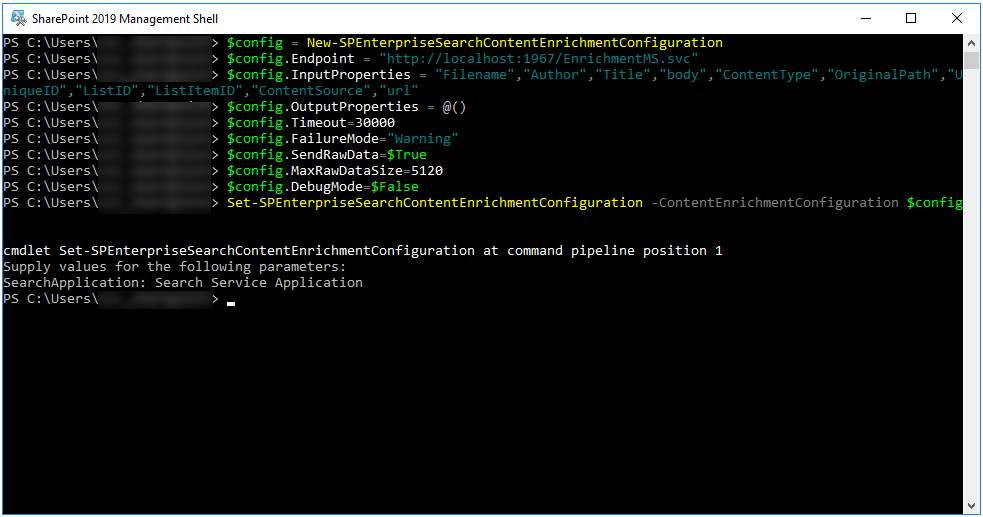
Alternative CEWS Configuration Method
The following configuration method is PowerShell driven as explained in the below links, which provide background information:
- Get-SPEnterpriseSearchContentEnrichmentConfiguration: http://technet.microsoft.com/en-us/library/jj219783%28office.15%29.aspx
- Set-SPEnterpriseSearchContentEnrichmentConfiguration: http://technet.microsoft.com/en-us/library/jj219659%28office.15%29.aspx
- Remove-SPEnterpriseSearchContentEnrichmentConfiguration: http://technet.microsoft.com/en-us/library/jj219742%28office.15%29.aspx
- New-SPEnterpriseSearchContentEnrichmentConfiguration: http://technet.microsoft.com/en-us/library/jj219502%28office.15%29.aspx
Procedure:
- To add a content enrichment component to a SharePoint Search Service application you prepare and run a script by using:
- cmdlets
- variables
- parameters
- The first variable is the Search service application
:
$ssa = Get-SPEnterpriseSearchServiceApplication - The second variable would be the new content enrichment component:
$CEconfig = New-SPEnterpriseSearchContentEnrichmentConfiguration -
Next would be to add the required parameters to the
CEconfigvariable:$CEconfig.Endpoint
= “http://(*servername*):1967/EnrichmentMS.svc”
$CEconfig.InputProperties
= "IsDocument", "body", "Author",
"Filename", "FileType", "MimeType",
"FileExtension","OriginalPath","url","ContentType","contentclass","LastModifiedTime","Size","escbasecrawlurl"
***these
property examples are for preview. Adjust to your situation.
$CEconfig.OutputProperties
= "Some Property" *** these would be, for example, your
AutoClassifier output properties
$CEconfig.SendRawData
= $True
$CEconfig.MaxRawDataSize
= 8192 ***
value in Mb
$CEconfig.DebugMode
= $False - Next, set your new content enrichment configuration:
Set-SPEnterpriseSearchContentEnrichmentConfiguration
-SearchApplication $ssa
-ContentEnrichmentConfiguration $CEconfig - Use the following command to confirm your new enrichment:
Get-SPEnterpriseSearchContentEnrichmentConfiguration
As one single command, without variables, the code appears as shown here:
Set-SPEnterpriseSearchContentEnrichmentConfiguration
-SearchServiceApplication SSA-endpoint “http://(*servername*):1967/EnrichmentMS.svc” - InputProperties
 "IsDocument", "body", "Author",
"Filename", "FileType", "MimeType",
"FileExtension","OriginalPath","url","ContentType","contentclass","LastModifiedTime","Size","escbasecrawlurl"- OutputProperties "Some Property" -SendRawData
$true - MaxRawDataSize 8192 - DebugMode $False