Configuring AutoClassifier Engine for HTTPS and .NET Authorization
This topic describes how to configure the AutoClassifier Engine to run over HTTPS and how to enable .NET–based authorization. These steps secure communication to the engine and control user access.
About AutoClassifier Engine
The AutoClassifier Engine supports secure communication using HTTPS and role-based access control through .NET authorization. AutoClassifier has the ability to run under:
- HTTP (default setting)
- HTTPS
Before enabling authorization, the engine must be configured to run under HTTPS so that credentials and tokens are transmitted securely.
Prerequisites
Before you begin, ensure the following:
-
IIS is installed with the HTTP Activation and ASP.NET features enabled.
-
A valid SSL certificate is available for the server.
-
You have administrator access to:
-
IIS Manager
-
AutoClassifier installation directory
-
Windows groups and local security policy (if using Windows auth)
-
-
AutoClassifier Engine is installed and running.
Configure Each AutoClassifier IIS Site for HTTPS
Use the following instructions to configure each of your AutoClassifier IIS sites to use HTTPS.
- Open IIS Manager.
-
Select the AutoClassifier Engine site.
-
In the Actions pane, click Bindings….
-
Add a binding:
-
Type: https
-
Port: 443 (or another secure port)
-
Certificate: Select the installed SSL certificate
-
-
Click OK to save the binding.
- Edit the IIS site Web.config file.
- Select one of the following configurations below:
- HTTP
- HTTPS
- Both
- Select one of the following configurations below:
Configuration for HTTP Only
The following web bindings within the web.config file (<AutoClassifier_install_dir>\Admin Site\web.config) contain the settings for running HTTP only:
<webHttpBinding><basicHttpBinding>
<webHttpBinding>
   <binding name="httpsBinding" maxReceivedMessageSize="2147483647" openTimeout="01:00:00" sendTimeout="01:00:00">
      <readerQuotas maxDepth="2147483647" maxStringContentLength="2147483647" maxArrayLength="2147483647" maxBytesPerRead="2147483647" maxNameTableCharCount="2147483647" />
      <security mode="None" />
   </binding>
  <binding name="httpBinding" maxReceivedMessageSize="2147483647" openTimeout="01:00:00" sendTimeout="01:00:00">
      <readerQuotas maxDepth="2147483647" maxStringContentLength="2147483647" maxArrayLength="2147483647" maxBytesPerRead="2147483647" maxNameTableCharCount="2147483647" />
      <security mode="None" />
  </binding>
</webHttpBinding>


<basicHttpBinding>
   <binding name="httpsBinding" maxReceivedMessageSize="2147483647" openTimeout="01:00:00" sendTimeout="01:00:00" transferMode="StreamedResponse">
      <readerQuotas maxDepth="2147483647" maxStringContentLength="2147483647" maxArrayLength="2147483647" maxBytesPerRead="2147483647" maxNameTableCharCount="2147483647" />
      <security mode="None" />
   </binding>
   <binding name="httpBinding" maxReceivedMessageSize="2147483647" openTimeout="01:00:00" sendTimeout="01:00:00" transferMode="StreamedResponse">
      <readerQuotas maxDepth="2147483647" maxStringContentLength="2147483647" maxArrayLength="2147483647" maxBytesPerRead="2147483647" maxNameTableCharCount="2147483647" />
      <security mode="None" />
   </binding>
</basicHttpBinding>
Configuration for HTTPS Only
The following web bindings within the web.config file (<AutoClassifier_install_dir>\Admin Site\web.config) contain the settings for running HTTPS only:
<webHttpBinding><basicHttpBinding>
<webHttpBinding>
   <binding name="httpsBinding" maxReceivedMessageSize="2147483647" openTimeout="01:00:00" sendTimeout="01:00:00">
      <readerQuotas maxDepth="2147483647" maxStringContentLength="2147483647" maxArrayLength="2147483647" maxBytesPerRead="2147483647" maxNameTableCharCount="2147483647" />
      <security mode="Transport" />
   </binding>
  <binding name="httpBinding" maxReceivedMessageSize="2147483647" openTimeout="01:00:00" sendTimeout="01:00:00">
      <readerQuotas maxDepth="2147483647" maxStringContentLength="2147483647" maxArrayLength="2147483647" maxBytesPerRead="2147483647" maxNameTableCharCount="2147483647" />
      <security mode="Transport" />
  </binding>
</webHttpBinding>
<basicHttpBinding>
   <binding name="httpsBinding" maxReceivedMessageSize="2147483647" openTimeout="01:00:00" sendTimeout="01:00:00" transferMode="StreamedResponse">
      <readerQuotas maxDepth="2147483647" maxStringContentLength="2147483647" maxArrayLength="2147483647" maxBytesPerRead="2147483647" maxNameTableCharCount="2147483647" />
      <security mode="Transport" />
   </binding>
   <binding name="httpBinding" maxReceivedMessageSize="2147483647" openTimeout="01:00:00" sendTimeout="01:00:00" transferMode="StreamedResponse">
      <readerQuotas maxDepth="2147483647" maxStringContentLength="2147483647" maxArrayLength="2147483647" maxBytesPerRead="2147483647" maxNameTableCharCount="2147483647" />
      <security mode="Transport" />
   </binding>
</basicHttpBinding>
Configure AutoClassifier for .NET Authorization
- The server where AutoClassifier is installed must have the Windows Authentication feature/role enabled. If the feature is already enabled, skip this step.
- Open the Windows Server Manager application.
- In the middle panel select Add roles and features.
- In the Server Roles section, navigate to Web Server (IIS) > Security.
- Enable Windows Authentication.
- Click Next > Install.
- Open IIS Manager, if it is not already open.
- Select the AutoClassifier Engine site from within the list of sites.
- Enable Basic Authentication for the AutoClassifier Engine site.
Enable .NET Authorization
Once HTTPS is configured, you can enable .NET authorization to control access to the Engine.
- Navigate to the file web.config from the AutoClassifier Engine site.
- Edit the file using a program like Notepad++.
-
Under the <system.web> section of the web.config file, enable Windows Authentication and list accounts to enable access.
For example:<system.web>
<authentication mode="Windows"/>
<authorization>
<allow users="domain\account1,domain\account2" />
<deny users="*" />
</authorization>For example, if your users are NOT attached to a domain:<system.web>
<authentication mode="Windows"/>
<authorization>
<allow users="computername\account1,computername\account2" />
<deny users="*" />
</authorization>The App Pool user for the AutoClassifier Engine must be added to the list of Allowed Users.
If you are running any additional components or services, also add either of the following:
- App Pool user
- Windows Service(s) user(s)
If you use an Add-In site, the App Pool user for the Add-In site is required in the list of Allowed Users.
** By default the AutoClassifier Engine installation uses a single service user to run all components ** - App Pool user
Choose your authorization method
Depending on your environment:
-
Windows Authentication: Enable in IIS > Authentication > enable Windows Authentication, disable Anonymous.
-
Custom roles / AD groups: Map Windows groups to .NET roles.
Test your Configuration
Test the new security configuration using the following steps:
- Launch the Site in a browser.
- Log in as a user within the "Allowed" list.
- Log in as a user within the "Allowed" list.
- Launch the Site in a browser.
- Attempt to log in as a user NOT within the "Allowed" list.
Troubleshooting
Problem
A valid user is continually prompted for credentials when accessing the site on the installation server.
Solution
Depending upon network configuration, TCP/IP loopback can cause .NET Authorization to fail.
- To resolve, first identify if TCP/IP loopback is causing the issue.
- From a different server or laptop, attempt to open the site from a browser.
- If login is successfully obtained, TCP/IP loopback is blocking access on the server.
- Disable TCP/IP loopback on the server and re-test, accessing the site from the server.
- If login is unsuccessful, re-check the previous configuration steps.
For Seamless Log in
To avoid logging in each time, set your web browser to seamlessly carry your credentials.
Add the site address to the Trusted sites list.
Procedure:
- Open Internet Explorer > Internet Options > Security > Trusted Sites.
- Add the address to the Trusted sites zone.
- In the Security tab of the dialogue, click Custom level...
- Scroll to User Authentication section of the Security Settings dialogue.
- Select Automatic logon with current username and password.
- Click OK.
- Apply the settings. Close the dialogue.
- Close your internet browser.
- Open and access the AutoClassifier Engine site.
-
The site no longer prompt for credentials so long as the user is in the authorized configuration.
Info
** Internet Settings are per user**
Setting the Internet Settings to enable seamless log on only applies to the user who is logging in when the browser settings are made.
Each user who desires seamless log on must make these Security changes to their browser to enjoy seamless log on.
Additional AutoClassifier Component Settings when Configuring HTTPS
If you are configuring for HTTPS, each additional installed component requires its component configuration file to be updated with the new HTTPS address.
Lucene Component
Lucene is included by default with the AutoClassifier Engine.
- If the Lucene component is not installed separately, skip this step.
- In scaled environments, the Lucene component can be installed separately.
Procedure:
- Open IIS on the server hosting AutoClassifier.
- Locate the Lucene Component site.
- Locate and open the web.config file for editing.
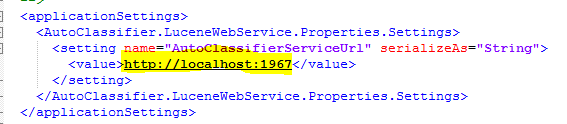
- Update the AutoClassifierServiceUrl address to the new HTTPS address
Enable Windows authentication for AutoClassifier
To enable Windows authentication for AutoClassifier, do thefollowing:
- Open the web.config file for the AutoClassifier engine.
-
Ensure that the authentication mode is set to Windows:
<system.web>
   <authentication mode="Windows"/>
   <authorization>
      <allow users="domain\account1,domain\account2" />
      <deny users="*" />
</authorization> -
Update the https and http binding information:
<webHttpBinding>
   <binding name="httpsBinding" maxReceivedMessageSize="2147483647" openTimeout="01:00:00" sendTimeout="01:00:00">
      <readerQuotas maxDepth="2147483647" maxStringContentLength="2147483647" maxArrayLength="2147483647" maxBytesPerRead="2147483647" maxNameTableCharCount="2147483647" />
      <security mode="Transport">
          <transport clientCredentialType="Windows" />
      </security
   </binding>
  <binding name="httpBinding" maxReceivedMessageSize="2147483647" openTimeout="01:00:00" sendTimeout="01:00:00">
      <readerQuotas maxDepth="2147483647" maxStringContentLength="2147483647" maxArrayLength="2147483647" maxBytesPerRead="2147483647" maxNameTableCharCount="2147483647" />
      <security mode="Transport">
          <transport clientCredentialType="Windows" />
      </security
  </binding>
</webHttpBinding>
<basicHttpBinding>
   <binding name="httpsBinding" maxReceivedMessageSize="2147483647" openTimeout="01:00:00" sendTimeout="01:00:00" transferMode="StreamedResponse">
      <readerQuotas maxDepth="2147483647" maxStringContentLength="2147483647" maxArrayLength="2147483647" maxBytesPerRead="2147483647" maxNameTableCharCount="2147483647" />
      <security mode="Transport">
          <transport clientCredentialType="Windows" />
      </security
   </binding>
   <binding name="httpBinding" maxReceivedMessageSize="2147483647" openTimeout="01:00:00" sendTimeout="01:00:00" transferMode="StreamedResponse">
      <readerQuotas maxDepth="2147483647" maxStringContentLength="2147483647" maxArrayLength="2147483647" maxBytesPerRead="2147483647" maxNameTableCharCount="2147483647" />
      <security mode="Transport">
          <transport clientCredentialType="Windows" />
      </security
   </binding>
</basicHttpBinding> -
Remove Legacy “secure” Endpoints:
-
Inside the <services> section of the Web.config file, locate any endpoint entries that contain address="secure" and comment out those instances.
<!-- Https Bindings -->
    <!--<endpoint address="secure" binding="basicHttpBinding" bindingConfiguration="httpsBinding" contract="AutoClassifier.Core.ContentProcessing.ICommunication" />
    <endpoint address="secure" binding="basicHttpBinding" bindingConfiguration="httpsBinding" contract="AutoClassifier.Core.Interfaces.Offline.IOfflineProcessingManager" />
    <endpoint address="secure" binding="basicHttpBinding" bindingConfiguration="httpsBinding" contract="BAInsight.ContentProcessing.V1.IContentProcessing" />
    <endpoint address="secure" binding="basicHttpBinding" bindingConfiguration="httpsBinding" contract="BAInsight.ContentProcessing.V1.IBatchContentProcessing" />-->
-
-
In IIS for the Auto classifier site, under Authentication, enable Windows authentication and disable all other options.
Additional Optional Components
Adapter Crawler Component
- If the Crawl Adapter service is not installed, skip this step
- The Adapter Crawler is installed as a Windows service and is installed in the same base location as the AutoClassifier Engine Site.
Procedure:
On the server that houses AutoClassifier:
- Navigate to the AutoClassifier Engine installation location.
- The engine is located under the Admin Site directory.
- Open the Adapter Crawler directory.
- Open the configuration file "AutoClassifier.AdapterCrawler.exe.config" for editing.
- Update the hostUrl value to the new HTTPS address:

Offline Processing Service
-
If the Offline Processing service has not been installed this step can be skipped.
-
The Offline Processing service is installed as a Windows service and is installed in the same location as the AutoClassifier Engine Site.
Procedure:
On the server that houses AutoClassifier:
- Navigate to the AutoClassifier Engine installation location.
- The Engine is located under the Admin Site directory.
- Open the Offline Service directory.
- Open the configuration file BAInsight.AutoClassifier.OfflineService.exe.config for editing:
- Update the hostUrl address to the new HTTPS address: