Add an ODBC Connection (Oracle, MySQL)
Use the information below to create a connection to your Oracle, MySQL or other ODBC-compliant database in BA Insight Connectivity Hub.
-
In Connectivity Hub, select the Connections tab.
-
Select New… > SQL connection
- Enter a unique descriptive Title for the connection and select your data provider.
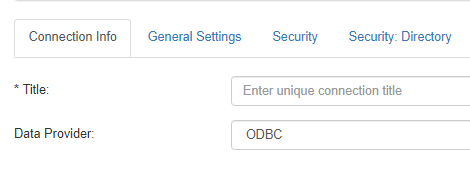
-
Select the General Settings tab.
-
Connection mode: Select either:
- Basic - Requires a database server address and database name
-
Advanced - Requires a Connection string
-
Database Server Address:
-
Connection string to your MS SQL server instance
-
If you are using named instances, this account should include the instance name such as MyServerName.
-
-
Database Name: This is the name of the database to connect to.
-
Provide a value for the Connection Timeout field (configures the time in seconds that a command will wait once you execute it.
-
If the command hasn't completed once the timeout is reached, the attempt is aborted)
-
-
Authentication mode: Select an authentication mode to connect to your database.
-
Service Account
-
Connectivity Hub uses this account for AD authentication to connect to the database.
-
-
SQL Login
-
Enter a SQL Server type user name and password that has read access to your database.
-
An Active Directory login does not work here and requires your server to support mixed mode authentication.
-
-
-
Click Save.