Customize and Group Search Results
Use the Item Definition tab to customize the item URL and item grouping for search results.
- In The Framework Admin Console select the Content tab.
- On the Content Management page select for your SQL Content Source.
- Click the Item Definition tab.
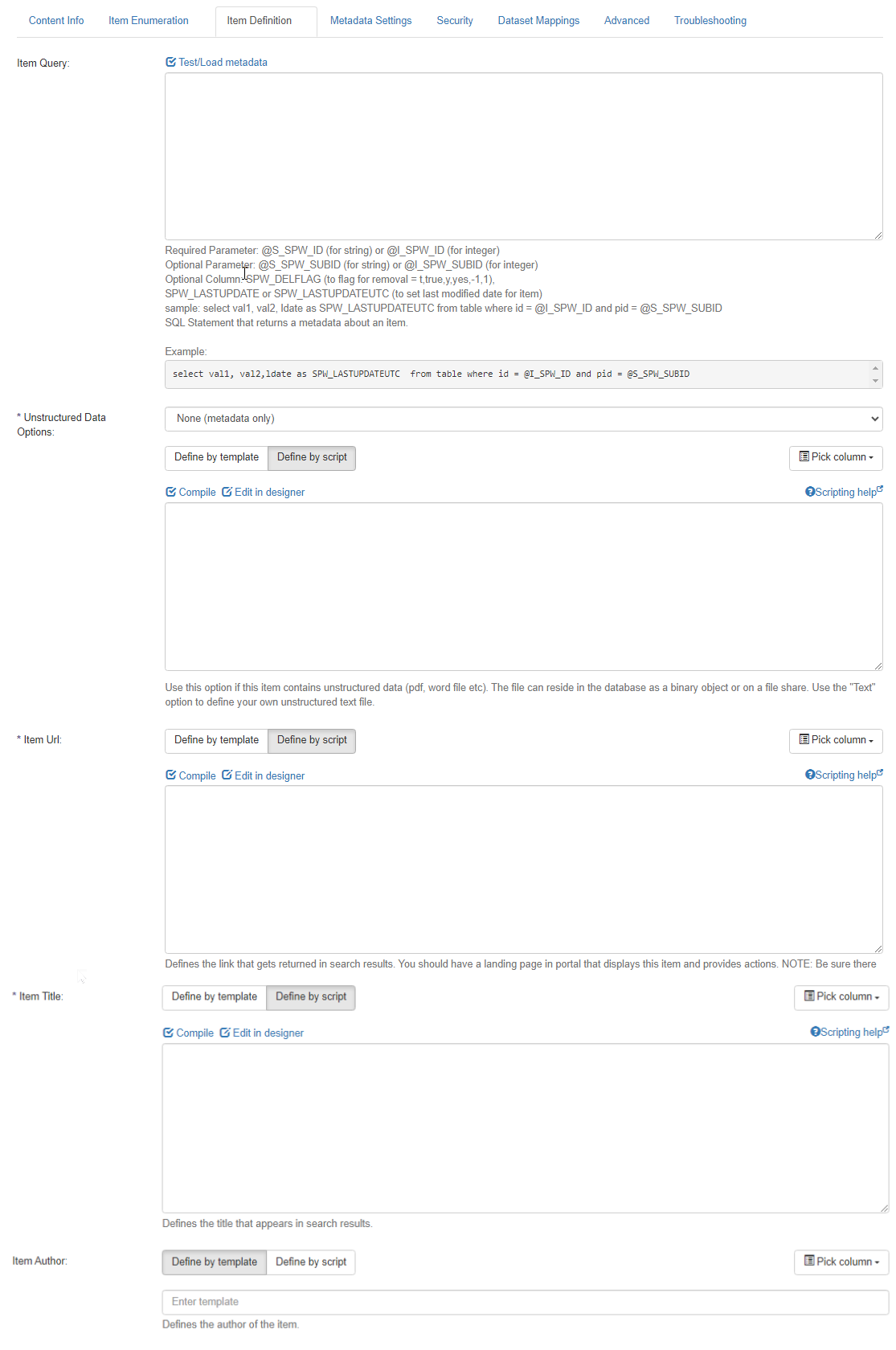
- Item Query:
- Enter a SQL statement that returns metadata about an item based on the unique identifiers returned in the enumerator.
- You can enter more than one SQL statement here, separated by a semi-colon, as long as the first statement returns only one row.
- The data in subsequent statements can be accessed directly through the scripting interface on any of the metadata fields.
- After entering your SQL, you can click the Test and Load Metadata link above the entry box to validate your query and pre-load the Select column quick-pick boxes
- Definitions
- @SPW_ID
- A required parameter to your SQL statement.
- Or use
@S_SPW_ID(for string) or@I_SPW_ID(for integer)
- @SPW_SUBID
- An optional parameter if your item requires more than one ID for uniqueness.
- SPW_LASTUPDATE or SPW_LASTUPDATEUTC
- Only required if you are supporting incremental indexing and a suitable last update field is available.
- Use the UTC version if the data is stored as UTC in your database.
- SPW_DELFLAG
- An optional column if your system supports 'soft' deletes where there is an indicator of deletion.
- The supported values are 1, -1, t, true, y, and yes.
- Place the character @S_ or @I_ in front of a variable to indicate String or Integer value. For example,
@S_SPWID - Sample
SELECT TITLE,ABSTRACT,INDUSTRY, TAXONOMYTERM,SEARCHTERMS,LASTUPDATEDAS SPW_LASTUPDATEFROM CrawledDocument with (NOLOCK)WHERE Id = @S_SPW_IDSELECT TITLE,ABSTRACT,INDUSTRY,TAXONOMYTERM,SEARCHTERMS,LOCATION,ISPUBLIC, LASTUPDATED AS SPW_LASTUPDATEFROM CrawledDocumentWHERE Id = @S_SPW_ID
Note: For this exercise you can skip the remaining steps and Click Save.
- @SPW_ID
- Definitions
- Unstructured Data Options:
- Use this option if this item contains unstructured data (PDF, word file etc).
- The file can reside in the database as a binary object or on a file share.
- None (Meta Data only): Option to not define any unstructured data.
- Text (Database Columns): Use to pick columns from your data to combine to form custom data. Use scripting for further customization.
- File (Network Share): Use the Standard Format Field to return the path to the file.
- File (Database Blob): Enter the column that contains the data of the blob.
- File (Create Zip): Use the scripting interface to dynamically create a zip file with multiple entries. Use
HOST.AddFileToZip(filepath, newfilename)to add entries. For more information, see VB.Net Scripting.
Sample:HOST.AddFileToZip("E:\samplefiles\downloads\"& HOST.GetStringValue("DocumentFileName"),HOST.GetStringValue("DocumentFileName"))
- Item Url:
- Use to define the link that gets returned in search results.
Note: Verify there is a crawl rule allowing this host, or it will not be indexed. - Click Crawl Rules to manage the crawl rules.
- Use to define the link that gets returned in search results.
- Item Title:
- Define the title that appears in search results.
- Define the title that appears in search results.
- Item Author:
- Define the author of the item that appears in search results.
- See Standard Format Field.
- Click Save.