Projects and documents
Projects and created documents are two document automation features that use document types to produce RFP responses, proposals, other documents. Created documents can also be used to create slide presentations. You may need or want to use one feature over another due to its additional options, the components with which it is compatible, or the type output it can produce.
Projects and created documents differ in the following ways:
- Interface
- Compatible document types and document type components
- Collaboration
- Search tools
- Progress tracking and reporting
- Additional features
Note: The AllowProjectCreation global setting must be enabled to create projects. Users must have permission to create a project or created document, and may require additional permissions to use related features. See the Project section in the in the "System Permissions" topic for more details.
To skip the details and quickly determine which feature you should use, see Help me choose for reasons why you may need or prefer to use one feature over the other.
Interface
Projects
The project page is comprised of tabs, a dashboard, a navigation panel, and a workspace. The tabs expand to open additional work areas. The dashboard displays the project's progress, assignments, activity taken towards it, and comments. The navigation panel lists the sections, subsections and files included in the project and the properties and build buttons. The workspace varies depending on the section, selection or file selected. For more details on the tabs, dashboards, and other elements in the project page, see Projects. full visibility in overview.
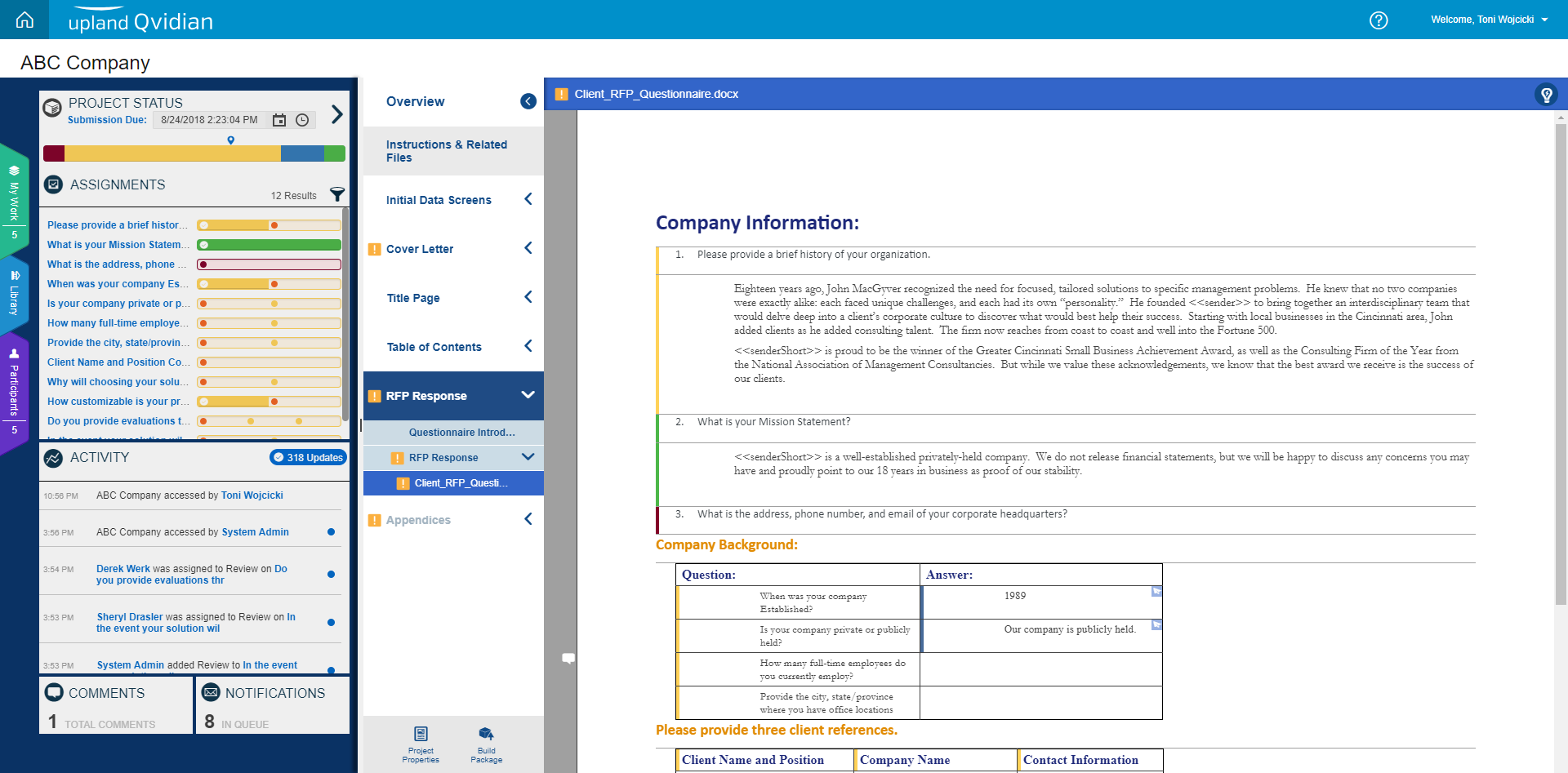
The project page. Click to enlarge.
You may prefer this interface if you like visual representations of information, and want to quickly see assignments and their status, project status, and all user activity at a glance.
Created documents
The created document page is divided into tabs and a workspace. The workspace varies depending on the tab you select. In the Assemble view, a navigation panel with the document sections and subsections displays and the selected section displaying in the workspace. the tabs from which you can assemble, review, build or manage the document. You can preview the document or presentation in the Review tab, then build it in the Build tab. On the Manage tab, you can download or preview the produced documents and related documents, view document properties, and configure international settings.
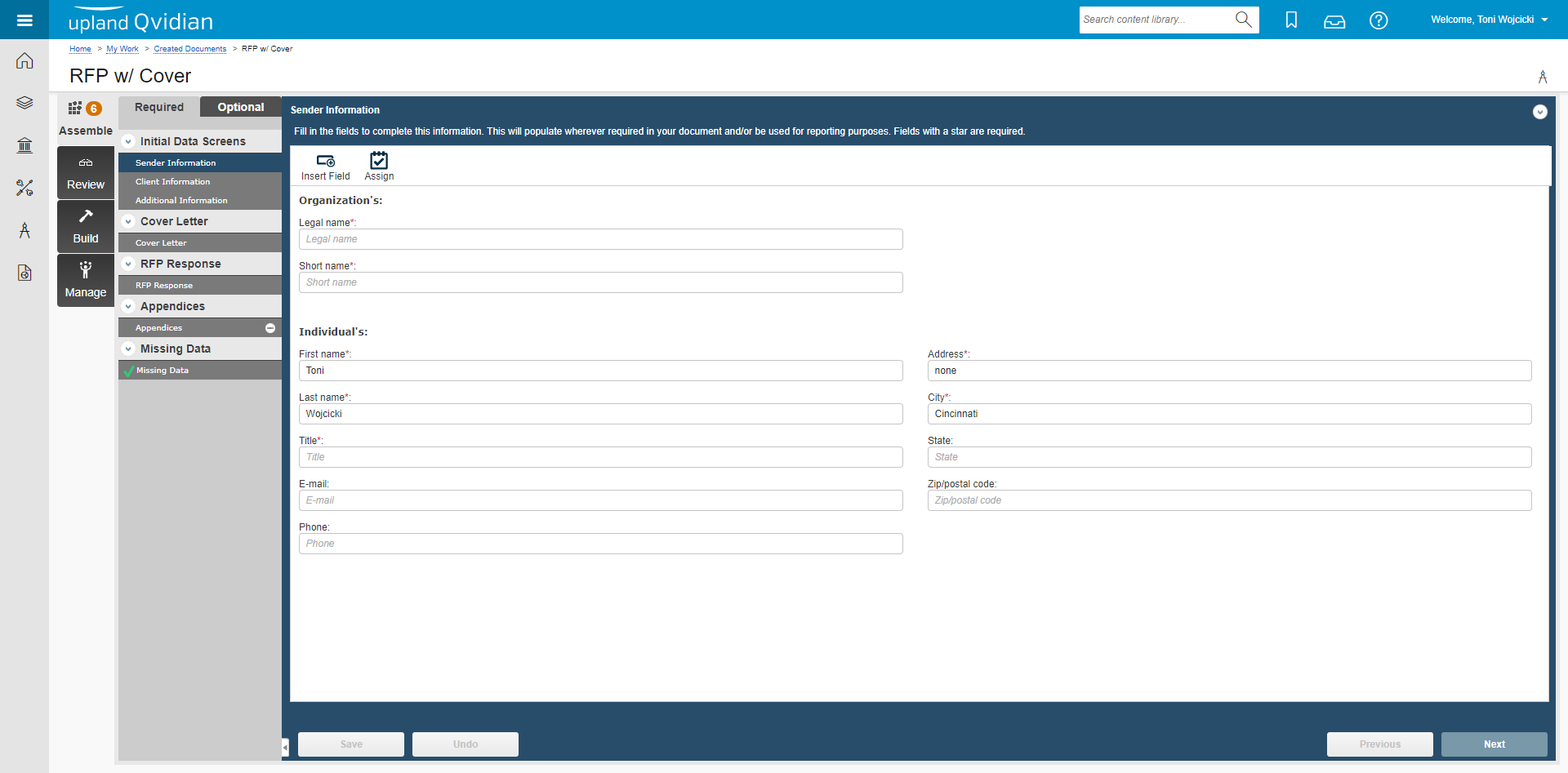
The created documents page. Click to enlarge.
Created documents interface does not have an advantage over the project interface.
Compatible document types and document type components
Created documents and projects use document types to as their basic structure. Created documents can use all document types to build documents and presentations. Projects cannot use presentation document types, or document types that include the following components:
- Selection Driven Content with multiple groups
- Structured Content
- RFP Matrix
- Agenda Slide
- Dynamic Slide
For detailed more information on using the components below in a document types, see Component descriptions in the "Planning your document type" best practices topic.
Collaboration
Projects
Project owners can add licensed users as project participants. Participants can be assigned as owners of file lists, which to gives them permission to upload and remove files in the assigned File List section, or participants in an RFP question assignment. Assignments can have multiple tasks, each with multiple users as either reviewers or writers. Participants in an active task, and project owners, can also email questions to SMEs who do not usually work with Qvidian, known as contributors, from the project workspace. When you email a question to a contributor, they will receive an email with a link to a portal where they can respond. Participants in an active task can also submit content used in an answer to a content review job that goes to a Content Manager to assign for further review or add to or update in the library. Can assign whole project.
You may find project's collaboration features preferable if you would like to have multiple review steps, or the option to sending new content to a review job, instead of submitting it directly to the library.
Created documents
In created documents, you can assign Qvidian and ProSearch users as a created document owner, as a project section owner, or to questions in a questionnaire. Questions can assignment can be assigned to multiple users, but all users are included in a single step. Participants can email multiple questions to SMEs without a Qvidian license. The content can be sent as text in the email or as an attachment that can be uploaded back into the RFP using the add-in toolbar.
You may find created document’s collaboration features preferable if you would like to assign questions as a single task, assign questions or sections to ProSearch users, submit new content it directly to the library without a review process, or email multiple questions to unlicensed SMEs at one time and do not mind using add-ins.
Search tools
Projects
In addition to running a traditional library search, browsing the library, you can run AutoSearch and AutoFill to answer questions in a project questionnaire. AutoSearch is a search tool that searches the library using the text in the selected question. AutoFill is a search tool that retrieves, and optionally inserts, RFP answers by matching the text in questions to a content record's properties or content. You can choose to automatically insert the top suggested answer into your RFP or display a list of the top five suggestions and select an answer manually. AutoFill can be run against selected questions or the entire RFP.
You may prefer to use projects if your document type contains an RFP section, and you would like to take advantage of AutoFill's features to quickly answer your questionnaire.
Created Documents
In created documents, you can find library content by running a traditional library search, browsing the library, or running Auto-answer. Auto-answer opens a dialogue box in which you can select whether to search a content record's keywords or search terms, optionally select specific folders to search, and choose to run the search on the selected or all questions. The top answer is automatically inserted for the question.
Created documents does not have an advantage over projects in searching capabilities.
Progress tracking and reporting
Projects
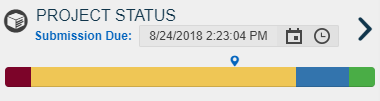
Projects offer visual tracking tools to quickly identify the status of the project, individual assignments, and questions in RFPs. The Project Status / My Work bars, at the top of the Assignments panel, indicates the progress of the project or assignment and a list of assignments. The Project Status bar reflects the progress of the project by showing the percentage of assignments in each status, along with the project due date. The My Work bar does the same for a user's assignments. There are also status bars next each of the assignments list in the Assignment panel. For more information on status bars, see the Dashboard section of the "Projects" topic .
The information in project's Assignment and Activity dashboards, and the participant tab can be exported to create reports. The Activity report lists all the activity on the project since its creation. The Assignments report lists all the project assignments in order of how they display in the document. The Participants report lists all project participants and the number of completed, in-progress and past due tasks. For more information, including examples of each report, see Export project information. You can also view reports on the RFP Projects dashboard in projects in Analytics.
Created documents
You can set a created document or questions within it to one of the customized statuses that you define in answer status and project status in drop-downs under admin. The status of a created document can be included as a column in the grid on the My Work page. The status of the questions can be seen in the RFP in the workspace next to question.
You cannot export information from created documents to create a report, but you can view reports on created documents on the Created Documents dashboard in Analytics.
Additional features
Projects
In addition to the those listed above, project has additional features that improve your experience and help you create better packages, including:
- Drag and drop content from the library or your desktop into a project.
- Does not use Microsoft Add-ins.
- Content can be edited in Office online.
- Open other projects without returning to the Home or My Work pages.
Created documents
In addition to the those listed above, created documents has additional features that improve your experience and help you create better documents, including:
- A refresh option in the RFP section pulls the content selected for use as questionnaire answers back in again from the library to ensure you have the most up-to-date content. This option is useful when updating DDQs and RFIs when you get exact same questionnaire that is just updated yearly.
- File List files can be submitted to library.
- Assign the entire RFP file to one or participants.
 Help me choose
Still unsure whether to use created documents or projects? Review the table below.
| You may prefer projects | You may prefer created documents |
|---|---|
|
Your goal is to create a Word or PDF document, and you will be using a document type that includes only the following components:
|
Your goal is to create a Word or PDF document, or presentation using a document type uses any component, including the following:
|
| You like visual representations of information, and want to quickly see assignments and their status, project status, and all user activity at a glance. | You would like to assign owners to all sections, or assign section or questions to ProSearch users. |
| You would like to create assignment workflows with multiple review step. | You would like to assign questions rather than create assignment workflows with multiple review steps. |
| You would like to send new content or existing content updates to a review job, instead of submitting it directly to the library. | You would like to send new content or existing content updates directly to the library. |
| Your document type contains an RFP section, and you would like to take advantage of AutoFill's features to quickly answer your questionnaire. | Your library’s content is frequently updated and would like the Refresh option to ensure content used in a questionnaire is up-to-date. |
| You would like to export project information for reporting, in addition to viewing the RFP Projects dashboard in Analytics. | You do not need additional reporting beyond the Created Documents dashboard in Analytics. |
| You would like to edit RFP questions and answers without using add-ins. |