How End Users Can Boost the Relevancy of Item Properties
If you want to boost the relevance of properties (just until you refresh the page) in SmartHub, use the following procedure.
Customizations to the SmartHub UI are performed using the new UI Editor. See How to Use the UI Editor.
Add Code to Your Custom Settings File
Add the following code to your custom settings file, such as CustomIndexSettings.js or CustomResultsSettings.js to make customizations which can be saved.
By doing this, you OVERRIDE the “title” booster that was built-in.
- Navigate to your custom settings file. To create a custom settings file, use the custom settings template at: <Installation directory>\modules\SmartHubResourceLoader\CustomSettingsTemplate.js.
-
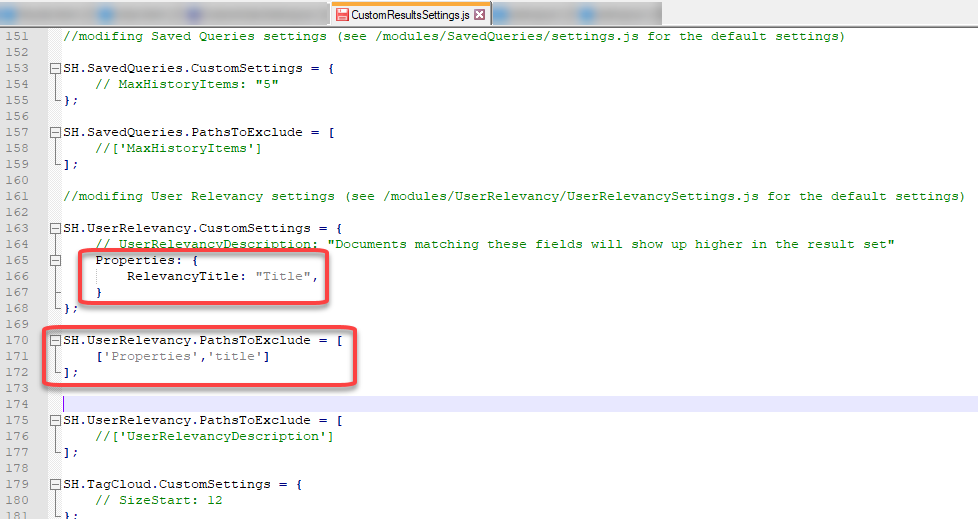
Add the following code to your custom settings file, (around line 163 for Results settings and 149 for Index settings), as shown in the graphic:
SH.UserRelevancy.CustomSettings = {
Properties: {
RelevancyTitle: "Title",
}
};
SH.UserRelevancy.PathsToExclude = [
    ['Properties','title']
];
Map the New RelevancyTitle into the Property Mapper of SmartHub
In the SmartHub ADMINISTRATION page you will first create Relevancy title property mappings within your active search engine (backend).
- Navigate to SmartHub/_admin.
- Click on the Backend.
- Click on property mapper stages (update both query and results side property mapper stages).
- Add the line:
RelevancyTitle,ElasticDocumentTitle.keyword; - Navigate to the property mapper stages:
- Go to SmartHub/_admin.
- Click the active Backend link.
- The property mapper stages enable you to:
Add more properties using this method.
Add more by adding to the customsettings.js file and the Property Mapper:
Be aware that relevancy stages order can impact the way documents are boosted.
Default priority order is:
- User Relevancy
- Personalization
- Admin Relevancy