Change Your Page Logos and Site Theme
About the Page Logo
- The logo that appears on your search page (Index.html), landing page (Landing.html), and results page (Results.html) can be changed.
- Most users prefer to use a custom, corporate logo on their search and results pages.
- A custom logo can give your results page a polished, professional look, and assure users of your SmartHub instance that they are searching internal, corporate-approved data sources.
Change the Logo
Results Page Logo
-
The Results page - Results.html - is shown below.
-
The page contains a logo in the top left corner.
-
This logo is the file is logo.png in the SmartHub image directory: <SmartHub-install-folder>\image
UI Editor
The easiest and fastest way to change the logo is via the SmartHub UI Editor.
For information about how to access the UI Editor as well as who can access it, see Use the UI Editor.
-
SmartHub administrators can simply click the UI Editor link from the SmartHub ADMINISTRATION page.
-
Click the Select a page link from the top menu.
-
Select (double-click) the page (Index.html, Results.html, landing.html, etc.) you wish to modify.
-
BA Insight recommends you create your own custom page and folder to modify. Leave the default files as templates.
-
Example: MyResultsPage.html
-
See Create Custom Pages.
-
-
-
Select the Brand the page link from the top of the page.
-
Select the gear icon next to the Logo ("Smart Search")
-
Change the logo by updating the path to the new logo in the Logo Source field.
Note: The default image directory is <SmartHub-install-folder>\image -
Ensure that your SmartHub site is being loaded by IIS.
Index Page Logo
-
The Index page - Index.html - is shown below.
-
The page contains a logo in the top left corner.
-
This logo is the file is logo_white.png in the SmartHub image directory: <SmartHub-install-folder>\image
UI Editor
The easiest and fastest way to change the logo is via the SmartHub UI Editor.
For information about how to access the UI Editor as well as who can access it, see Use the UI Editor.
-
SmartHub administrators can simply click the UI Editor link from the SmartHub ADMINISTRATION page.
-
Click the Select a page link from the top menu.
-
Select (double-click) the page (Index.html, Results.html, landing.html, etc.) you wish to modify.
-
Below, the Results.html page is shown for sample purposes.
-
BA Insight recommends you create your own custom page and folder to modify. Leave the default files as templates.
-
Example: MyResultsPage.html
-
See Create Custom Pages.
-
-
-
Select the Brand the page link from the top of the page.
-
Select the gear icon next to the Logo ("Smart Search")
-
Change the logo by updating the path to the new logo as you see desire.
Note: The default image directory is <SmartHub-install-folder>\image -
Click Apply.
-
Click Save changes.
Page Theme
The color scheme used on your pages can be modified.
-
Open the UI Editor. SmartHub administrators can simply click the UI Editor link from the SmartHub ADMINISTRATION page.
-
Click the Select a page link from the top menu.
-
Select (double-click) the page (Index.html, Results.html, landing.html, etc.) you wish to modify.
-
Below, the Results.html page is shown for sample purposes.
-
BA Insight recommends you create your own custom page and folder to modify. Leave the default files as templates.
-
Example: MyResultsPage.html
-
See Create Custom Pages.
-
-
-
Select the Brand the page link from the top of the page.
-
Select Color customizations from the left side navigation.
-
The Customize colors palette opens.
-
Select the colors as you see fit.
-
Click Apply.
-
Click Save changes.
-
The changes are instantly reflected in the page on the screen.
Advanced: You have even more power over your color scheme by switching to Advanced mode and selecting Advanced css edit.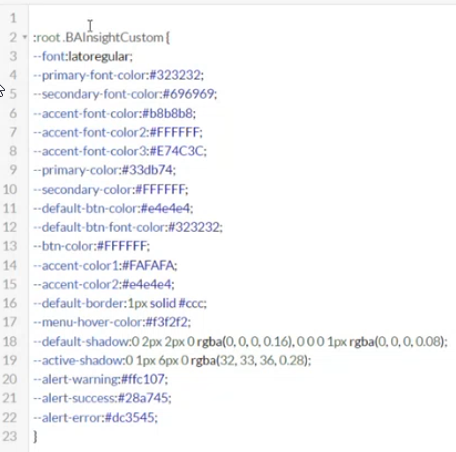
Example: Primary Color Change
To change the primary color of the main visual objects in your SmartHub Results page, use the following steps:
-
Follow the steps above in the topic "Page Theme" to access your Customize colors palette.
-
In this example, we use the Results page, but you can select any page you desire.
-
Change the Primary Color to a different color, as you desire.
-
Click Apply.
-
Click Save changes.
-
The new page appears.
-
Note the new colors of the objects on the page.