Configuring your Similar Documents component
About
The Similar Documents feature enables you to find similar documents when performing a query from the search field. Your similar documents feature can be customized using the procedure and settings detailed in the topics below.
Configure Similar Documents
UI Editor
The optimal way to change the document thumbnails is via the SmartHub UI Editor.
For information about how to access the UI Editor as well as who can access it, see Use the UI Editor.
-
SmartHub administrators can simply click the UI Editor link from the SmartHub Administration page.
-
Click the Select a page link from the top menu.
-
Select (double-click) the Results.html page to modify it.
-
Below, the Results.html page is shown for sample purposes.
-
BA Insight recommends you create your own custom page and folder to modify. Leave the default files as templates.
-
Example: CustomPages/CustomIndex.html, shown below. Default Results.html is under the top most SmartHub directory. For more information, see Create custom pages.
-
-
-
Select the Advanced mode from the top right of the page.
-
Select the Customize ContentContainers link from the top of the page.
-
Select the Advanced settings edit link at the top center of the page.
-
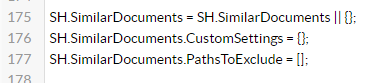
Scroll down to around line 176.
-
To access the available Similar Documents settings, click See Default Settings in the top right corner.
-
A new browser tab opens with all available SmartHub module settings.
-
Search for the word "SimilarDocuments" on the page to quickly navigate to the Similar Documents default settings, shown below:
- Copy the SimilarDocuments settings section from SH.SimilarDocuments.DefaultSettings.
- Go back to your Advanced settings edit tab.
- Paste the copied settings inside section SH.SimilarDocuments.CustomSettings.
- Modify the settings as desired. See the section "Similar Documents Available Settings" below.
- Click Save changes.
-
Click the link Preview <html> file.html at the top of the code editor.
-
Review your HTML page in the new tab that opens.
-
Make any necessary changes back in the code editor. Repeat steps 14-18 as necessary.
-
Click Save changes.
SH.SimilarDocuments = SH.SimilarDocuments || {};
SH.SimilarDocuments.DefaultSettings = {
    Enabled: false,
    Instances: {
        SimilarDocuments1: {
            ContentContainerKey: "SimilarDocumentsCbs1",
                Properties: [
                    "DisplayAuthor",
                ],
                PerPropertyValuesUsedCount: 4,
                ExclusionProperty: "clickUri"
        },
        SimilarDocuments2: {
            ContentContainerKey: "SimilarDocumentsCbs2",
            Properties: [
                "FileExtension",
                "source",
                "GoogleExtractedEntities"
            ],
            PerPropertyValuesUsedCount: 4,
            ExclusionProperty: "title",
        }
    }
}Similar Documents Available Settings
-
Enabled - Enable or disable all similar documents components from the page.
- ContentContainerKey: This represents the ContentContainer key where similar documents are rendered.
- Properties: These are the metadata properties (can be one or more properties) retrieved from the original results set and used to build the similar documents request. The properties represent which metadata you want to query for similarity between documents
- PerPropertyValueUsedCount: This is the number of unique values used for each metadata from the original results when building the similar documents request. The metadata values are prioritized based on number of occurrences in the selected results .
- ExclusionProperty: This is the property that will be used in the similar documents request to filter results that were already returned by the initial query. In general, it is recommended to use the "clickUri" or document URL because that uniquely identifies a document in a search index. This property's values are used to build a negative query along with the similarity search.
Example
SH.SimilarDocuments = SH.SimilarDocuments || {};
SH.SimilarDocuments.CustomSettings = {
        Enabled: true,
        Instances: {
            SimilarDocuments1: {
                ContentContainerKey: "SimilarDocumentsCbs1",
                Properties: [
                     "DisplayAuthor",
                ],
                PerPropertyValuesUsedCount: 4,
                ExclusionProperty: "clickUri",
            },
            SimilarDocuments2: {
                ContentContainerKey: "SimilarDocumentsCbs2",
                Properties: [
                    "FileExtension",
                    "source",
                    "GoogleExtractedEntities"
                ],
                PerPropertyValuesUsedCount: 4,
                ExclusionProperty: "title",
            }
        }

}
SH.SimilarDocuments.PathsToExclude = [];
Similar Documents Content-by-Search (CBS) Template Settings
SimilarDocumentsCbs1: {
    ParentContainerSelector: '#SimilarDocuments1',
    Title: 'Similar Documents',
    ControlTemplatePath: SH.RootLevelURL + "/modules/ContentContainers/templates/cbsControlTemplate.html",
    ItemTemplatePicker: function (result) {
        return SH.RootLevelURL + "/modules/ContentContainers/templates/cbsItemTemplate.html";
    },
    QueryTemplate: '{searchboxquery} FederatorBackends:"*"',
    RowsPerPage: 5,
    FieldsToInclude: 'clickUri,title,Rank,ContentSource,FileExtension',
    AllowUserActivation: false,
    RequiresTracking: true,
    EnableContentIntelligence: false,
    EnableResultFeedback: false,
    TriggerNewQueryOn: ''
    },
SimilarDocumentsCbs2: {
    ParentContainerSelector: '#SimilarDocuments2',
    Title: 'Similar Documents',
    ControlTemplatePath: SH.RootLevelURL + "/modules/ContentContainers/templates/cbsControlTemplate.html",
    ItemTemplatePicker: function (result) {
        return SH.RootLevelURL + "/modules/ContentContainers/templates/cbsItemTemplate.html";
    },
    QueryTemplate: '{searchboxquery} FederatorBackends:"*"',
    RowsPerPage: 5,
    FieldsToInclude: 'clickUri,title,Rank,ContentSource,FileExtension',
    AllowUserActivation: false,
    RequiresTracking: true,
    EnableContentIntelligence: false,
    EnableResultFeedback: false,
    TriggerNewQueryOn: ''
    },