How to Configure Questions and Answers
About Bot Conversations
Questions and Answers contain 3 main parts:
- Entity to Filter mappings
- Intent to Base Query mappings
- Conversation responses settings (in order):
- NLQ Q&A
- Featured Results
The Questions And Answers page is located under the SmartHub Administration page at http(s)://<smarthub-web-app-url>/_admin.
Storage Settings
The conversation responses are saved in an Elastic index and HTML templates/adaptive cards templates used inside a conversation are saved physically on the disk.
To configure the Elastic settings, follow the next steps:
- Navigate to the General Settings page on the SmartHub Administration site.
- Click "Edit" from Storage Settings section.
- Complete the Elastic settings and indexes. For more information, see configure your storage settings
Entity-to-Filter Mappings
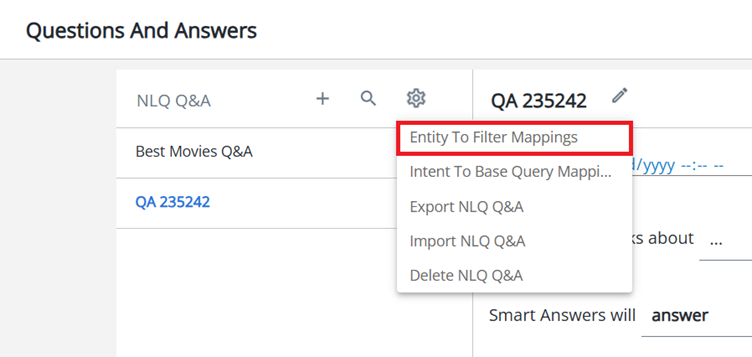
This section contains mappings between SmartHub filters/refiners and NLQ Service application entities.
-
An entity from the NLQ Service application must have a connection to a refiner from SmartHub.
The managed property used as a filter (refiner) must be searchable and queryable.
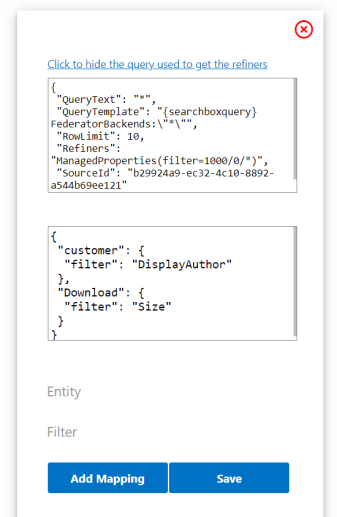
- The Click to show the query used to get the refiners link opens a sub-section with the query run in the search center to get the managed properties. The administrator can change it
- The administrator must choose an Entity and a Filter.
- Click the Add Mapping button and after all changes are made, click Save.
Intent-to-Base Query Mappings
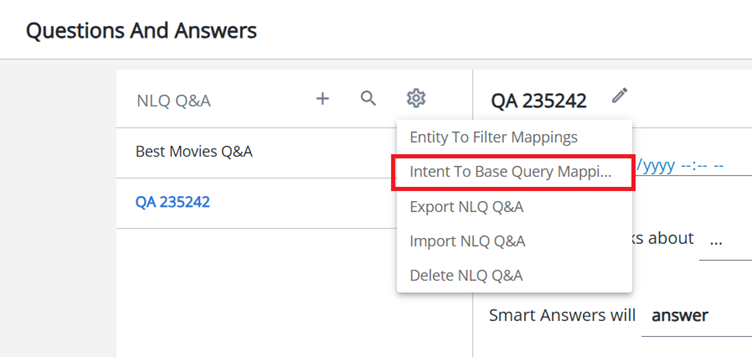
This section contains the mappings between the intents from the NLQ service application and a query.
Mappings Used in This Case
After the NLQ service detects the intent of the question and the user follows the conversation step, SmartHub returns the results based on the user choices and the query associated with the intent.
Example
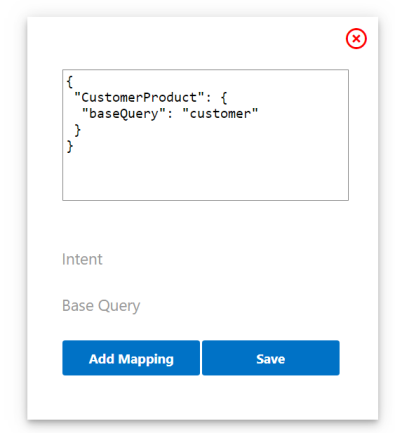
Based on the code in the image below, the following query is run in the Search Center:
customer AND "DisplayAuthor":"Administrator".
Export conversations
This section describes how to export the indexed bot conversations to a .csv file.
To use:
- Click on NLQ Q&A and select the type of conversation you want to export:
- NLQ Q&A
- Featured Results
- Click the settings icon.
- Click the Export button.
- File Name: The name of the .csv file.
- By default, the file name will be "SH Bot *type of conversation to be exported* *current date and time*"
- For example, for Featured Results, the default file name will be SH Bot Featured Results *current date time*.csv
- Enter the desired file name, or leave the default, and click Export.
- A .csv file with the desired name is downloaded.
The newly downloaded .csv file contains all properties of the exported type:

Import conversations
This section describes how to import a .csv file containing conversations of a specific type and adds them to the Elastic index.
To use:
- Click on "Conversation Topics" and select the type of conversation you want to import:
- NLQ Q&A
- Featured results
- Click the settings icon.
- Click the Import button.
- Click Choose file and select the .csv file that contains the conversations that you want to import.
- Click Import. The .csv contents are translated to the appropriate conversation type and added to the Elastic Index
All items in the .csv file you want to import must be of the same type. For example, if you want to import Featured Results, all items in the .csv file must be of type "Featured Results".
The .csv file to be imported has the following format:
- 1st row: Property names
- 2nd row onward: Property values

Delete Bot Conversations
This section allows you to delete all items of a certain type from the Elastic Index.
To use:
- Click on "NLQ Q&A" and select the type of conversation you want to delete:
- NLQ Q&A
- Featured results
- Click the settings icon.
- Click the Delete.
- Cancel: You are returned to the "Questions & Answers" page and no items will be deleted.
- Delete: All items of the selected type will be deleted from the Elastic Index.
Conversation Response Settings
When SmartHub receives a natural language query, it attempts to find a match, progressively, for:
- Featured Results
- If no match is found, SmartHub calls LUIS and based on the identified entity and intents, SmartHub then tries to find a match for:
- Question and Answer (Q&A)
How to Configure "Featured Results"
Use the following instructions to configure a Featured Results.
- Click on NLQ Q&A under Questions and Answers.
- Select Featured Results.
- Click the "+" icon next to the "Featured Results" text at the top left of the screen.
- Choose a relevant name for the Featured Result
- Added query terms. There two types of query terms:
- Regular strings. For example: priority, case, version
- Regex strings pattern for regex matching. For example: ([A-Z])\w+
- Added results source ids: This field will contain a list with results source ids of the user's query
- "ALL" is the default value. It means that all results source ids will be considered as valid.
- "ALL" is the default value. It means that all results source ids will be considered as valid.
- Choose the response method:
- "answer" - "HTML response": What the module tells the user before the results are listed.
- "search for" - "Query To Run template": Generates the query made to SmartHub if a match is found for this item. You can hover over the icon to see which fields can be used inside the template. C
- Choose a results source ID that is used to run the query and display results. The default value is "Current Source Id" which represents the result source id of the query made by user.
- Choose the template from the last field:
- Regular results
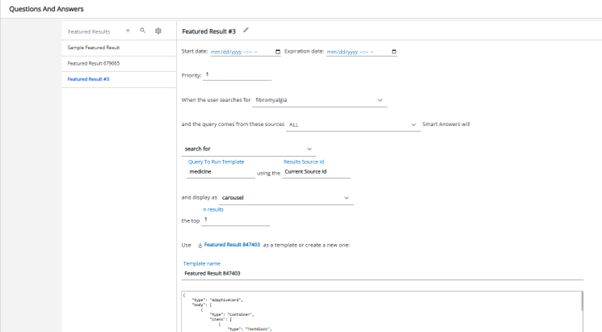
- Cards
- Carousel
- For cards or carousel display mode choose.
- n results - the top n results will be listed in SmartHub search page.
- Adaptive Cards JSON - The JSON template used to render the bot results.
Answer Display Mode
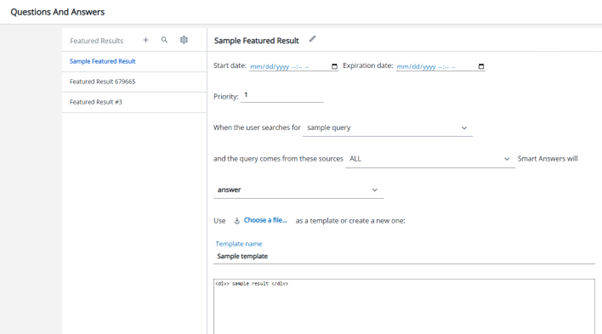
Regular Results Display Mode
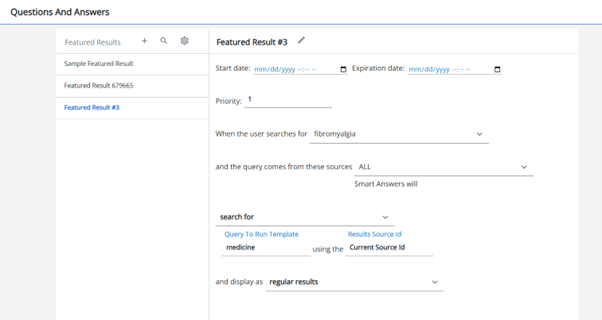
Cards/carousel display mode
How to Configure NLQ Q&A
Use the following instructions to configure a Question and Answer.
- Click on NLQ Q&A under Questions and Answers.
- Click the "+" icon next to the NLQ Q&A text at the top left of the screen.
- Choose a relevant name for the Q&A.
- Choose the NLQ Service intents that matches this Q&A.
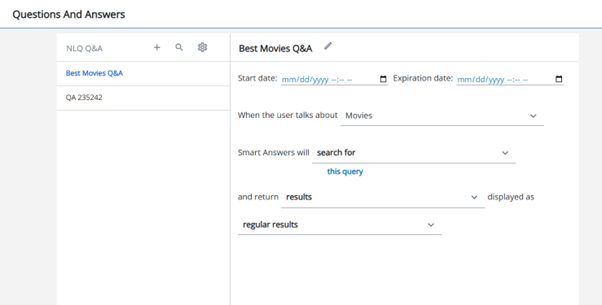
- Choose the response method:
- "answer" - "HTML response": What the bot tells the user before the results will be listed.
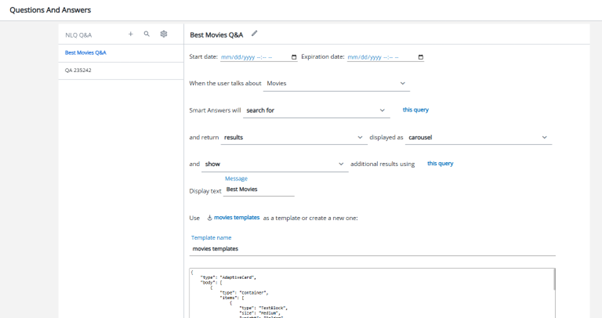
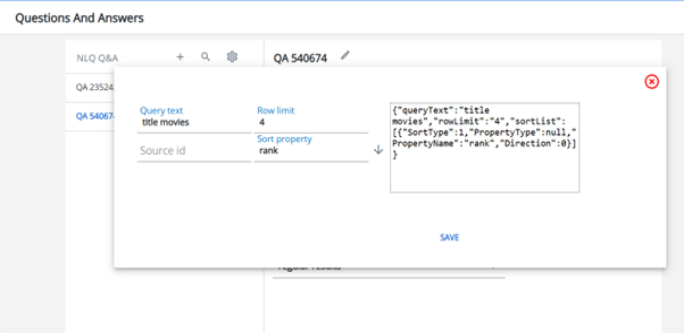
- "search for" - "Query To Run json object": Generates the query to be executed by SmartHub if a match is found for this item. Click on this query to open the query builder panel. On the left side, you can see the most common properties that can be altered in the query. The JSON query on the right side will be updated based on your input.
- Choose whether you want to pick up specific metadata from your results or the entire results set.
- metadata: Choose which metadata field to extract from results
- metadata: Choose which metadata field to extract from results
- Choose the template from the last field:
- regular results
- cards
- carousel
- To use a "cards" or "carousel" display mode choose:
- Display text: The text to be displayed on top of the card or carousel
- Adaptive Cards JSON: The JSON template used to render the bot results
Regular Results Display Mode
Cards/carousel Display Mode