Enable users to view saved queries and query history
About the Saved Queries/Query History Feature
- The Saved Queries component lets user save their favorites queries.
- The Query History component lets user see their history of queries.
DO NOT modify any native HTML page
Create a custom version of pages before modifying them. See how to Creating Custom Pages.
Leave native HTML pages as templates
Native files are overwritten at upgrade time
Configuring Saved Queries/Query History
UI Editor
-
To modify the Saved Queries feature on your HTML page, use the procedure below.
-
The easiest and fastest way to configure saved queries and query history is via the SmartHub UI Editor.
-
For information about how to access the UI Editor as well as who can access it, see How to Use the UI Editor.
Procedure:
-
SmartHub administrators can simply click the UI Editor link from the SmartHub Administration page.
-
Click the Select a page link from the top menu.
-
Select (double-click) the Results.html page.
-
Below, the Results.html page is shown for sample purposes.
-
BA Insight recommends you create your own custom page and folder to modify. Leave the default files as templates.
-
Example: Customizations/index.html, shown below. Default Index.html is under the top most SmartHub directory.
-
-
-
Select the Advanced mode from the top right of the page.
-
Select the Advanced HTML edit link at the top center of the page.
-
Place the following code fragment in the desired place for display on the page:
<div id='saved-query-component'></div> -
Click Save changes.
-
Click Advanced Settings Edit.
-
Locate the SH.SavedQueries.CustomSettings section.
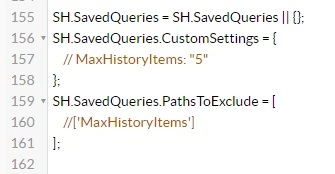
-
To access the available SavedQueries settings, click the See Default Settings link in the top right corner.
-
A new browser tab opens with all available SmartHub module settings.
-
Search for "SH.SavedQueries" to locate the following code:
SH.SavedQueries.DefaultSettings = {
    EnableSavedQueries: true,
    EnableQueryHistory: true,
    ShowSavedQueriesSortOptions: false,
    ShowQueryHistorySortOptions: false,
    RequiresTracking: true,
    TrackRefiners: true
    ParentContainerSelector: "#saved-query-component",
    TemplatePath: SH.RootLevelURL + "/modules/SavedQueries/templates/template.html",
    ModalPath: SH.RootLevelURL + "/modules/SavedQueries/templates/modal.html",
    GroupId: "Default", //Saved Queries components on different pages will show the same content if they have the same GroupId
    UserProfilePropertyName: "SavedQueries",
    MaxHistoryItems: 5,
    EmailTitle: "Useful query".toLocaleString(),
    EmailBody: "I thought you might find this useful: ".toLocaleString(),
    DeleteSavedQueryWarnMessage: "Are you sure you want to delete this query?".toLocaleString()
};-
Copy and paste the settings code in your custom settings file under
SH.SavedQueries.CustomSettingsback in your Advanced settings browser tab. -
Modify the code as you desire.
-
Click Save changes.
-
Click the link Preview <page>.html at the top of the code editor.
-
Observe the HTML page.
-
Make any changes and repeat as necessary.
-
Click Save changes after making changes.
Saved queries and query history settings
| Setting Name | Default Value | Description |
|---|---|---|
|
EnableSavedQueries |
true |
|
| EnableQueryHistory | true |
|
| ShowSavedQueriesSortOptions | false | When this setting is set to true, sort options will be displayed for the saved queries feature. When set to false, sort options will not be displayed. |
| ShowQueryHistorySortOptions | false | When this setting is set to true, sort options will be displayed for the query history feature. When set to false, sort options will not be displayed. |
| RequiresTracking | true |
|
| TrackRefiners | true |
This setting specifies if refiners are tracked in saved queries:
|
| ParentContainerSelector | "#saved-query-component" | Saved Queries component selector |
| TemplatePath | "/modules/SavedQueries/templates/template.html" | Saved Queries template path |
| ModalPath | "/modules/SavedQueries/templates/modal.html" | Modal template path |
| GroupId | "Default" | Saved Queries components on different pages show the same content if they have the same GroupId |
| UserProfilePropertyName | "SavedQueries" | Property name used for storing values |
| MaxHistoryItems | 5 | Number of history items |
| EmailTitle | "Useful query".toLocaleString() | Email title |
| EmailBody | "I thought you might find this useful: ".toLocaleString() | Email body |
| DeleteSavedQueryWarnMessage | "Are you sure you want to delete this query?".ToLocaleString() | User Profile service path |
Saved Queries Template
-
The SavedQueries template offers several options that can be modified.
-
The file can be found, as specified in Default settings at: <SmartHub_installation_dir>/modules/SavedQueries/templates/template.html.