A seed list contains a person, or people, who should be included in a campaign even though they do not match the campaign audience criteria, e.g. you might include yourself in a seed list so that you can see what time a campaign message arrives, any personalization is correct, the correct offer has been specified, etc.
Internal seed lists are created within the settings menu from data held within the Engage database.
External seed lists are created from the campaign menu by linking to data held outside Engage.
Adding seeds to the source data (internal seeds)
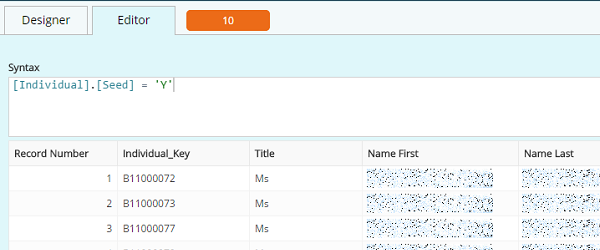
All seeds must be present and identifiable in the source data. To identify seeds:
-
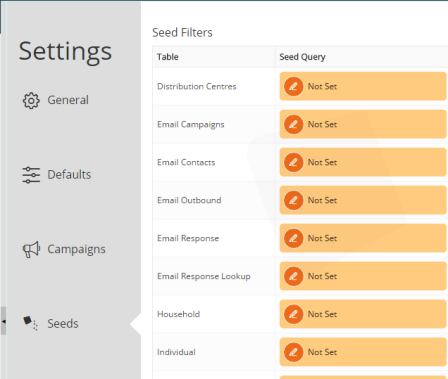
Open the settings menu then select seeds.
-
Next to the table that will contain seeds, click on the edit (pencil) icon to bring up a dialogue box.
Note: You can apply seeds to any table but it only makes sense to have them on tables on which you will be campaigning.
-
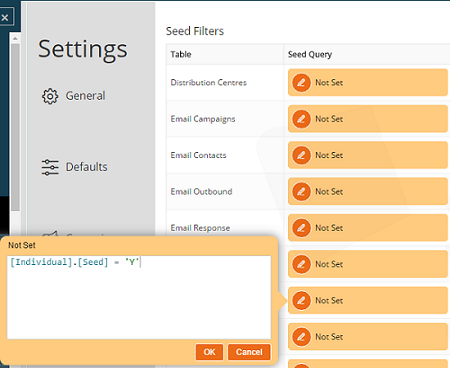
Locate the seed to apply and drag it into the dialogue box.
-
Click OK to add the seed to the table level and make it available to your campaigns.
Connecting to external seed lists
Note: when using an external seed list for campaigns, the column headers in the seed list need to match the headers in the campaign, e.g. if the column containing email addresses is called 'email' in the campaign, your seed list's column header needs to also be 'email' and not 'contact email', 'email address', etc.
-
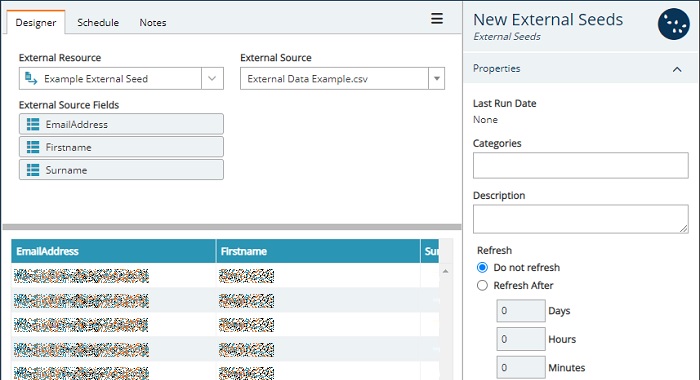
Click the create (+) icon in the navigation pane and select the external seeds element to open the designer page.
-
Select an external resource from the dropdown list. Contact your administrator if the external resource you require is unavailable.
-
Select an external source file/table from your chosen external resource using the second dropdown.
When the source is chosen, the list of fields will display in the external source field list. This allows the list of seed records to be previewed, saved and made available for use in campaigns.
-
In the properties pane, use the refresh settings to set the seed source to automatically refresh and reflect changes.