The New Expression option takes you to the Expression Builder, where you can create data that you do not have but for which you do have the source data. A common example of this would be where your source data contains an Individuals Date of Birth and you use an Expression to calculate their age.
For users of BlueAnalyzer, an Expression is the equivalent of a Virtual Field.
A small number of Expressions have their own syntax and are, therefore, only for use in BlueVenn.
Building an Expression
-
Click on New Expression in the Analysis menu.

-
The Expression Builder uses cumulative matching so, as you type the function, it offers suggestions so, if you type DAYSTO, you will see a list plus a pop-up of help on the function.
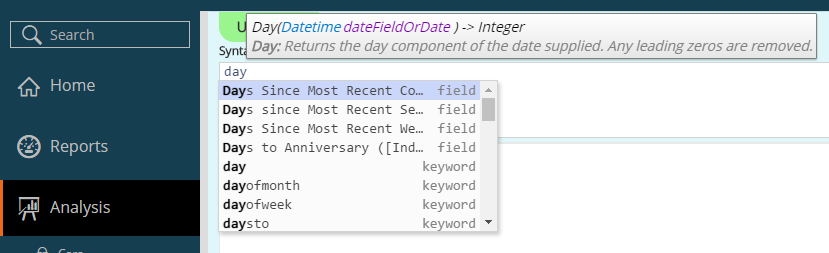
Note: You can find lists of functions and syntax in their own Help sections.
-
-
When you have entered your syntax, select the table level on the right-hand side of the window.
-
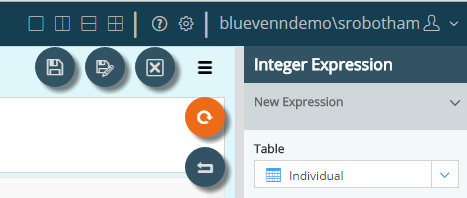
Open the hamburger menu and click the Refresh button.
Results are displayed in the main pane.
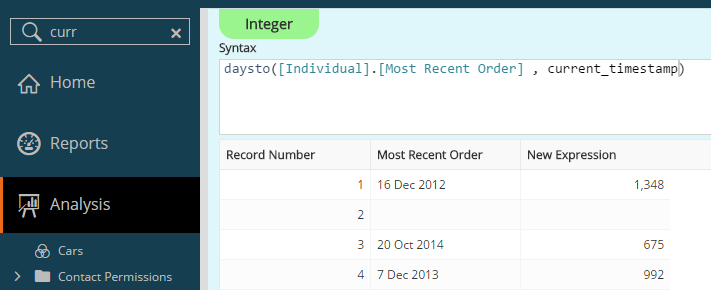
In this example, looking at the first Individual, it has been 1,348 days since their most recent order.
-
Save the Expression for future use.
Committing an Expression to an ADS
When an expression is built, it is only visible within Engage. If you have an ADS and would like to move the Expression back to the ADS for use in blueANALYZER as a Virtual Field, you can commit the field into the ADS.
Note: when you pull through an expression as a field in editor, the expression will flag as TRUE where the value matches the criteria and display blank for everything that does not, unless committed to the database. Once committed the field will record the Boolean value against the criteria, displaying True where the value matches and False where it does not match.
The Expression you build needs to be committed as a Calculated Field first.
-
Within the Analysis menu, locate your Expression, right-click on it and choose Build Calculated Field.
-
From the pop-up dialog click Commit. It then moves from the Analysis list to the ADS Source Table below.
-
Switch back to Analyzer, and add the link to the Expression from BlueVenn.
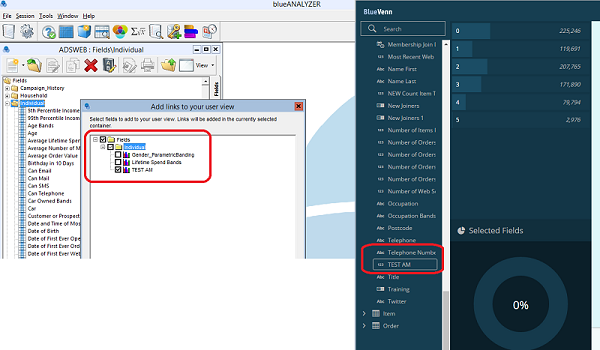
The calculated field option pushes the expression back into the ADS but does not automatically display it in each users session list view.
Expression Syntax Examples
The following are common examples from a full list of expression syntax functions.
CampaignSelection
CampaignSelection is used to build a selection that uses the Campaign Input Node. Once you build a selection you can manipulate the syntax directly within the Editor view as below:
Example: Find anyone who is currently on any campaign.

Example: Find anyone who has been through a specific campaign (ID 352) at any time.

Example: Find anyone who has been through a campaign within the dates shown (30 June and 2 August).

Example: Find anyone who is on a specific campaign (ID 352) and on a specific step (ID 5)

GeoSelection
You can use GeoSelection to select the records that fall within a circular or rectangular section of a map. When the records are displayed as a map, you use the selection tool to define the boundaries.
The GeoSelection expression determines the geographic boundaries for the selection.
Example: A GeoSelection expression for a circular selection is similar to the following:

The values shown are, in order from left to right - X position of center, Y position of center, circle radius
Example: A GeoSelection expression for a rectangular selection is similar to the following:

The values shown are, in order from left to right - X position, Y position, height of square, width of square.
ModelSelection
Models can be created, trained and scored within BlueVenn. The score is a value that is available against all records in the base group used for a model. This score provides the relevance for each record (or contact) within the model base group, where the larger the score is the more relevant that record is to the model's attribute.
The score can only be interrogated using a selection node or campaign step containing the Dynamic Node and the model option from the context panel. Selecting the model and score requirements will generate the ModelSelection syntax.
Example: Take the first (or top) 1000 records based on the score value within the model specified (200 is the ID of the model chosen).

Example: Take the records that have a score over 0.02:

The score is between 0 and 1.
To find the largest score, you can start with a TakeOver of 0.9 then iterate on lower score numbers until you find the largest.
Example: Take the records that have a score over 0.015:

Example: Take the records that have a score under 0.02

TagSelection
You can associate a tag with a group of contacts, then use TagSelection to select the contacts who have been associated with a specific tag. When contacts have been added to a Tag during a campaign, you can identify who those contacts are within a selection using a Tag Node.
Example: Find all contacts in Tag 202 (saved as the name Tag A):

Example: Find all contacts in Tag 202 or Tag 205 (aka Tag A or Tag B):

To empty a tag, locate it in the navigation bar, right click on it, and choose Clear.
To delete the records from a tag inline with a campaign, use the Delete action.
TagValueSelection (External Data)
When using the external data function, use TagValueSelection to identify which records to select. The syntax requires the ID of the External Data source (195), the selection criteria, and how many records to select.
Example: Pull the first 1000 records from the external data source:

Currently it is not possible to select the incoming data values for numeric attributes, for example greater than 9 or less than 999. This means the incoming data source will need to be provided in the order required for use within BlueVenn.