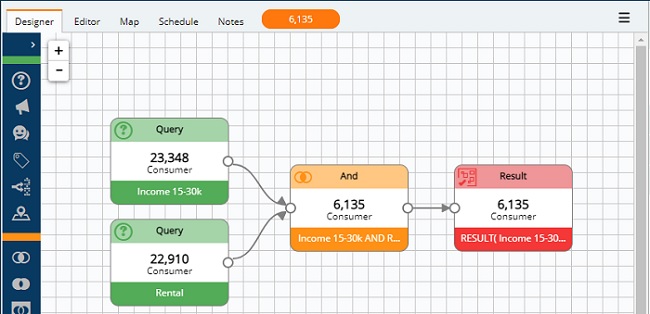
After you have built a selection, the final count and result is defined in your result node. To view additional information about your selection, click on either the Editor or Map tabs.
The selections editor tab
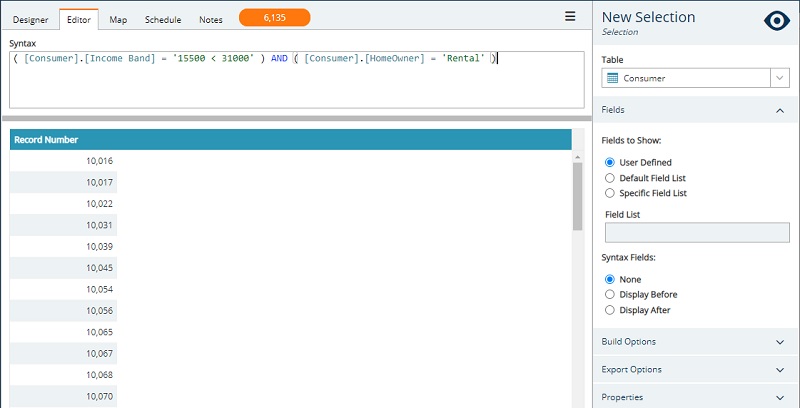
Clicking the editor tab at the top of the screen displays the selection built on the designer tab as a syntax line. On this tab you can refine your syntax, change selection properties, and view record numbers.
Selection syntax
You can refine your selection by editing the contents of the syntax pane, e.g. add additional criteria.

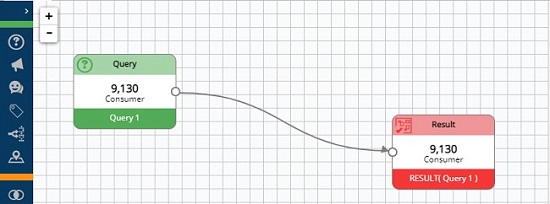
Note: When you make changes to the syntax, Engage restructures the query into a single input element on the designer tab.
Selection properties
When on the editor tab, the properties pane includes a tab-specific fields entry that allow you to define how your records are displayed.
Fields to show defines what data fields you will see in the Record View:
- User Defined: Allows you to drag and drop the fields you want to see in your record view.
- Default Field List: Uses a default field list if one has been set up in your settings.
- Specific Field List: Allows you to select a Field Template. Once selected, the fields from that template will show in the Record View.
The Syntax fields are used for sense checking your selection output to ensure you are selecting the right data.
- None: Selecting this option (Default) will not display any of the fields used in this selection.
- Display Before: Displays the Syntax fields before your selected "Fields to Show" - if any have been configured.
- Display After: Displays the Syntax fields after your selected "Fields to Show" - if any have been configured.
Record numbers
By default, only record numbers are displayed for a given selection. Configuring field list and syntax field options, as above, enables more detailed results, e.g. select to display the database fields and customer details alongside the record number.

The selections map tab
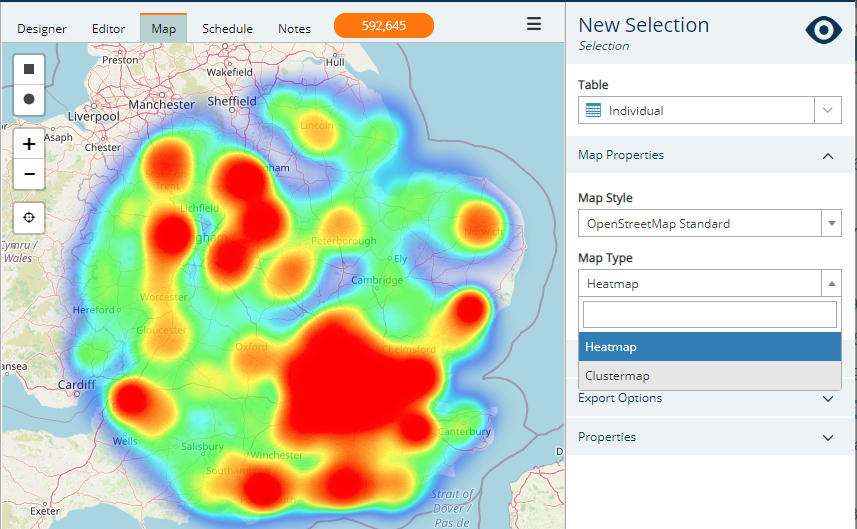
The map tab allows you to view data records in a map view as either a heat map or clustered points. You can also make a new selection from a map.
Note: mapping is dependent on a postcode field role being present. Contact support if you need this feature configured.
A count is displayed to indicate how many records are mapped. Note that "mapped" and "displayed" are not the same so the number does not change as you zoom in or out.
-
Select the preferred map type from the dropdown in the properties pane.
-
Use the + and - buttons to zoom (or use the scroll wheel on your mouse).
Make a selection from a map
Within the map view, you can capture new selections for use elsewhere within Engage.
-
Zoom in on the region desired
-
Click on the rectangle or circle Select icon, to the left-hand side of the map display
-
Use the mouse to click and drag the region
-
On release of the mouse button, the selection will be made
-
The orange count box will now have a second, smaller number, which represents the selected records
-
Right-click on the smaller number to select one of the save options:
- New Campaign audience
- New Venn diagram
- New Selection
- Add to a Tag
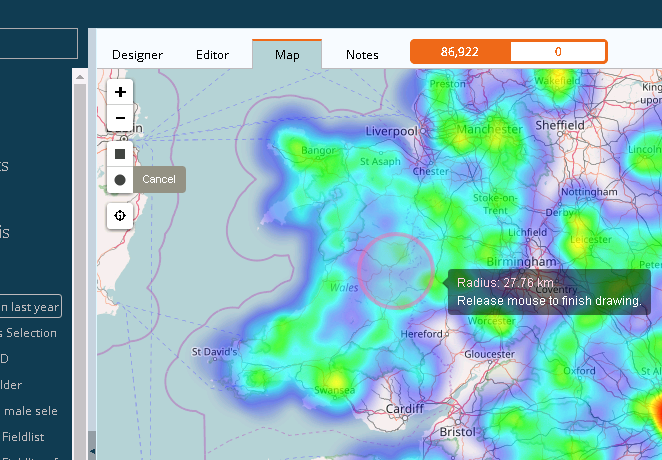
The above example maps all individuals who have purchased in the last year (86k). You can select a radius of this data, which is then visible as a separate, smaller count to the original number in the orange box.
The syntax for the selection is visible via the Editor tab. You'll see this uses the Geoselection expression, which picks the Long/Lat values from the map, and also the circular radius size to select the individuals from the original selection:
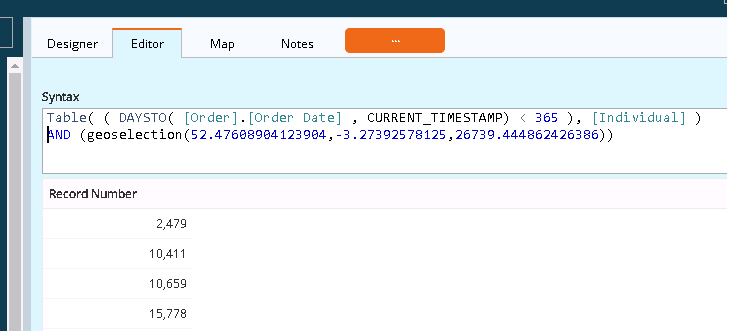
This data will then be available to save, add into any required selections, reference in bandings or campaigns.
Note: Mapping international customers
In a single country database you can set the Post Code or Zip Code fields to the Geo-mapping function inside Engage. However, for international businesses, use Latitude/Longitude fields to enable international map views like the one below:
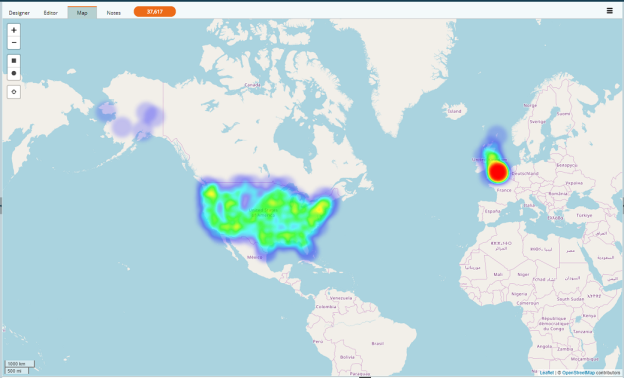
If Latitude/Longitude fields are not available and the Post Code/Zip Code data is held across separate fields, a derived field will be required in the source database to store the data as one. This new field can then be used to map to the Engage Geo data for mapping international household records.