Building a campaign from a blank canvas opens a campaign window with a blank designer pane. Here you can drag and drop campaign steps onto the canvas and link them to create any type of campaign you choose.
-
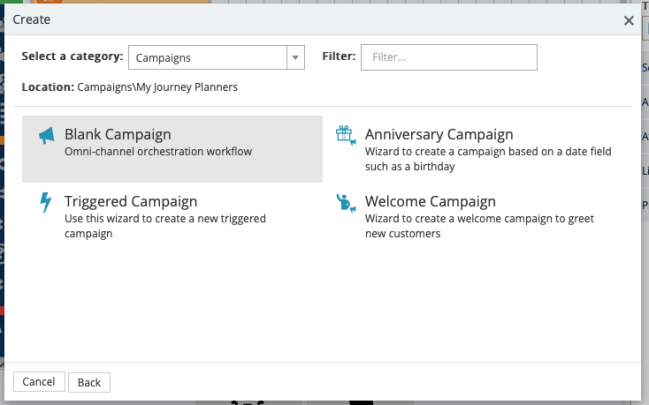
click the + icon in the navigation pane and select Campaign... from the available options. This provides you with a second menu with the option to start from a blank canvas or use a wizard.
-
Select Blank Campaign to open the campaign window.
-
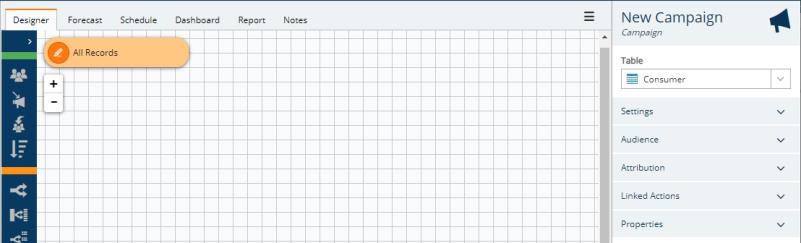
The campaign domain defaults to all records. You can enter a query here to limit the data available to the campaign by clicking on the orange lozenge to open a query box. e.g. only use individuals that have consented to receiving emails.
-
Select a table for the data you wish to work with, e.g. Consumer.
-
Add an Audience step to pull the campaign audience from the domain.
-
Add a Decision step to separate your audience into different groups for different processing paths. This step is optional. If your entire audience will be processed the same way, you do not need to use a decision step.
-
Add an Action step to control the logic of the processing path(s) and perform actions, such as generating a communication.
-
Continue adding and linking steps until you have built all the paths your customers can take within a campaign.
-
Add an Exit action to each path.
-
Test your campaign.
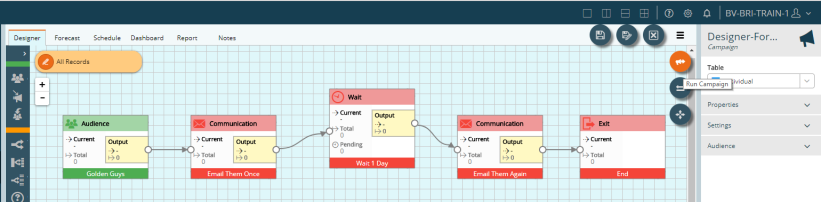
Example: A simple campaign to send two emails, one day apart, to everyone in the audience might look like this:
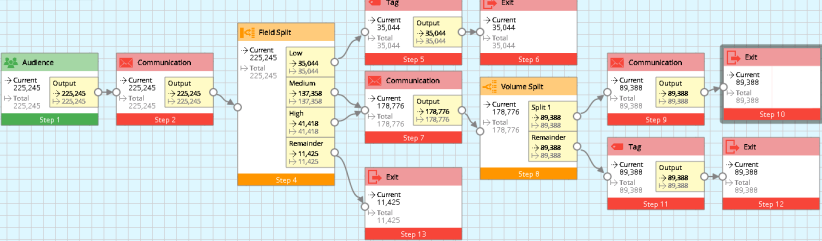
Example: A more complex campaign might look like this:
Example:
Once you have built and saved your campaign, you can use the other Campaign features to forecast a campaign's cost and reach, set a schedule for a campaign, build email creatives for your customer communications, and attribute transactions to a campaign.