Enabling Two-Factor Authentication
Two-factor authentication (2FA) enhances the security of your Unify system by requiring users to enter a code sent to their mobile phone to complete a login.
Note: 2FA must be enabled before it can be used. Contact your Upland BlueVenn support team to have 2FA enabled on your system.
Logging into Unify with 2FA
-
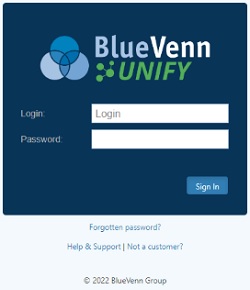
Open Unify and enter your username/login and password.
-
Upon pressing the Sign In button, Unify will send a code to the mobile number associated with your account.
-
If you had a login prior to 2FA being enabled, you will be prompted to first enter a mobile number to register for 2FA access.
Note: phone numbers have to be entered with the international dialing code, e.g. +447654321007.
-
-
Enter the code into the textbox on the sign in page and press the Enter Code button.
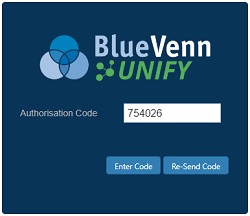
Upon entering a valid code, you will be taken to the Unify homepage.
Codes are valid for ten minutes. After this time, you will need to use the Re-Send Code button to receive a new code.
After three failed attempts at logging in, you will be returned to the login screen.
Troubleshooting 2FA
-
If a code is not received, contact your system administrator to verify your correct mobile number is included in your profile. By default, Users with the Super User or Administrator security roles can change phone numbers.
-
If no user is receiving codes, contact Upland BlueVenn support to verify the SMS configuration details have been included during setup.