You can view your profile information by clicking your name in the upper right-hand corner of the Unify window. Here you can change your password, set your view preferences, and edit your contact details.
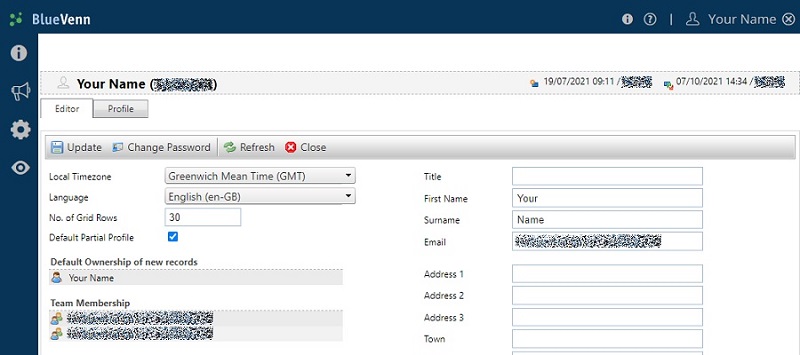
Your profile page also shows your team membership.
Change your password
As a new user, you will be supplied with a unique username and link to the Unify login screen. If you have been provided with a temporary password, log in and change your password by:
-
Accessing your user profile by clicking on your name in the top right-hand corner of the page.
-
Clicking on change password and enter your current/temporary password under current password.
-
Entering your preferred password. Next time you log in, you will be able to use this new password.
If you haven't been provided with a temporary password, click on forgotten password to receive a temporary password via email then follow the steps above.
Set your view preferences
Depending on how your system is configured, you can use the dropdown menus to select a local timezone and language (EN-GB, EN-US, FR, D).
The number of grid rows allows you to define how your paginated tables appear, limiting the number of grid rows viewed.
Edit your contact details
In addition to your name and the email address used to register your access, you can add additional details, such as contact address, by typing directly into the text boxes to the right and clicking update to save changes.