The Data Health menu provides you with tools to monitor system performance, avoid data duplication, and update profiles using an email list.
Check Process Status with System Monitor
The System Monitor UI provides you with a single resource for quick interrogation of active processes within the Unify system, allowing for rapid identification of processes requiring administrator attention.
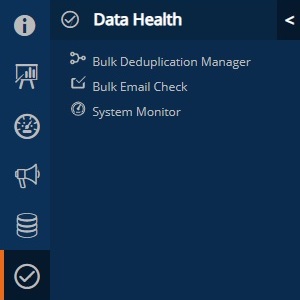
Under Data Health, locate the System Monitor option.

-
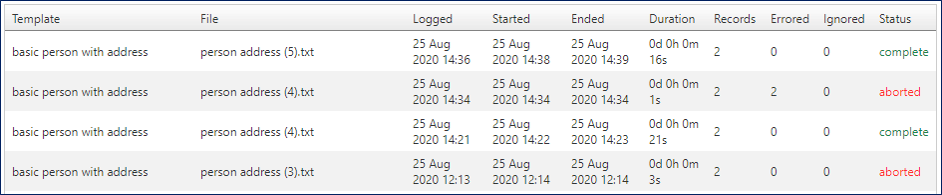
The ETL Queue shows a record of processes that have run with status indications for each record.
-
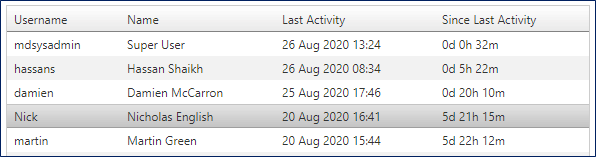
The Last Activity tab shows the date of each user’s last activity and the time since that activity.
-
The Pivot Rebuilds tab lists the number of rows and columns in each pivot alongside the date of the last rebuild.

-
Additional Pivot data is included under the Pivot Log tab.

Bulk De-duplication
The Bulk De-duplication module allows data removed from Unify and merged to be applied to the database. The file ready for loading should be in the following format:
- Person_ID – database person URN
- Address_ID – unique address ID
- Match_Ref – code which links records ready to merge.
From the Bulk De-duplication module:
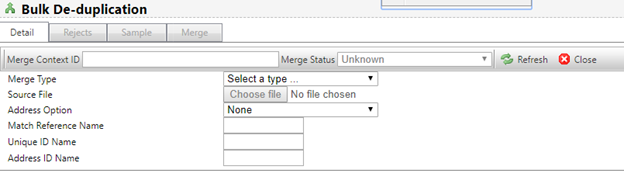
- Use “Merge Type” to select the merge level – this will tend to be carried out at Person level.
- Click on “Choose File” to select the data file.
- Once set up, click through the tabs as follows:
- Rejects – shows those records that can’t be updated by the process
- Sample – shows examples of the data that will be updated
- Merge – after clicking through the above tabs, the Merge tab is available. This includes the “Do Merge” button which allows the merge to be run.
Once complete, a simple report is produced.
Bulk Email Checker
You can use the bulk email checker to upload a list of emails from a txt/csv file and the module will run a match and return those people. You can then either export the data or flag these people against a profile field using the Update Profile feature.
-
Select the file you want to load up and then press Process File.
-
Use the Update Profile settings to flag these records with a profile field.