AP Posting
The AP Posting module is where you can generate your accounts payable file. Since Cimpl has your current inventory, invoice and HR data which is reconciled automatically each month, AP Posting can help you tackle another component of your billing life cycle. Only accounts which have been confirmed in full or in part will appear in AP Posting.
The module is highly configurable and requires evaluation from Cimpl to set up. If you are interested in using the AP Posting module, contact cimpl-support@uplandsoftware.com to begin the process.
Once the module is set up, go to Billing Center > AP Posting.
You can:
-
Generate an AP file.
Approvals
You can configure an approval process for AP posting. The AP posting approval process uses the Request Center to send a an approval request to an identified approver or approvers. To set up the approval workflow, go to Request Configuration.
The AP Posting grid
You can rearrange and select the grid columns for the Advanced Analysis grid, see Modify grid columns .
Note: Only accounts which have been confirmed in full or in part will appear in AP Posting.
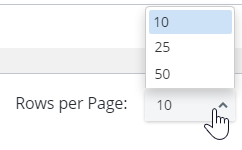
The grid view displays 10, 25, 50 entries per page. By default, 10 entries are shown. You can select a different number of entries to be viewed and Cimpl bookmarks this preference.
Filter & Search
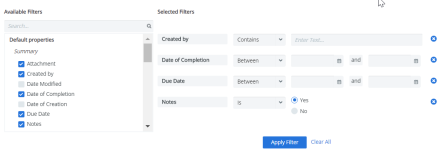
Like other modules in Cimpl, the AP Posting module supports an advanced search and filter. Every default property and additional attribute can be used a filter.
-
Expand the Filters section.
-
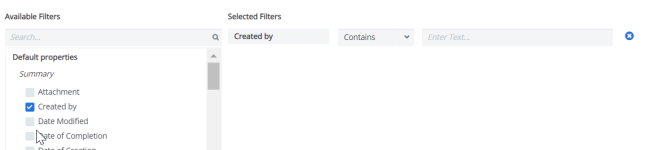
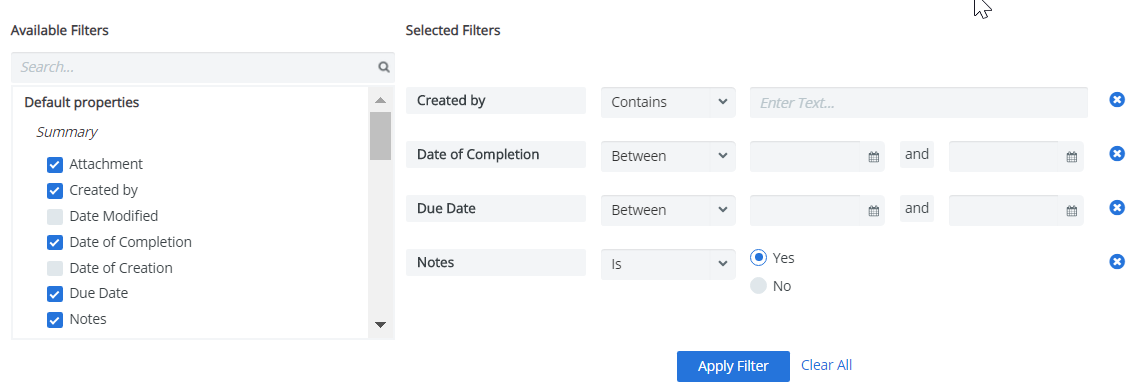
Select a filter. The filter appears under Selected Filters.
-
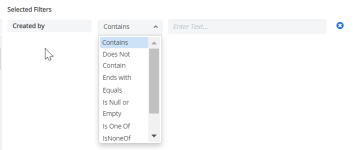
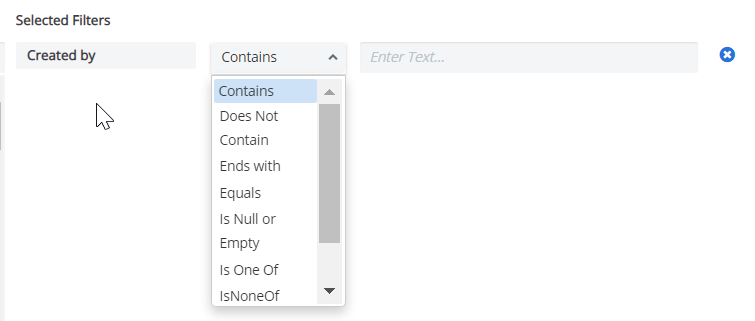
Select the filter operator.
- Enter filter values.
-
Repeat steps 2-4 for all selected filters.
-
Click Apply Filter. The Filter icon appears blue once the filters are applied.

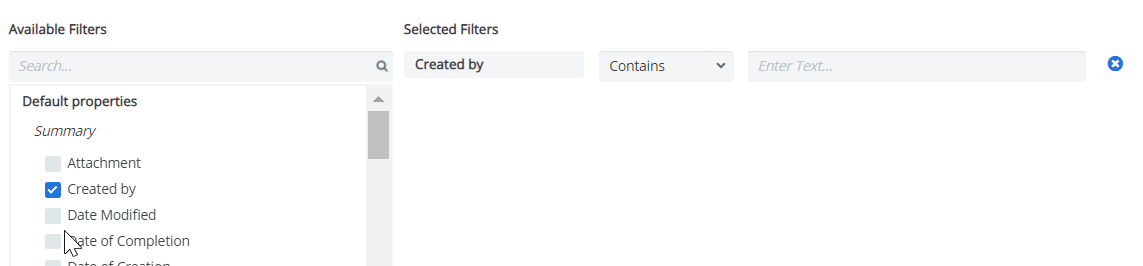
Deselect any filters:
- Click the X to the right of the filter and then click Apply Filter.
Remove all filters:
- Click Clear All and then Apply Filter.
Note: The filters that you've selected will remain applied, even if you log out of Cimpl. The filters are bookmarked and will only change if you click Clear All or after you set new filters and click Apply Filter.